Skip to content
Get in Touch

Foundation Setup

4
  • Migrate Engagement Data from Account Engagement to Marketing Cloud Next
  • How to Import Customers into Marketing Cloud Next
  • How to set-up Marketing Cloud Next
  • How to configure Marketing Cloud Next

Customer Engagement and Personalization

1
  • How to use Data Graph in Marketing Cloud Next

Consent Management

2
  • How to manage consent in Marketing Cloud Next
  • How to manage Consent between Marketing Cloud Engagement and Marketing Cloud Next

Email Templates

1
  • How to Personalise Emails with Merge Fields in Marketing Cloud Next

Campaign Flows

1
  • How to set-up an A/B Test Flow in Marketing Cloud Next
View Categories
  • Home
  • Marketing Cloud Next
  • Consent Management
  • How to manage Consent between Marketing Cloud Engagement and Marketing Cloud Next

How to manage Consent between Marketing Cloud Engagement and Marketing Cloud Next

1 min read

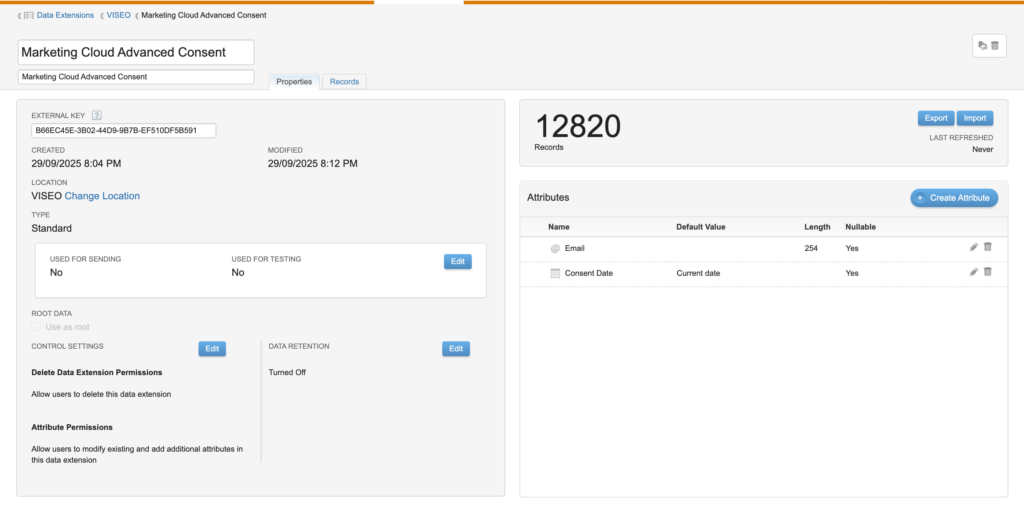
Step 1: Create Data Extension #

Begin by setting up a Data Extension in Marketing Cloud Engagement with the following field attributes:

  • Email – Email address of the subscriber
  • Consent Date – Date when consent was provided
Step 2: Configure Automation Studio #

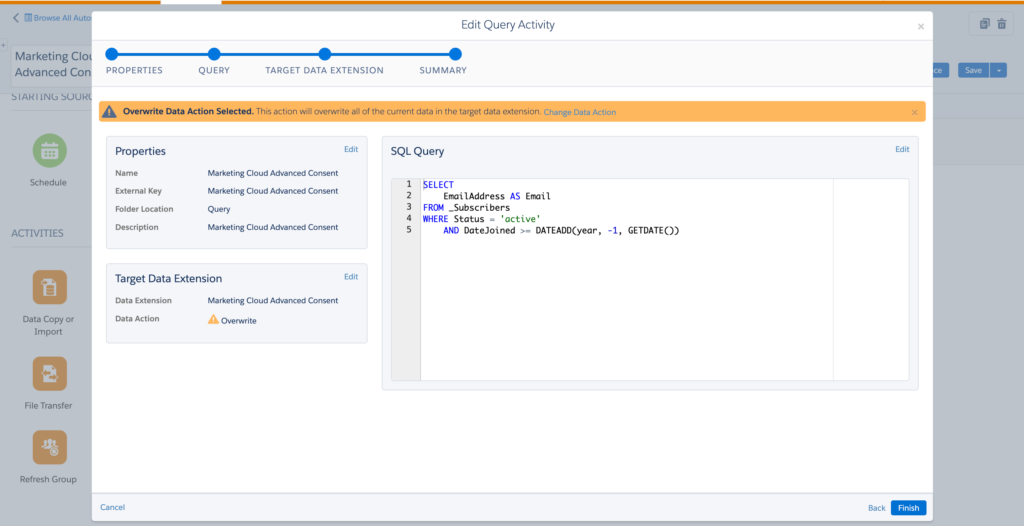
Create an automation in Marketing Cloud Engagement to retrieve all active subscribers from the past year.

SQL Query #

Use the following SQL query to extract active subscribers:

SELECT
    EmailAddress AS Email
FROM _Subscribers
WHERE Status = 'active'
    AND DateJoined >= DATEADD(year, -1, GETDATE())

Note: This query filters for subscribers with an active status who joined within the last 12 months.
Step 3: Export via SFTP #

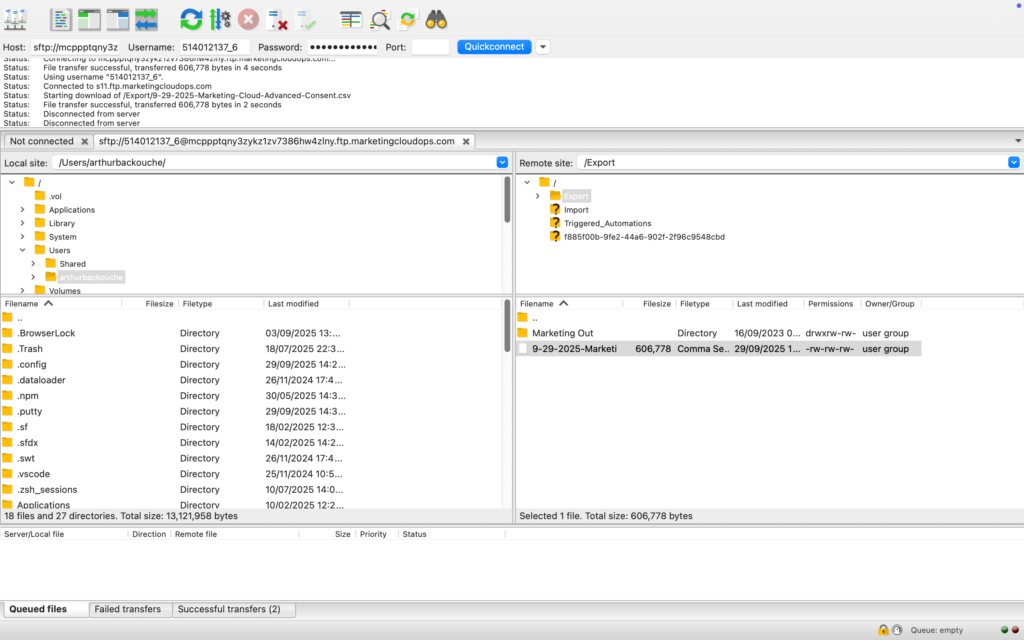
Export the Data Extension to a CSV file using the Marketing Cloud SFTP functionality:

  1. Connect to the Marketing Cloud SFTP server using an FTP client (such as FileZilla)
  2. Locate and download the generated Data Extension CSV file
  3. Save the file to your local system

Step 4: Import to Marketing Cloud Growth #

Complete the consent migration by importing the CSV file into Marketing Cloud Growth:

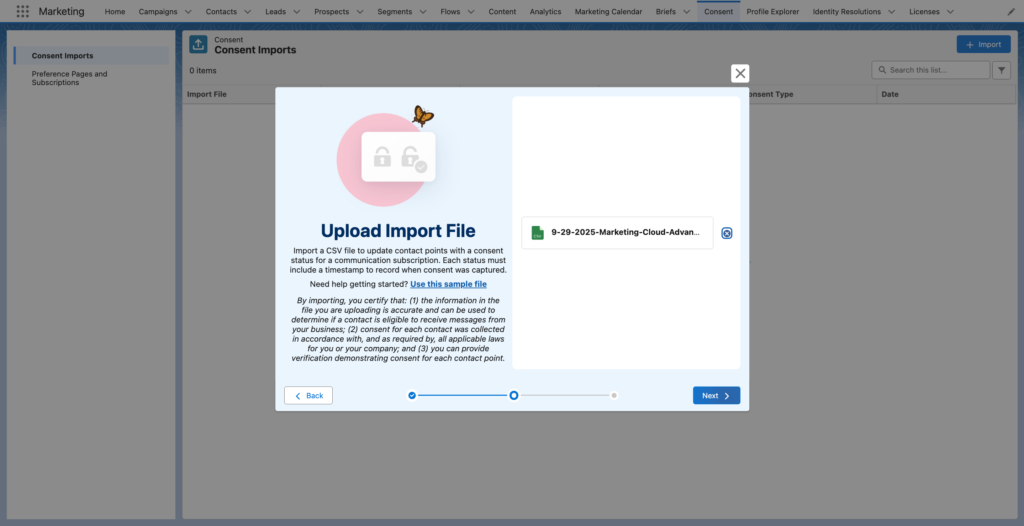
  1. Access the Consent system in Marketing Cloud Growth
  2. Upload the CSV file containing email addresses
  3. Process the import to opt-in the individuals listed in the file

This process ensures all active subscribers from Marketing Cloud Engagement are properly consented in Marketing Cloud Growth.
Updated on January 8, 2026
Consent

What are your Feelings

  • Happy
  • Normal
  • Sad

Share This Article :

  • Facebook
  • X
  • LinkedIn
  • Pinterest
How to manage consent in Marketing Cloud Next

Leave a Reply Cancel reply

Your email address will not be published. Required fields are marked *

Table of Contents
  • Step 1: Create Data Extension
  • Step 2: Configure Automation Studio
    • SQL Query
  • Step 3: Export via SFTP
  • Step 4: Import to Marketing Cloud Growth

Summarize your business so the visitor can learn about your offerings from any page on your website.

Facebook-f Twitter
Services
  • Service 1
  • Service 2
  • Service 3
  • Service 4
  • Service 5
Quick Links
Get In Touch

123 Main Street
New York, NY 10001

  • Email: [email protected]
  • Phone: 123-456-7890
  • Hours: Mon-Fri 9:00AM - 5:00PM

© 2026 All Rights Reserved.