In Marketing Cloud Next, we have the possibility to get access to a feature named Einstein Send Time Optimisation (STO). This feature allows us to send an email at optimal time.
What is Einstein Send Time Optimization? #
Einstein Send Time Optimization in Marketing Cloud Next helps Marketers delivering Emails at optimal times. Salesforce fully integrated the AI feature within the Marketing Cloud Next Platform making it available for each emails elements within the flows.
Einstein Send Time Optimization with global model #
A common challenge that organisations are facing is that a lot of email sending activities are required for generating the Data that will be used by the predictive model for delivering accurate insights. Salesforce solved this issue by providing the Einstein Send Time Optimization with global model.
The Einstein Einstein Send Time Optimization with global model allows organisations to get started fast with the AI feature as it is pulling insights from all the Salesforce orgs that are sharing Data with the Global Model. The Data shared to feed the global model is anonymous and no sensitive information (such as Email Address, Company, etc. are shared).
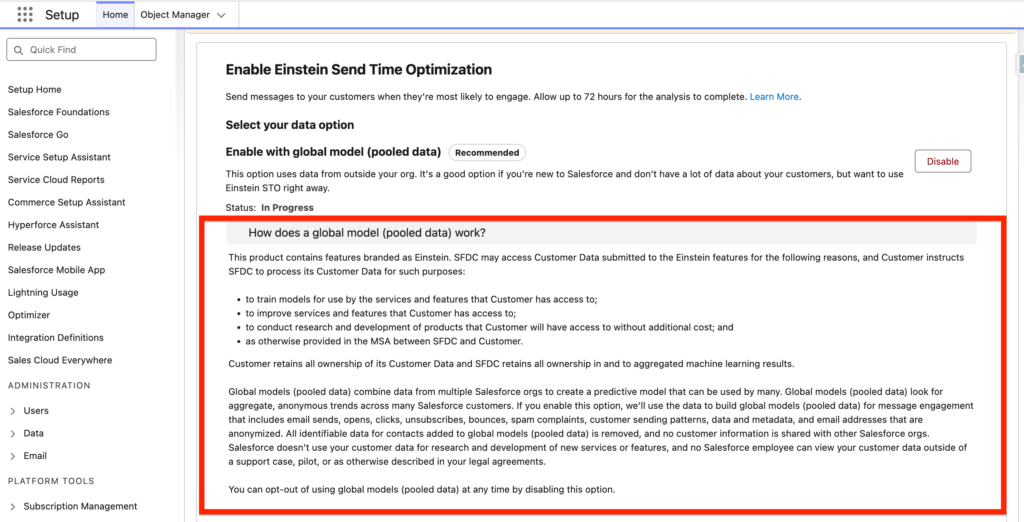
Prior to enabling this feature you need to ensure:
- An Identity Resolution Ruleset is created on the Individual Data Model Object.
- A Data Graph is created so that the Einstein STO can be used within your flows.
The Deployment of the feature can take up to 72 hours.
Einstein Send Time Optimization with your org-specific data #
If your organisation is sending enough email communications, you will have the possibility to enable the Einstein Send Time Optimization with your org-specific data. This option relies on the emails that you have sent over the last 90 days within your Salesforce org and is based on the following parameters:
- Email sends, bounces, and engagement events including opens, clicks, unsubscribes, spam complaints, and associated timestamps
- Data and metadata about customer sending patterns, including how campaigns are executed
The Einstein Send Time Optimization insights/predictions are refreshed on a Weekly basis.
How to Setup Einstein Send Time Optimization? #
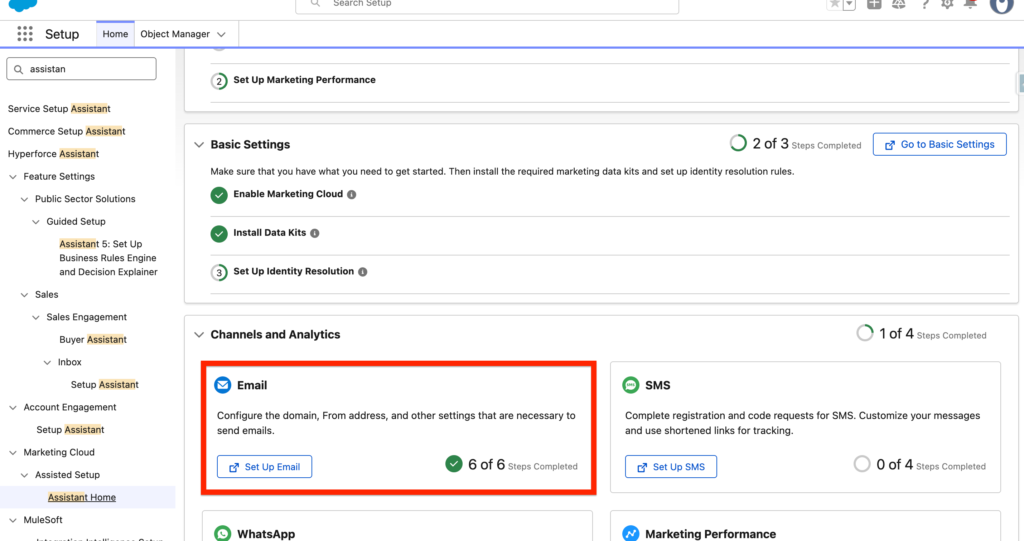
In order to set-up Einstein Send Time Optimisation, we will need to navigate into Salesforce Set-up, Assistant Home, and then click on the Email Channel Configuration.
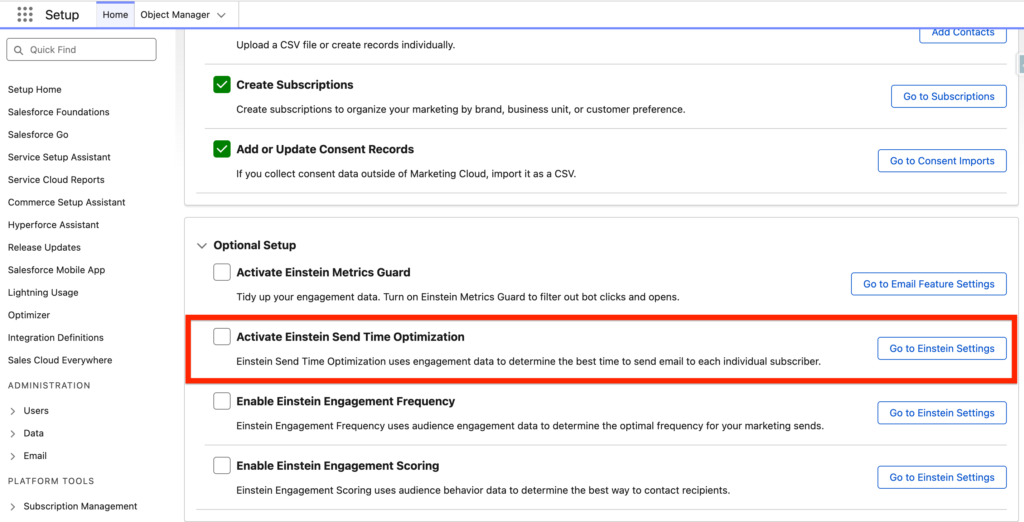
On the page, we will click on the ‘Go to Einstein Settings’ located into the ‘Activate Einstein Send Time Optimization’ section.
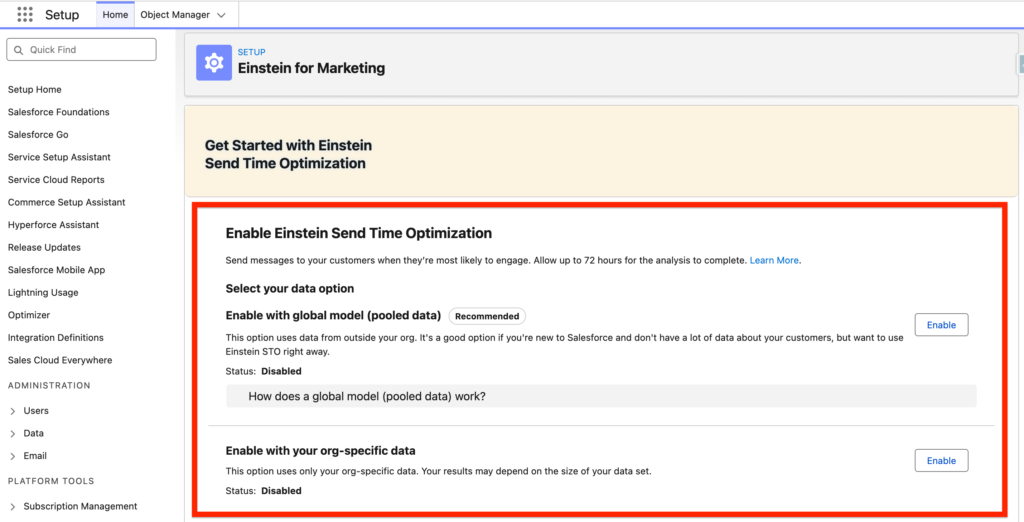
Then, we will enable the first options below:
- Enable with global model (Pooled data) – This option can take up to 72 hours.
How to use Einstein Send Time Optimization? #
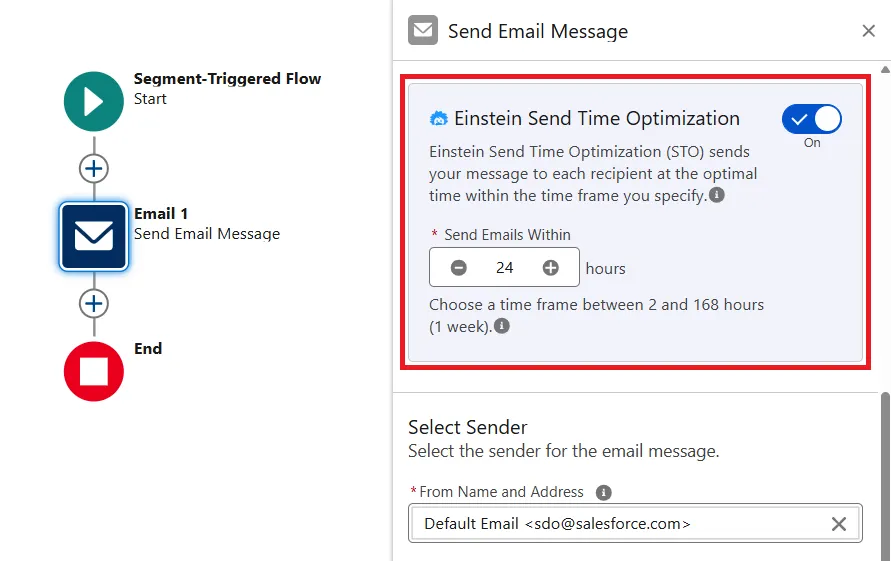
When creating your Campaign flow that contains an Email element you will have the possibility to turn on Einstein Send Time Optimization – and define the option ‘Send Emails Within’ – where you are providing a time window for the Predictive Model to send the email (i.e. Send the email within the next 24 Hours).
How to Monitor Einstein Send Time Optimization? #
You will have the possibility to create reports in Marketing Cloud Next by clicking on the Report tab, Selecting ‘Data Cloud’ and then ‘Einstein Send Time Optimization’ report or ‘Contact Point Email with Email Send Time Optimization’.
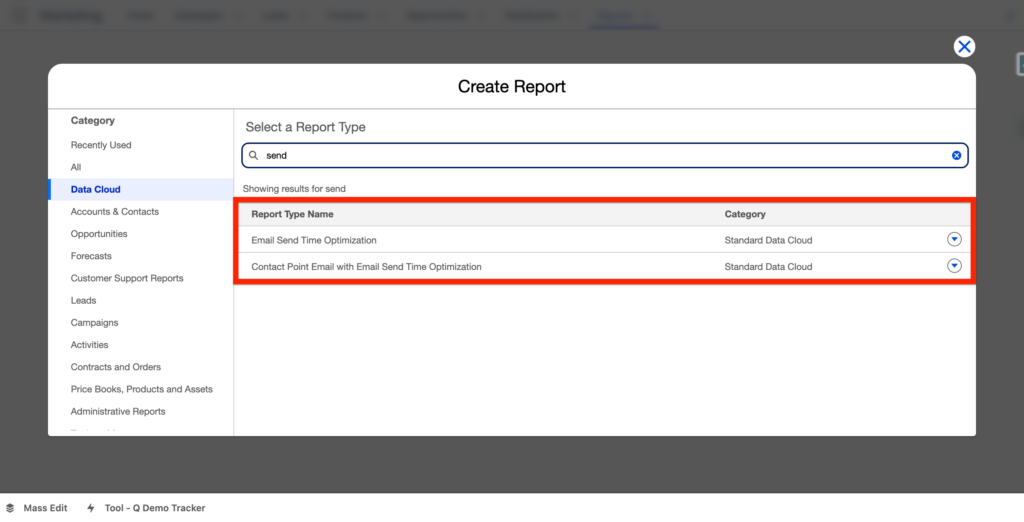
Once the report selected you can use the following fields:
Organization Id : The core ID for your organization.
Contact Point Email Id : The contact point email IDs that are represented in the time of the week number.
Time of Week : A number from 0 through 167 that represents the best send hour for each contact point email ID, starting on Monday at midnight. For example, Monday midnight is 0, Monday 1 AM is 1, and so on, and Sunday 11 PM is 167.
Created Date : The most recent date-stamped data.
Ressources:
https://help.salesforce.com/s/articleView?id=mktg.mktg_admin_setup_einstein.htm&type=5
https://help.salesforce.com/s/articleView?id=mktg.mktg_einstein_model_card_esto.htm&type=5