General Setup #
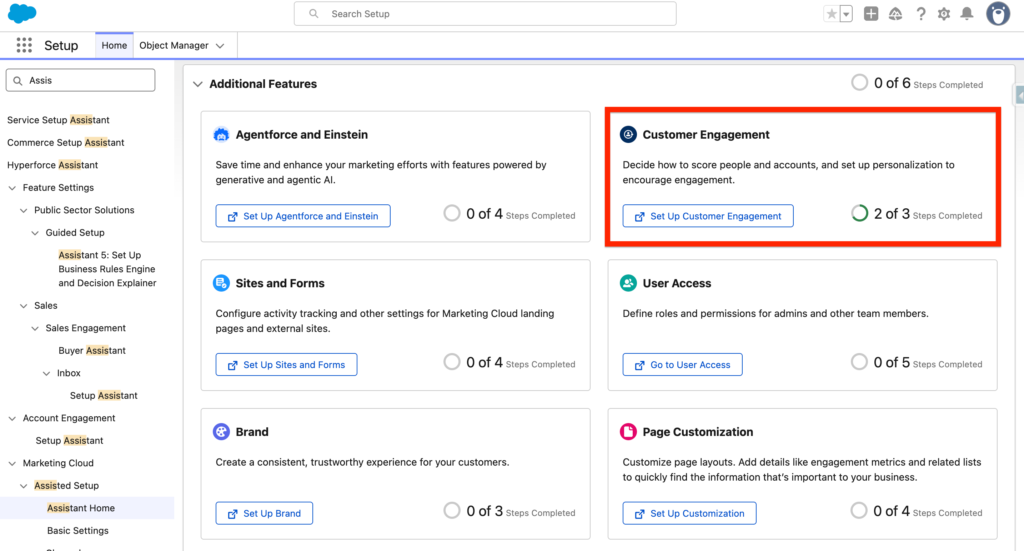
In Salesforce navigate to Set-up and and select the Assistant Home tab. Within the Customer Engagement tab click on the ‘Set Up Customer Engagement Support’.
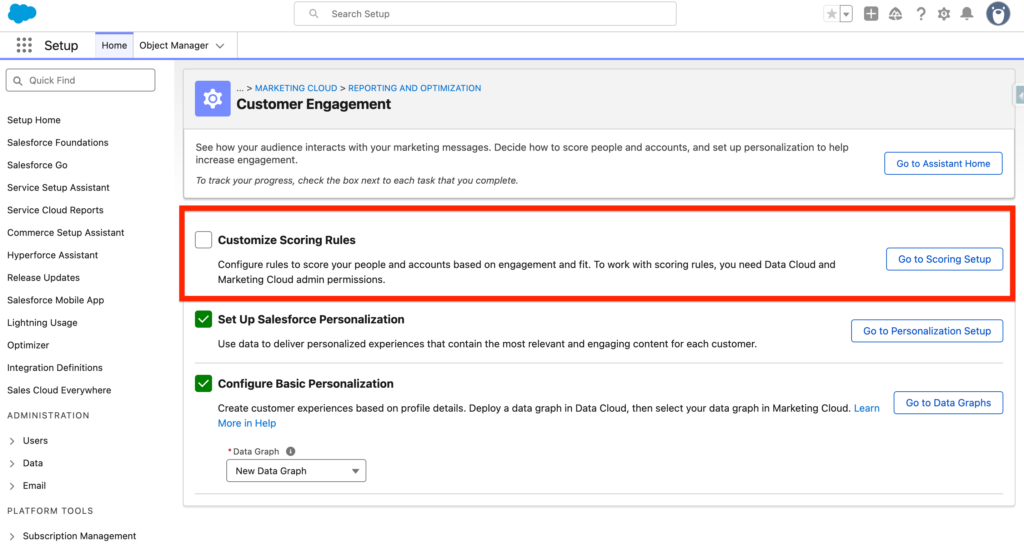
Within the Customize Scoring Rules section click on the ‘Go to Scoring Setup’.
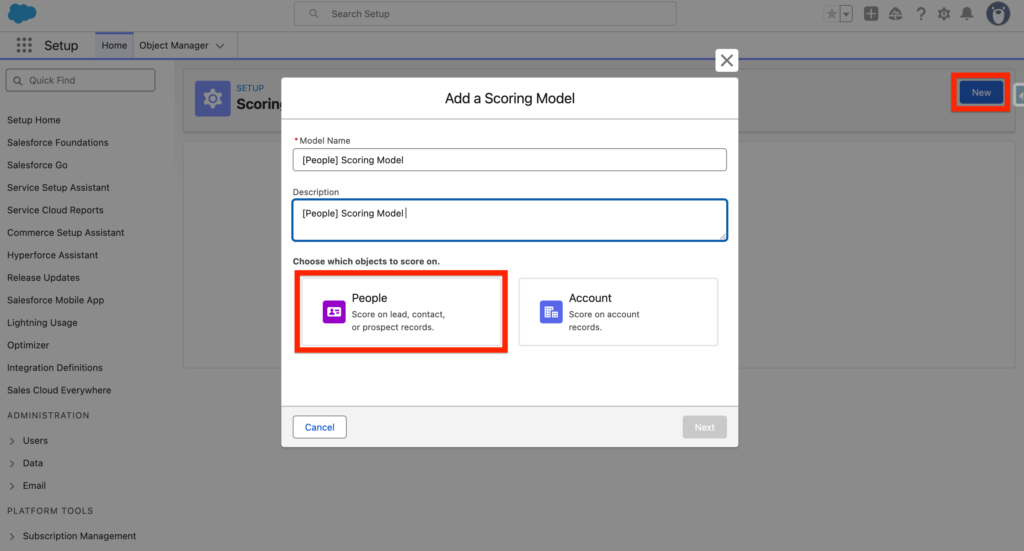
We will now create a new scoring model. Click New then give a name and description and select People. Click Next.
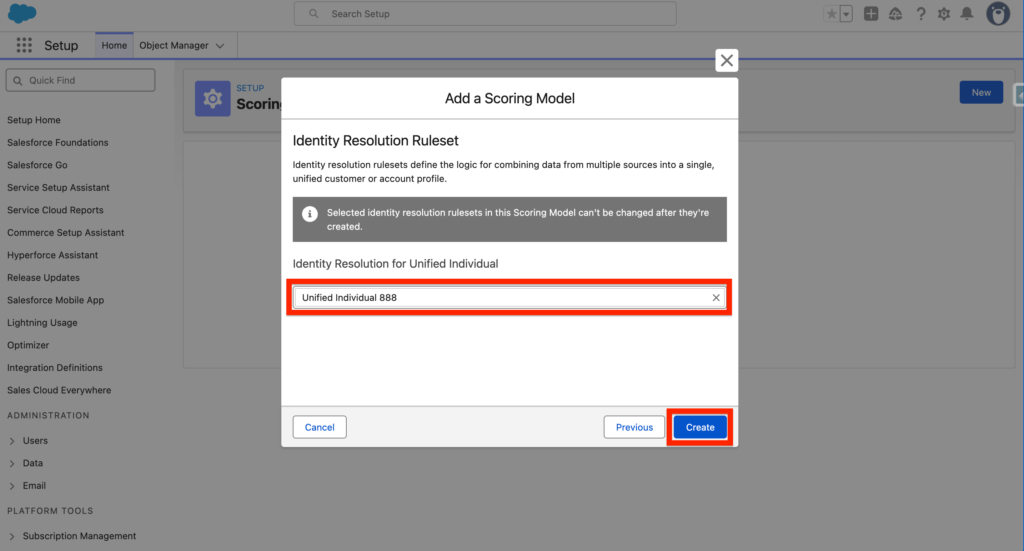
Select an Identity Resolution Ruleset that you previously created and click Create.
The Customer Engagement Scoring feature relies on 2 key components – The Engagement Score and the Fit Score. Initially they both represent 50% of the Customer Engagement Scoring – However you can easily modify the ratio by click on Edit Score Ratio.
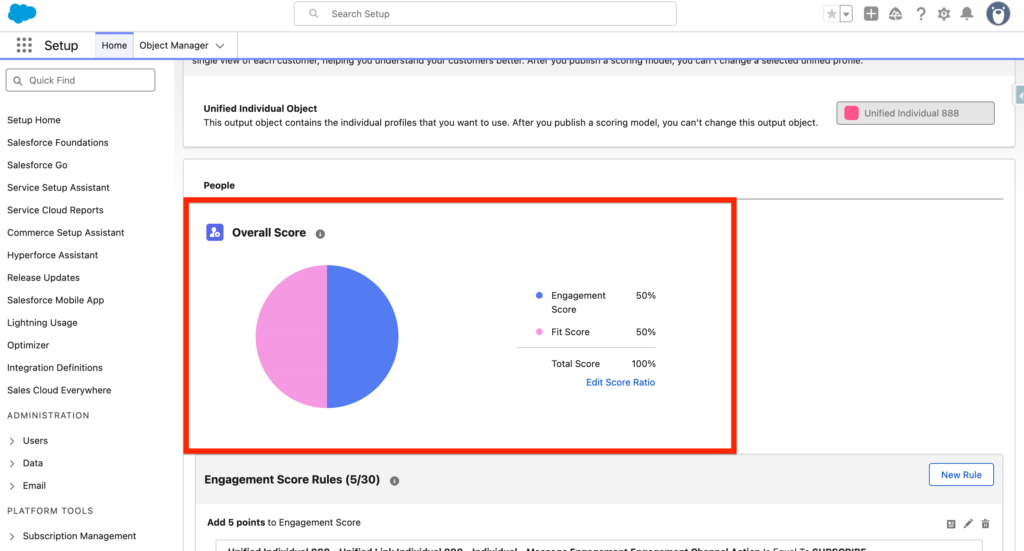
Here is a simple explanation of The Engagement Score and the Fit Score:
- Engagement Score: A score representing how positively/negatively a customer is interacting with your brand (Behavioural Data).
- Fit Score: A score representing how well the profile of your customer is fitting with your buyer Persona (Demographic Data).
Engagement Score Rules #
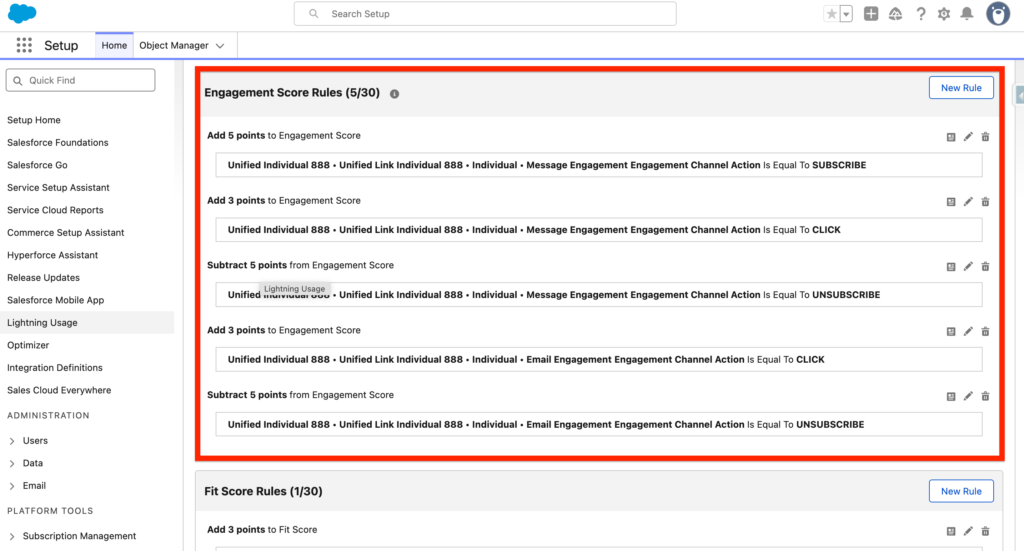
When your customer is interacting with your Brand Assets such as Emails, Landing Pages the Engagement Scoring is updated. You can select up to 30 items to track. Items can either add or subtract points to the scoring. If Scoring rules are modified the scoring of your customers will be updated retroactively.
By default, 5 Engagement Score Rules are automatically created within Marketing Cloud Next:
- +5 Points when the Customer Subscribe to Marketing Communication Channels
- +3 Points when the Customer Click on a Message
- -5 Points when the Customer Unsubscribe to Marketing Communication Channels (Message)
- +3 Points when the Customer Click on a Email
- -5 Points when the Customer Unsubscribe to Marketing Communication Channels (Email)
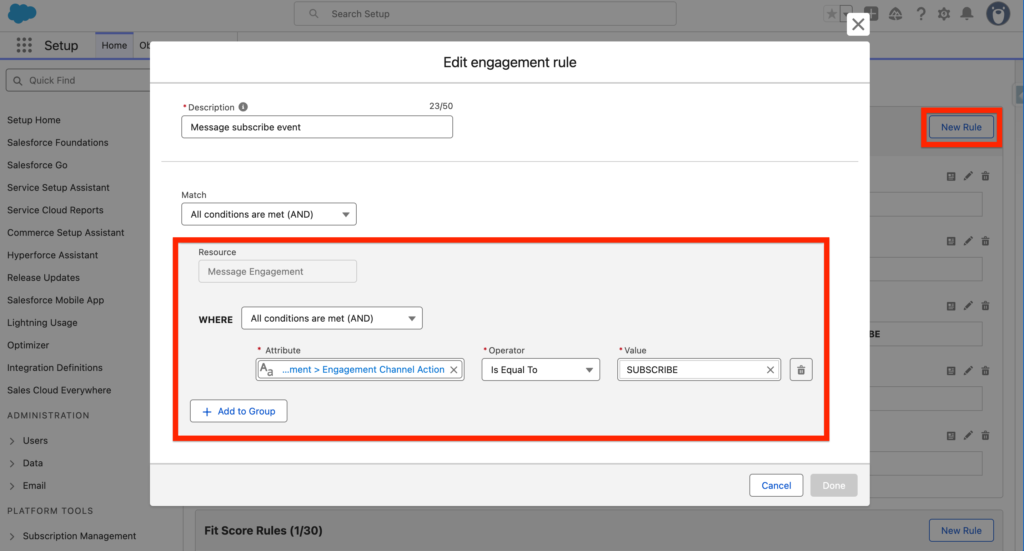
You can create a New Rule or modify an existing one by click on the pen next to it – When editing an Engagement Rule you can select if an attribute field from a Data Model Object is equal to a value. For Example in the screenshot below we are checking if the Customer have subscribed to our Newsletter:
UnifiedLinkssotIndividual888__dlm.
ssot__Individual__dlm.ssot__MessageEngagement__dlm.
ssot__EngagementChannelActionId__c
(Unified Individual DMO > Message Engagement DMO > Engagement Channel Action ID DMO must be equal to SUBSCRIBE).
We have the possibility to refine the engagement rules by adding multiple conditions and creating groups.
Fit Score Rules #
The Fit Score Rules is based on the profile of your customer – Does the person that you are about to interact with look like your usual customer? Fit Score Rules is based on Demographic (Information about the individual such as age, interests, ethnicity, nationality etc.) and Firmographic (Company, number of employees, industry) information.
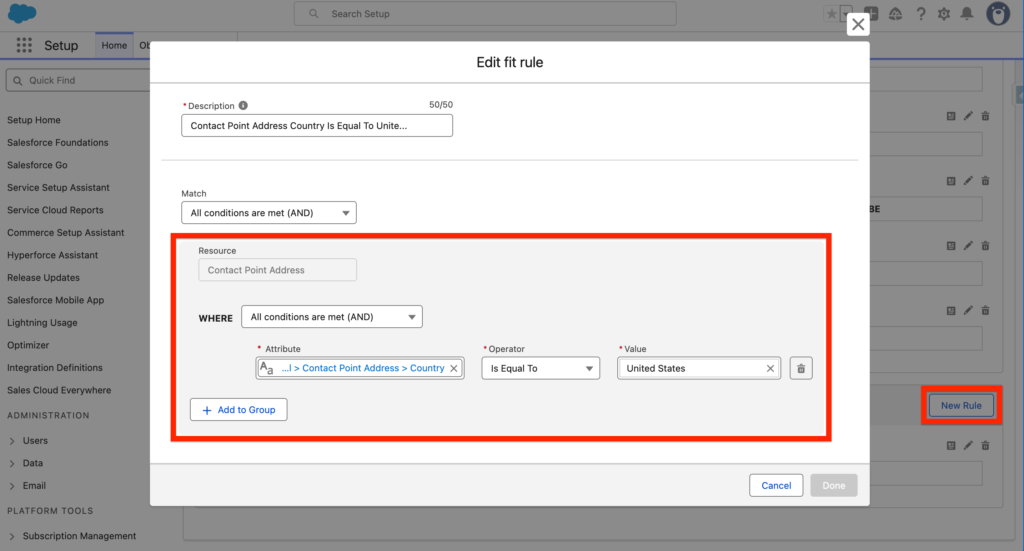
By default the Fit Score Rules comes with 1 Rule automatically created – but you can create up to 30 of them. The Fit Score Rule already created is checking is the Customer is from the United States – if so, 3 points are added to his Fit Score.
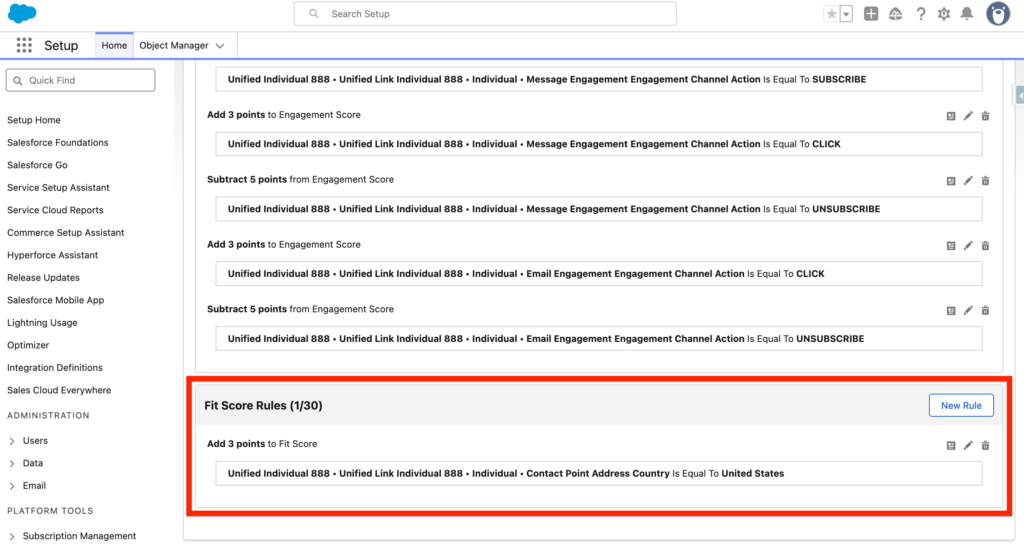
Same as for the Engagement Scoring Rules, you can easily create a New Rule or click on the Pen icon to edit an existing one.
Publishing the Scoring Rules #
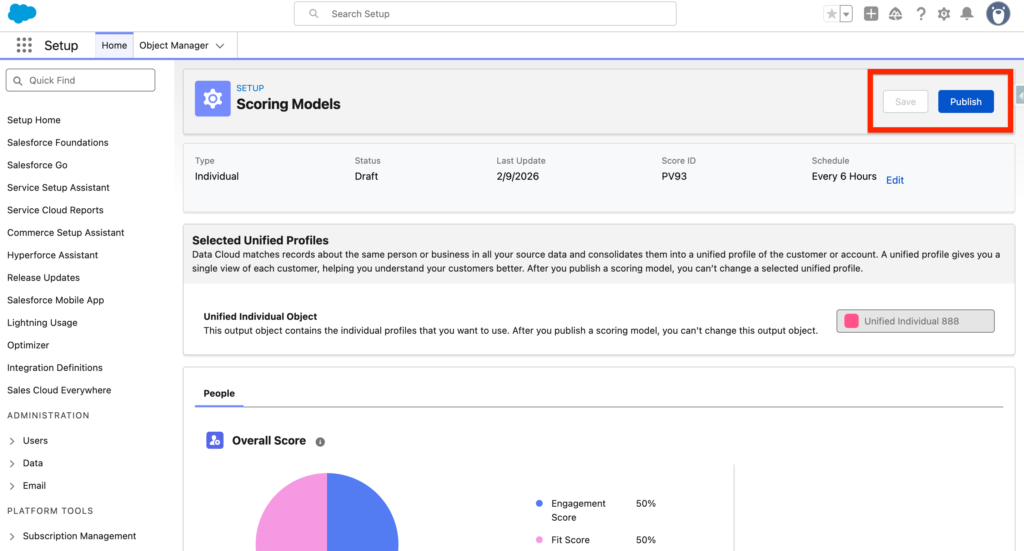
Once you are satisfied with the the Engagement Score Rules and the Fit Score Rules you can simply Publish it and select a schedule for Refreshing the Score (From 1 Hour to 24 Hours).
The Scoring Rules can be used:
- in Flows as Decision Elements
- in Flows as Trigger Element
- in Segments as criteria
- on Contacts/Leads record pages
Adding the Data Cloud Profile Insights on Contact/Lead Page #
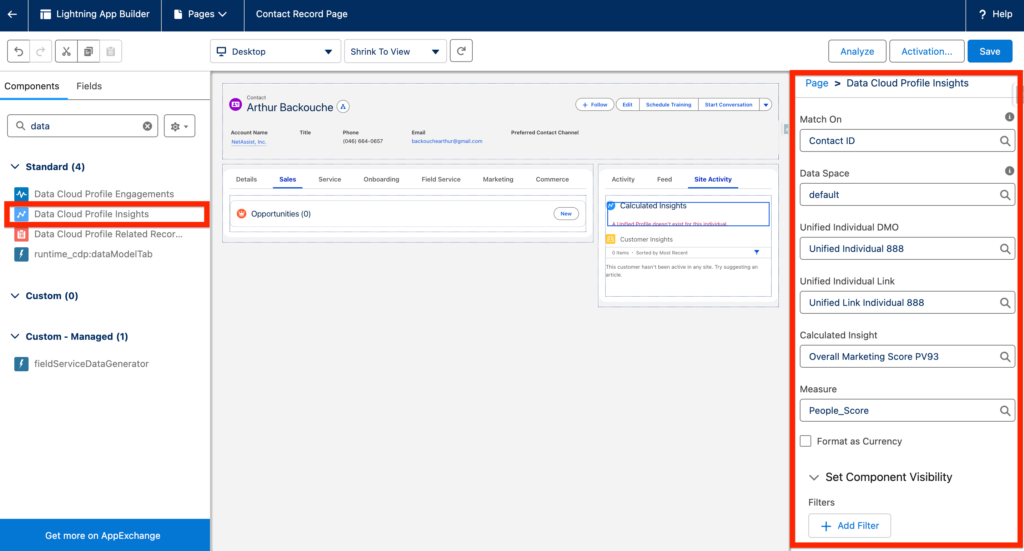
In order to get granular insights about your Contacts and Leads you can add the Data Cloud Profile Insights Lightning Web Component.
Navigate to Salesforce Setup, Object Manager and Select Contact. From Contact Object Select the Lightning Record Page tab and Edit the Contact Record Page that you are using as default.
Drag and Drop the Data Cloud Profile Insights Component on the Contact Page Layout and fill out the information requested.
- Match On: Contact ID
- Data Space: Default
- Unified Individual DMO: Unified Individual DMO
- Unified Individual Link: Unified Individual Link DMO
- Calculated Insight: Overall Marketing Score
- Measure: People_Score
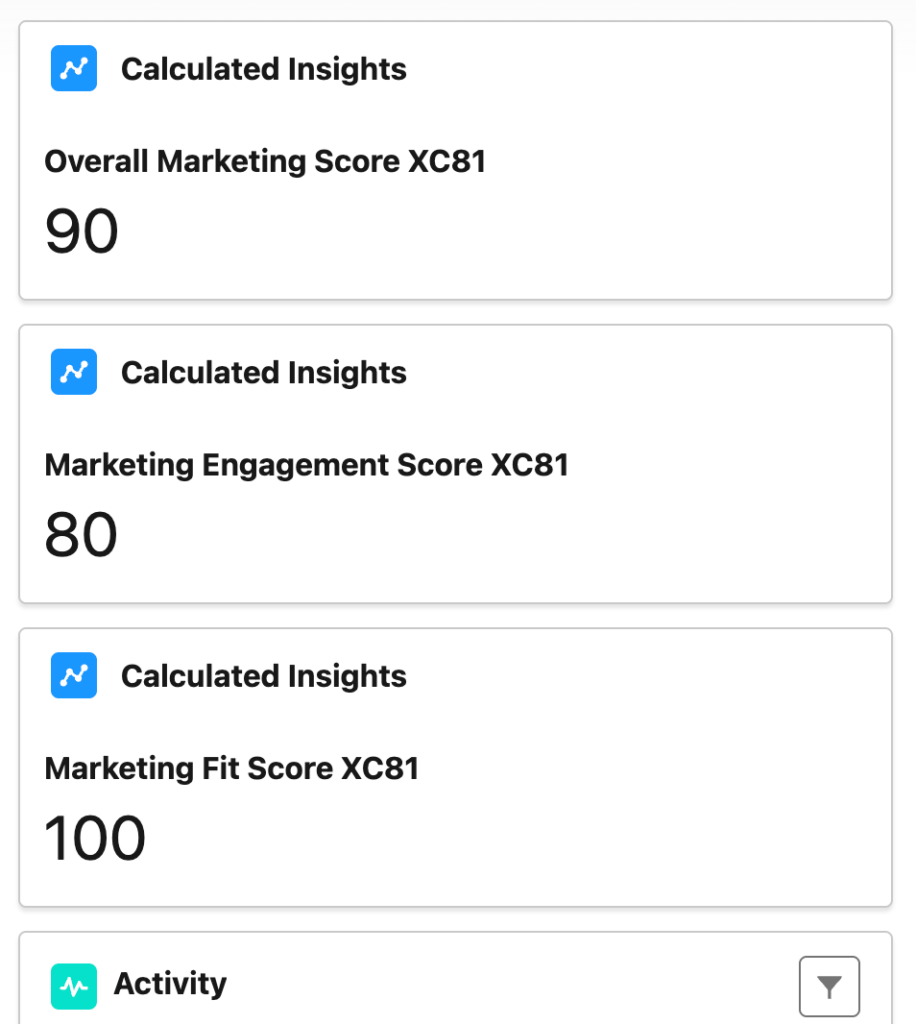
You can duplicate the component in three (Global Score, Engagement Score, Fit Score). You will now have the possibility to visualise the Global Score, Marketing Engagement Score and Marketing Fit Score on each Contacts.
Ressources:
https://help.salesforce.com/s/articleView?id=mktg.mktg_data_scoring_setup.htm&type=5
https://help.salesforce.com/s/articleView?id=mktg.mktg_data_scoring_parent.htm&type=5