Skip to content
Get in Touch

Foundation Setup

4
  • Migrate Engagement Data from Account Engagement to Marketing Cloud Next
  • How to Import Customers into Marketing Cloud Next
  • How to set-up Marketing Cloud Next
  • How to configure Marketing Cloud Next

Customer Engagement and Personalization

1
  • How to use Data Graph in Marketing Cloud Next

Consent Management

2
  • How to manage consent in Marketing Cloud Next
  • How to manage Consent between Marketing Cloud Engagement and Marketing Cloud Next

Email Templates

1
  • How to Personalise Emails with Merge Fields in Marketing Cloud Next

Campaign Flows

1
  • How to set-up an A/B Test Flow in Marketing Cloud Next
View Categories
  • Home
  • Marketing Cloud Next
  • Email Templates
  • How to Personalise Emails with Merge Fields in Marketing Cloud Next

How to Personalise Emails with Merge Fields in Marketing Cloud Next

1 min read

Adding Personalization with Merge Fields #

To personalise your email content:

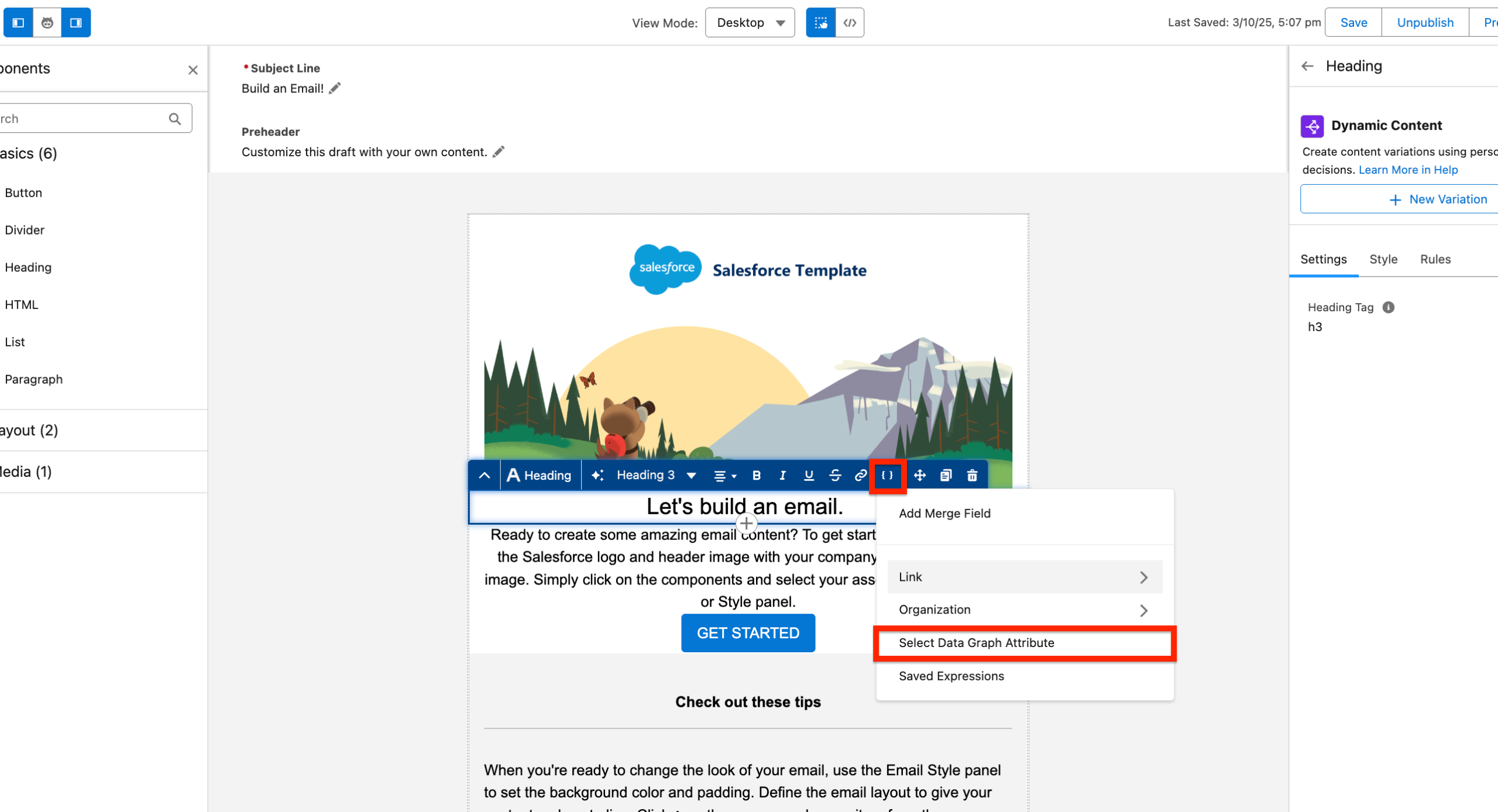
  1. Click on the Merge Field icon in the email editor
  2. Select ‘Select Data Graph Attribute’
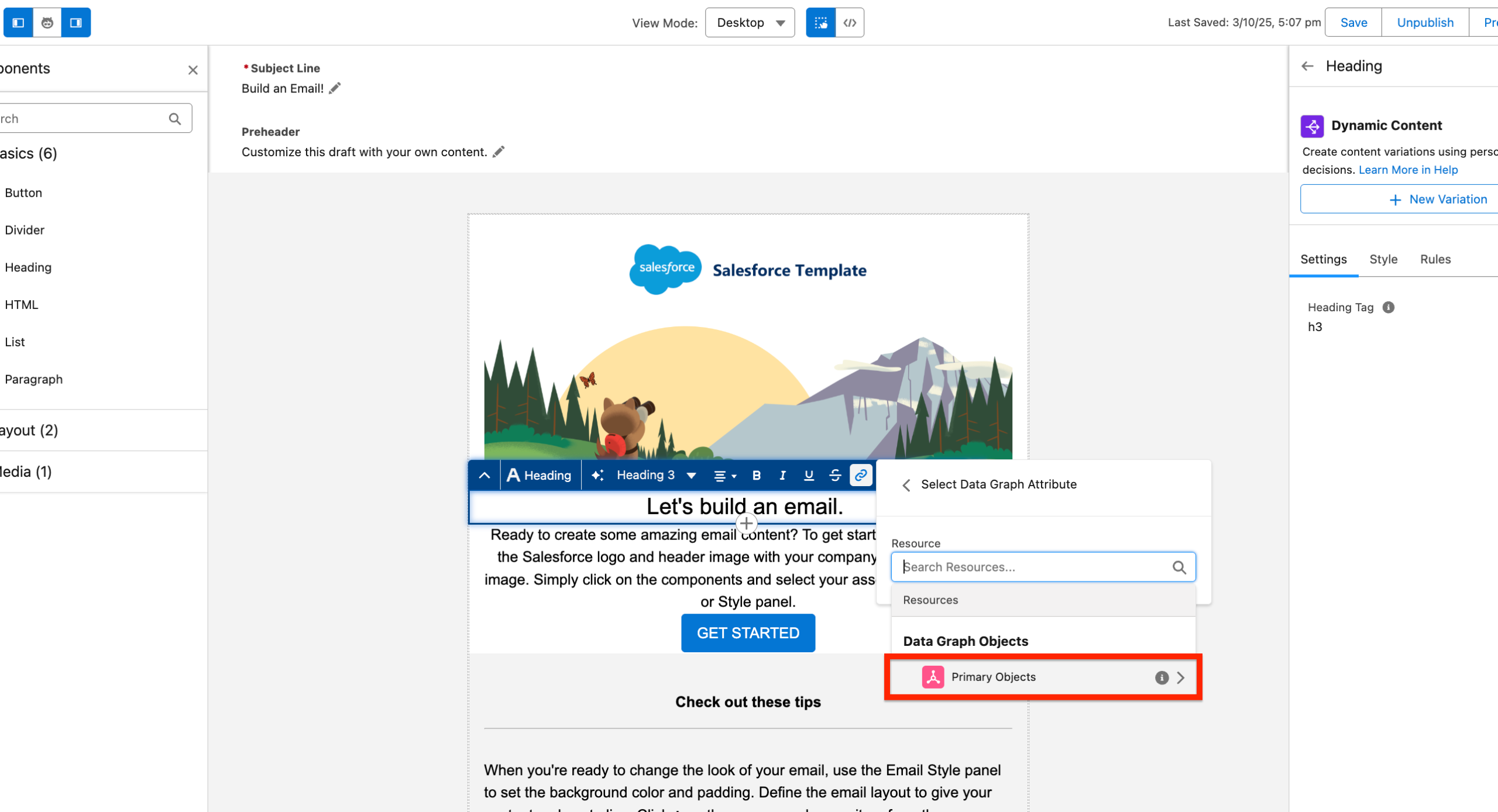
  3. Click ‘Primary Objects’
  4. Choose the attribute you want to insert (e.g., firstName, lastName, etc.)

To Personalise the email copywriting click on the Merge Field icon and ‘Select Data Graph Attribute’.
Then click ‘Primary Objects’ and you will be able to select Attribute such as firstName, lastName etc.
Testing Your Personalised Email #

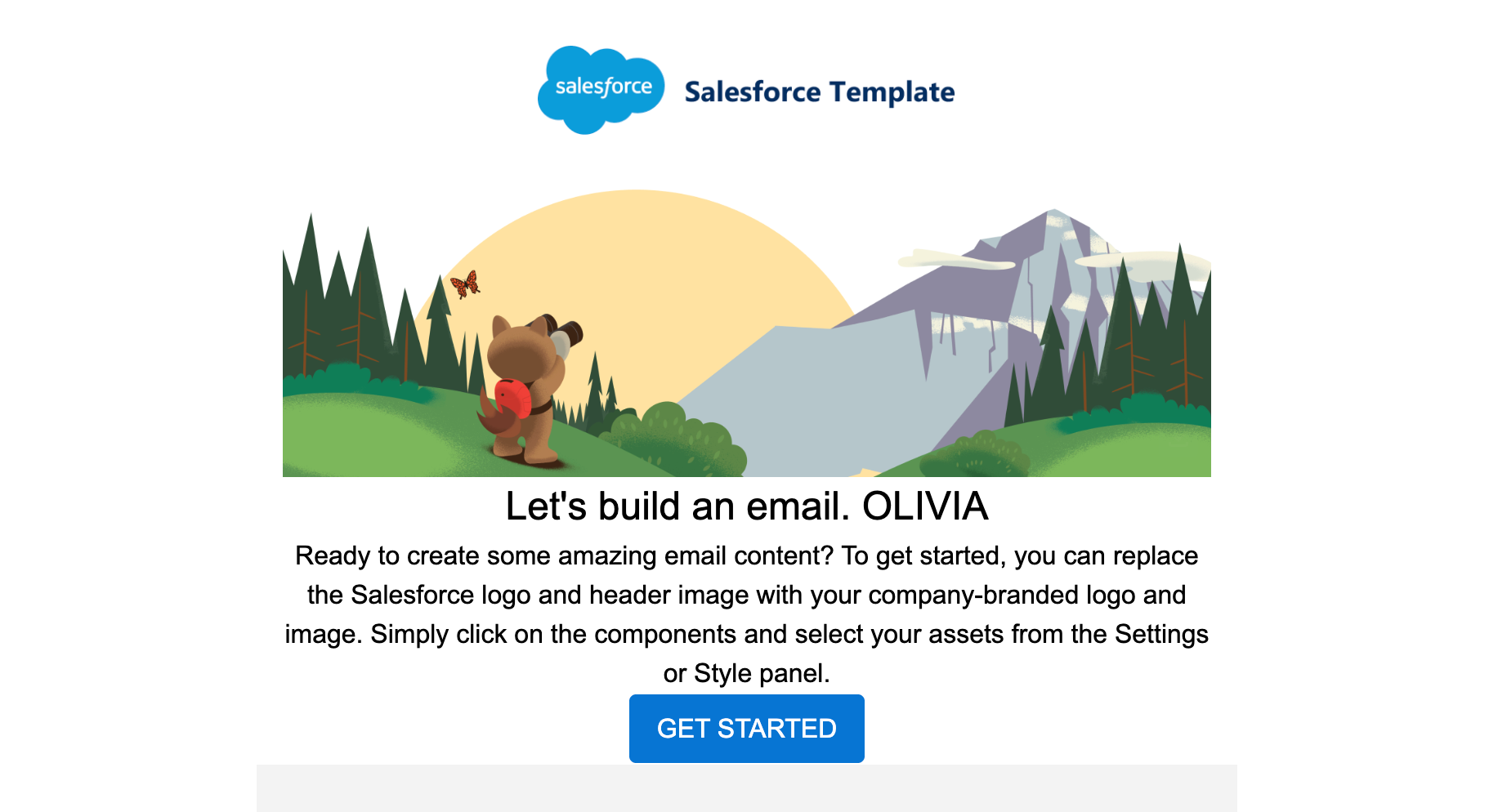
Example: Testing with Contact Olivia

After personalising the email and previewing it with Olivia’s information, you can send a test email to verify the personalization works correctly.

Sending Test Emails #

To send a test email:

  1. Preview your email with the selected contact’s data
  2. Enter your test recipient email address (e.g., [email protected])
  3. Click Send Test
  4. The test email should arrive within a few minutes
Important Note #

Best Practice: Ensure that the test recipient email address exists as an opted-in contact in Marketing Cloud Advanced. This helps ensure successful test email delivery and mimics real-world sending conditions.

Tip: If you’re not receiving test emails, verify that:

  • Your email address is opted-in within the system
  • The sender profile is properly authenticated
  • Your email isn’t being filtered to spam/junk folders
Updated on January 8, 2026
Email

What are your Feelings

  • Happy
  • Normal
  • Sad

Share This Article :

  • Facebook
  • X
  • LinkedIn
  • Pinterest

Leave a Reply Cancel reply

Your email address will not be published. Required fields are marked *

Table of Contents
  • Adding Personalization with Merge Fields
    • Testing Your Personalised Email
    • Sending Test Emails
    • Important Note

Summarize your business so the visitor can learn about your offerings from any page on your website.

Facebook-f Twitter
Services
  • Service 1
  • Service 2
  • Service 3
  • Service 4
  • Service 5
Quick Links
Get In Touch

123 Main Street
New York, NY 10001

  • Email: [email protected]
  • Phone: 123-456-7890
  • Hours: Mon-Fri 9:00AM - 5:00PM

© 2026 All Rights Reserved.