
Why Data Graphs are important? #
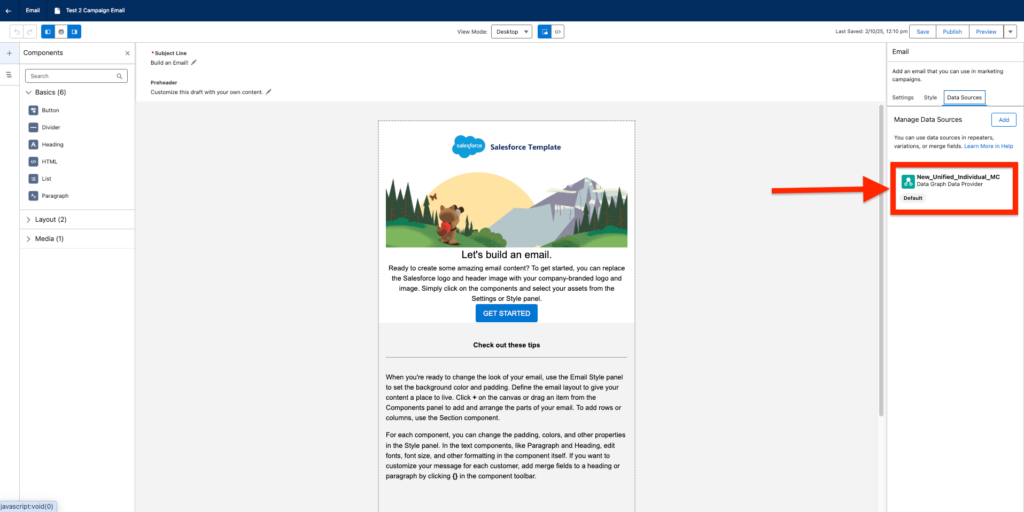
In Marketing Cloud Advanced the Email Builder relies on the Data Graph in order to Personalise the email copywriting throughout the Merge Fields. You can pre-visualise the Data Graph selected by clicking on the ‘Data Source’ Tab on the right panel of the Email Builder.
How to set-up Data Graph #
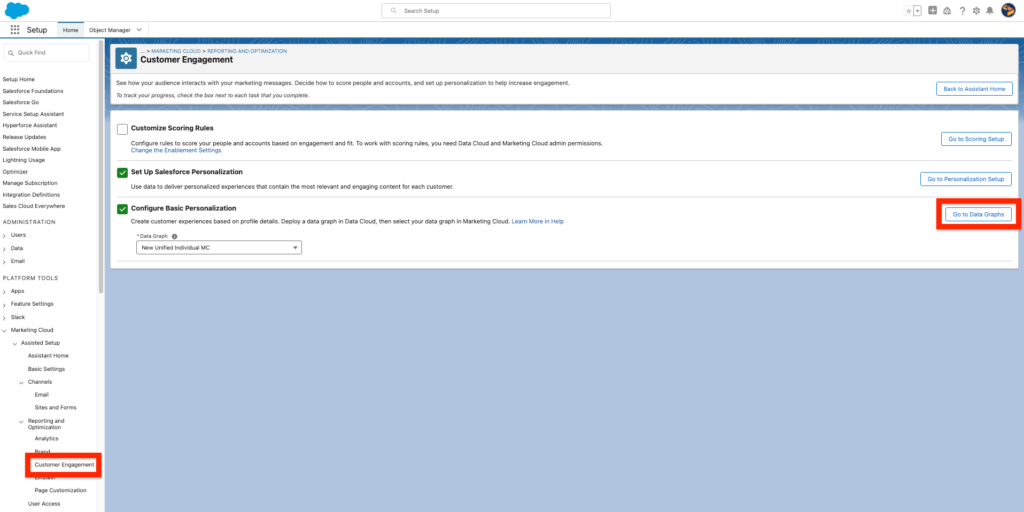
In Marketing Set-up, click ‘Customer Engagement’ and then ‘Go to Data Graphs’.
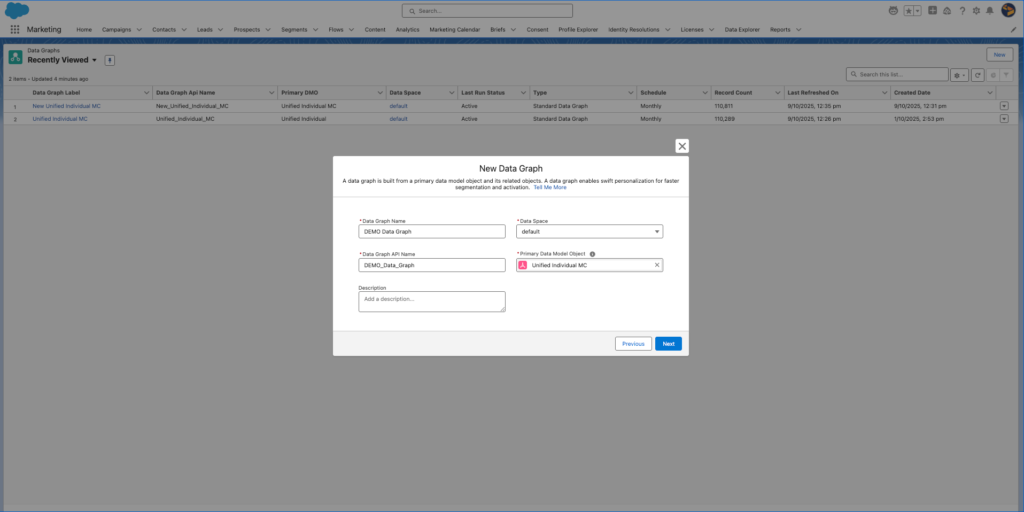
From the Data Graphs list view, you will be able to visualise the Data Graphs already created in the system.

If you wish to create a new Data Graph you can simply click new and click start from scratch, from there you can select the Data Model Object that will be used as reference, we recommend using the ‘Unified Individual’ Data Model Object. As well as a Name and Description.
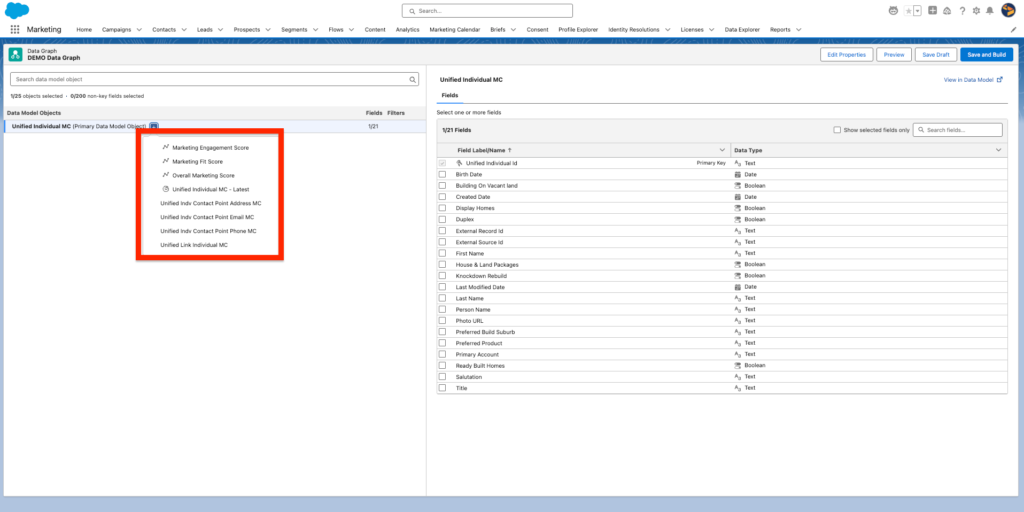
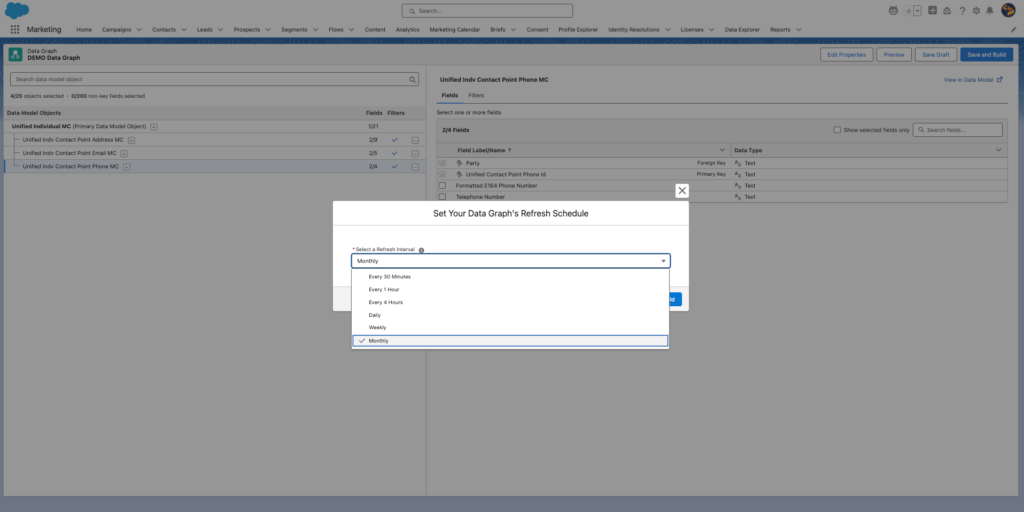
You will need to select the Data Model Object that relates to you Unified Individual Object and that will be in use when sending email communications. The recommended related objects to select are:
- Unified Indv Contact Point Address
- Unified Indv Contact Point Email
- Unified Indv Contact Point Phone
You will also need to tick the checkboxes of each field from all the objects selected that you want to import in your Data Graph. I recommend selecting all the field.
After clicking ‘Save and Build’ a pop-up window will appear asking you how often you would like the data to refresh. You can schedule a refresh from every 30 min to once a month based on your needs.
What is a Data Graph in Marketing Cloud Next? #
A Data Graph is a unified view of all your customer data that connects and relates information from multiple Data Model Objects into a single, coherent structure allowing faster processing time for Personalization and Segmentation.


