This article the the next step of How to setup the Domain Authentication in Marketing Cloud Next
What is the From Address? #
The From Address is what people see in their inbox when receiving an email. The From address is composed of the email address itself and the name associated to it. In order to maximise your open-rate (percentage of people that opens your emails), it is recommended to have a From Address that it is matching with your brand. The objective is to ensure the recipient (Person that will open your email), trust the email and feel comfortable/safe opening it.
Never use free webmail addresses #
Avoid setting-up a Gmail, Hotmail email address as a From Address. It is considered suspicious by most of people (Spammy/Fishing) hence why your delivery and open rate will be low. You must set-up an email address that is relating to your Brand in order to build trust with your audience.
Avoid the no-reply address #
As we all know delivering an exceptional customer experience is key to succeed in business. Try as much as possible to not use no-reply addresses as your customers and email recipient might want to interact with you and reply to your emails. By using a no-reply email address you are indicating that you aren’t available for your customers and it can generate some disappointment for them.
Personalise for the purpose #
Another key component of successful organisation is that they deliver personalised experience.
Ideally, you must have different email addresses that you can use for different purposes. Your organisation might send email communications for the Sales topic, Marketing (Newsletter) topic, and Support/Services reasons… or even more granular reasons such as Events. It means you could have different matching From sender addresses in order to deliver a personalised experience to your audience so that they know the topic of the email even before opening it.
For example:
How to configure a From Address in Marketing Cloud Next? #
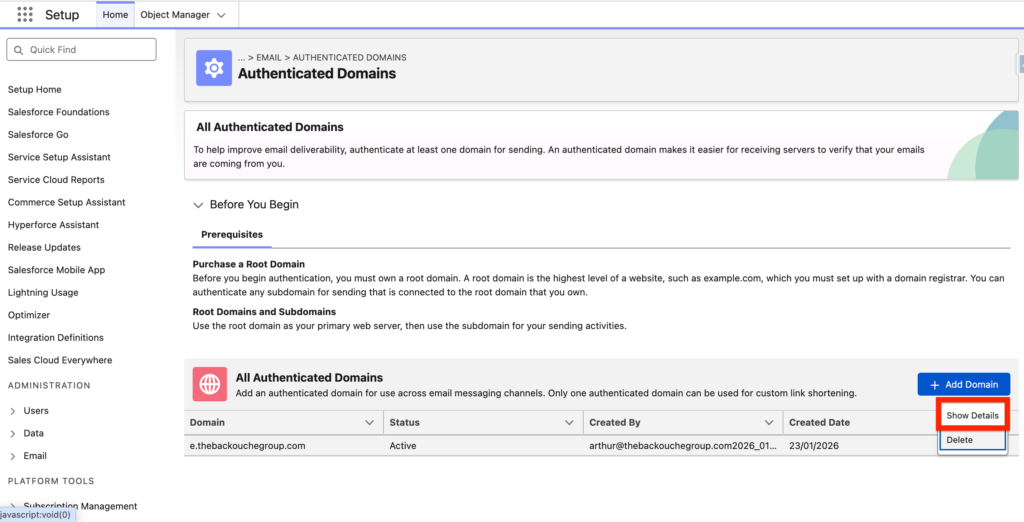
In Authenticated Domain click on ‘show details’ on the domain that we previously configured, in our case ‘thebackouchegroup.com’.
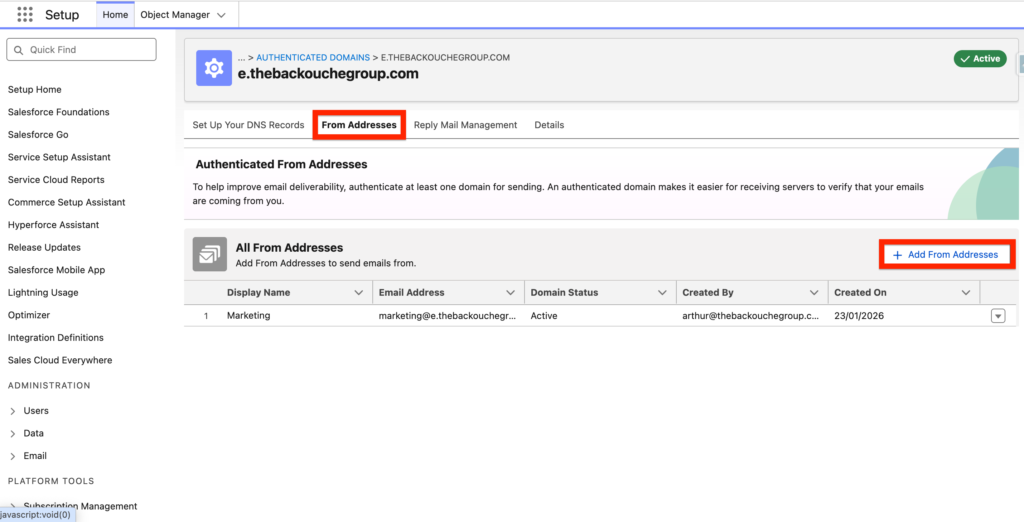
Within the page related to the domain, click ‘From Addresses’ and ‘+ Add From Addresses’. Please note that we already configured the one email address ([email protected]) within the initial Email Sending Set-up.
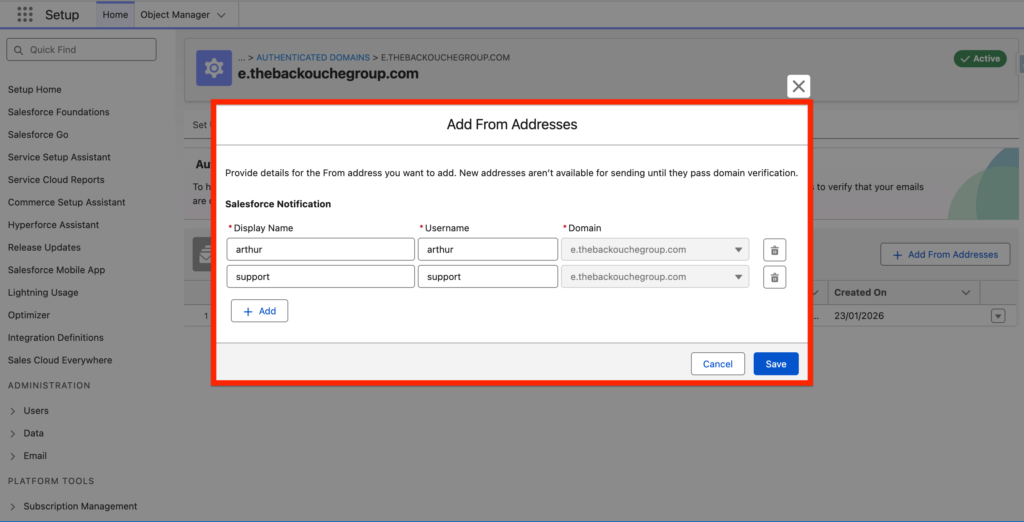
We now have the possibility to add multiple email sending address – all we need to do is to add a Display Name and a Username. We have added ‘[email protected]’ and ‘[email protected]’.
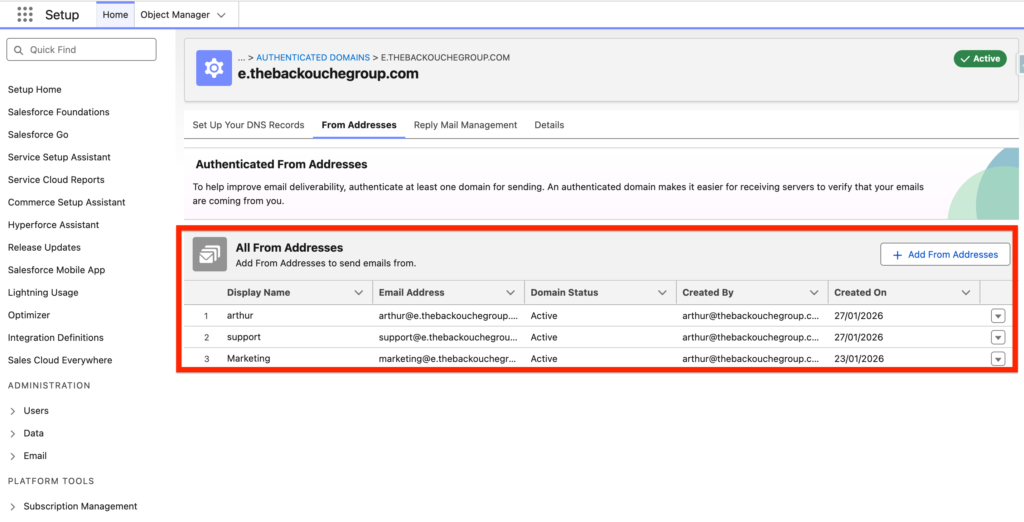
Perfect! I can now see that I have 3 email sending addresses configured in Marketing Cloud Next.