
In this article we will learn how to enable Data 360 (Data Cloud), in order to implement Marketing Cloud Next. The base set-up of Data 360 is very straightforward and simple and Salesforce is making it more and more simple over the months by automating most of the steps.
Enabling Data 360 (Data Cloud) #
Data Cloud is the foundation of Marketing Cloud Next, an illustration would be: “If Data Cloud is your iPhone, Marketing Cloud Next would be an App installed on it”. So Enabling Data Cloud is the very first step within your Marketing Cloud Cloud Next Journey implementation.
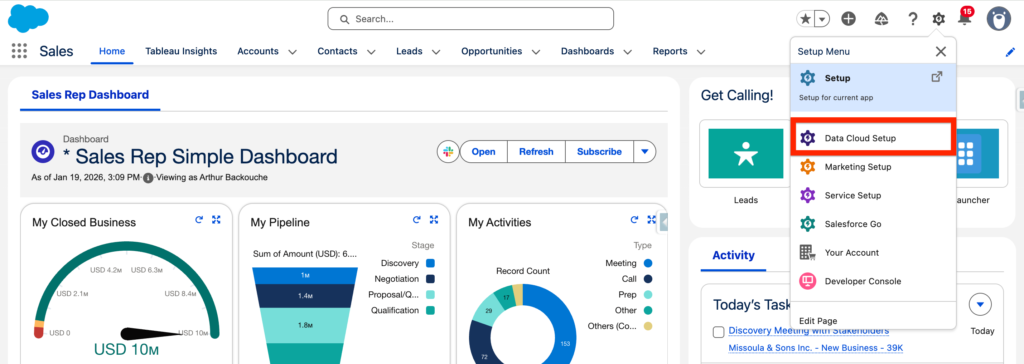
In Set-up, you can click on ‘Data Cloud Setup’ to access the space dedicated to Data Cloud Configuration.
Enabling the Data 360 Instance #
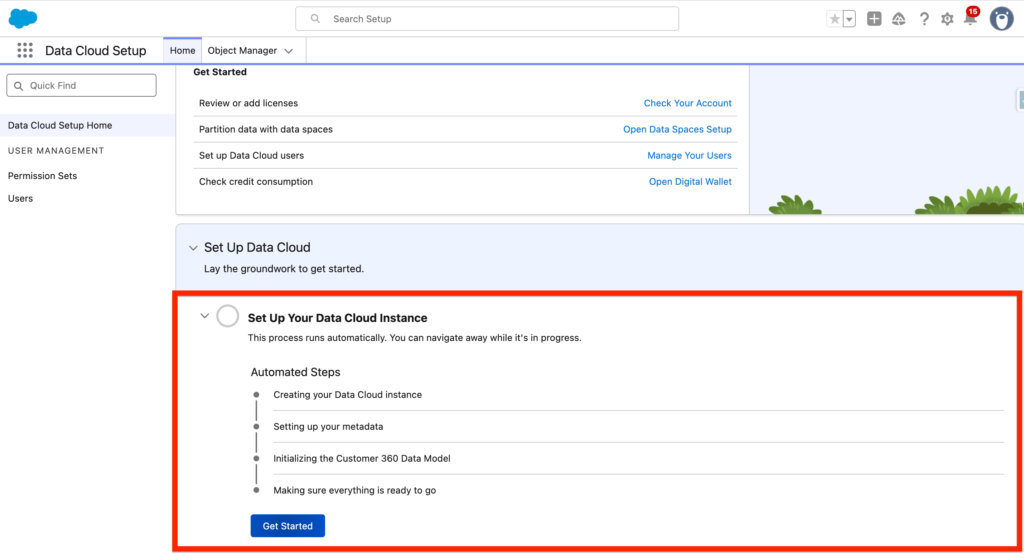
At the bottom of the webpage, click ‘Get Started’ and the process of installing Data Cloud within your Salesforce platform will kickstart automatically.
The following steps will happen automatically:
- Creating your Data Cloud instance
- Setting up your metadata
- Initialising the Customer 360 Data Model
- Making sure everything is ready to go
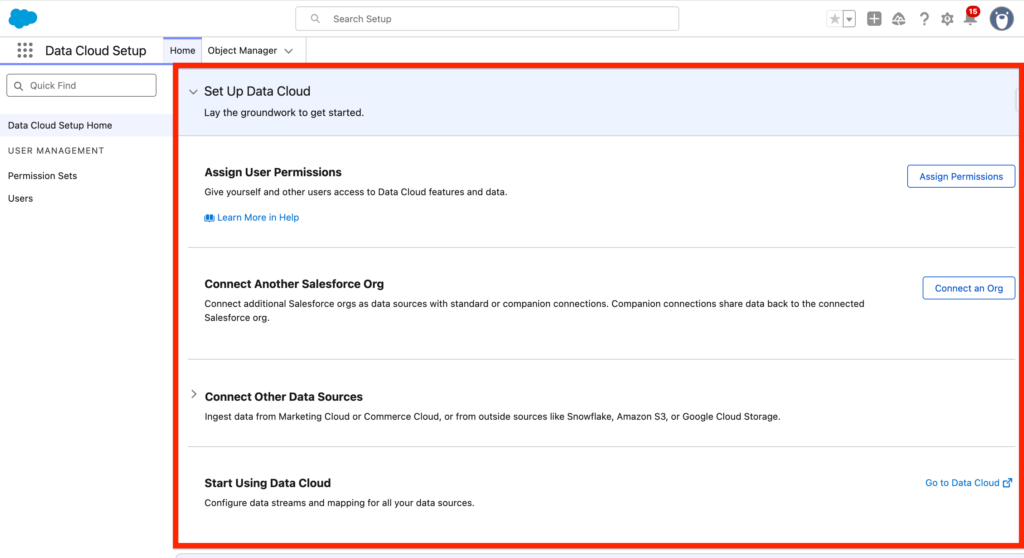
Once the Data Cloud Instance is enabled we can visualise the 3 main steps to accomplish in order to get started. The most important one is to assign the User Permissions. The rest is optional as your main Salesforce CRM instance will be already available to create a Data Stream.
Providing the Permission Sets #
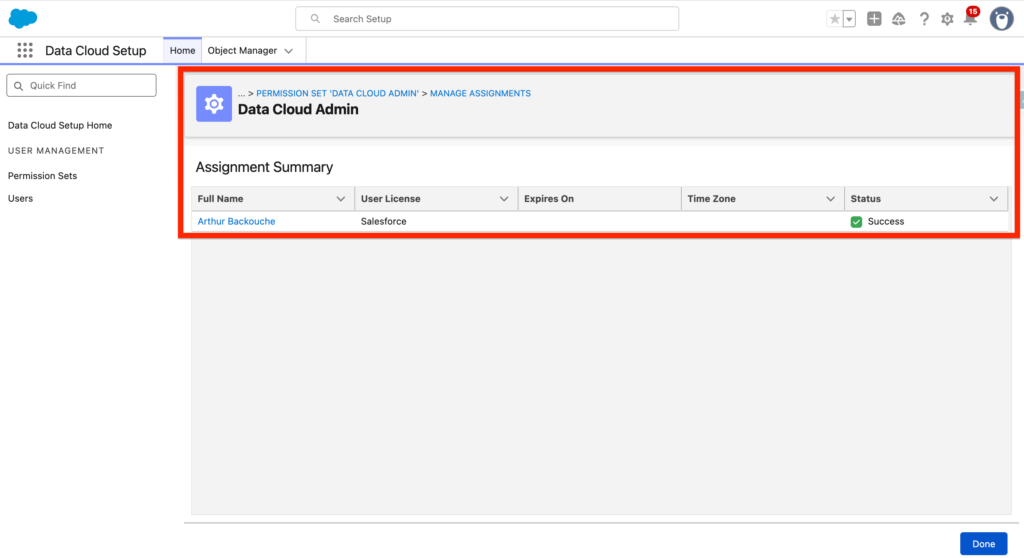
A range of permission sets are existing for Data Cloud. In our case we will use the Data Cloud Admin/Architect Permission Set in order to get full access to the platform for the implementation. Salesforce recommend the Data Cloud Architect permission set for configuring Data 360. The Permission set can be named Data Cloud Admin or Architect depending on how recent is your Salesforce instance.
Data Cloud Architect (formerly known as Data Cloud Admin)—Users with this permission set can access all functionality within Data 360, including Data Cloud Setup, mapping data to the data model, creating data streams, identity resolution rulesets, and insights.
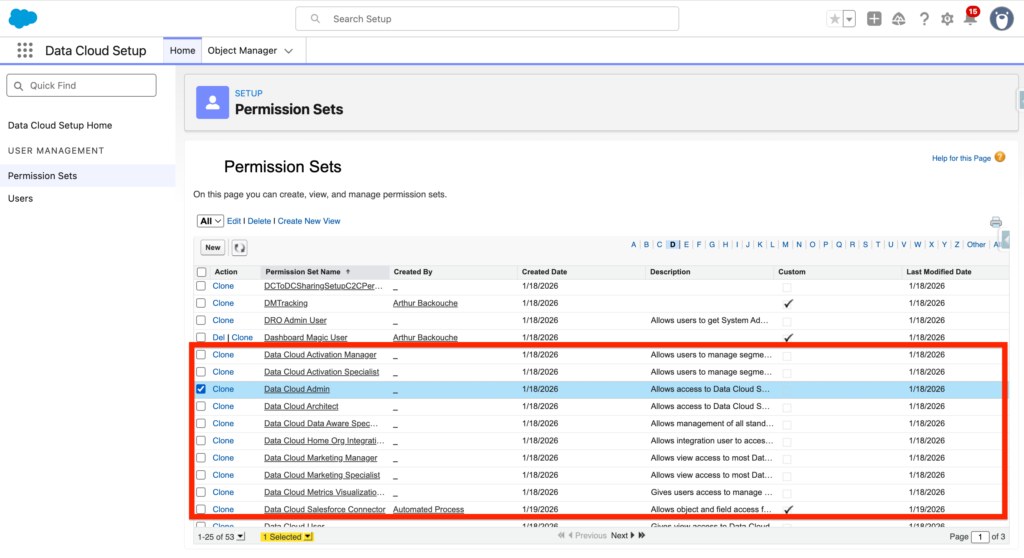
I assigned the Data Cloud Admin Permission Set to myself as you can see in the screenshot below.
Create a Salesforce CRM connector #
The next step will be to ingest Data from Salesforce CRM by creating a new Data Stream.
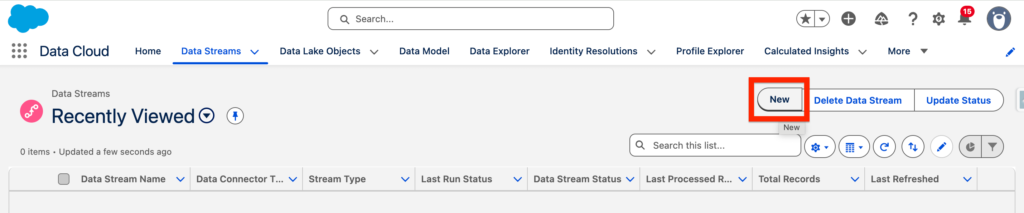
Navigate into the Data Cloud App and within the Data Streams tab click ‘New’.
Selecting the Salesforce CRM Connector #
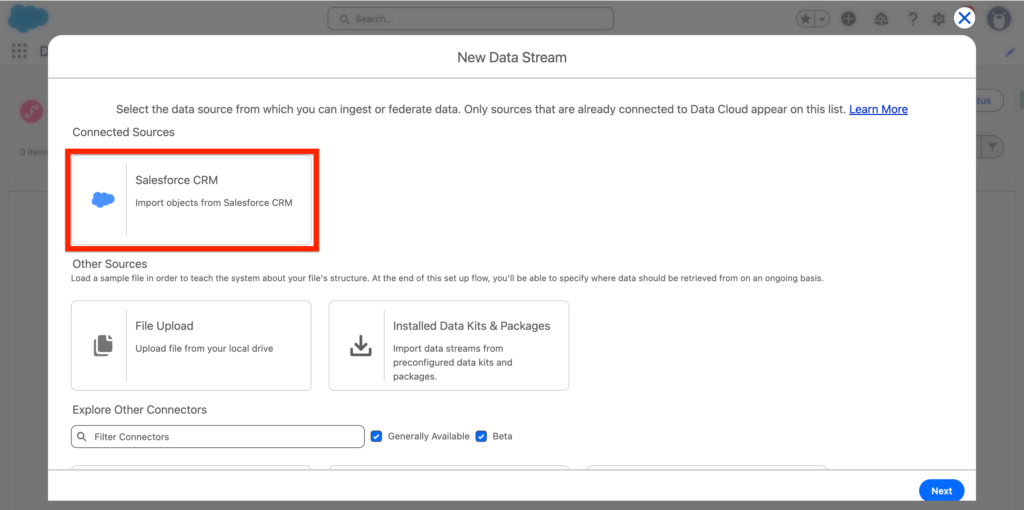
Within the ‘New Data Stream’ pop-up window you will need to click on the ‘Salesforce CRM’ Connector and then click Next.
Within the ‘Bundles’ Tab we will select the Sales Bundle that contains the following objects: Account, User, OpportunityContactRole, Opportunity, Contact and Lead. and click Next.
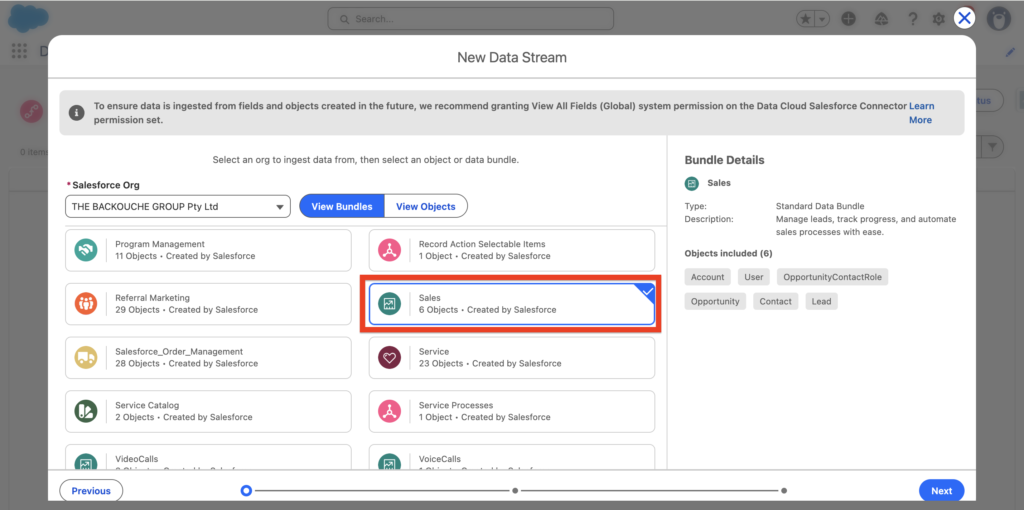
A Bundle is a group of Salesforce Objects and Field Attributes pre-selected that relates to a specific Salesforce platform (Sales Cloud in this case). Salesforce is simplifying the implementation process by providing us with Bundles, we also have the possibility to select specific objects and fields individually.
Selecting the Attributes Fields for each Objects #
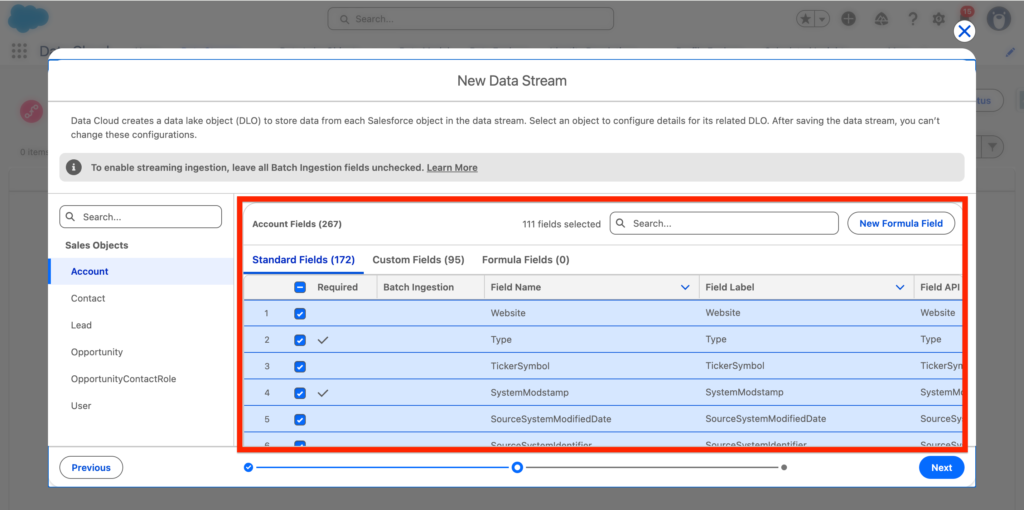
You will now have the possibility to review the Attribute Fields select for each objects listed in the Bundle that will be ingested into Data 360 (Data Cloud). You will also have the possibility to select fields that aren’t selected by default and add new fields such as Formula Fields. Once we are happy with the fields selected for each object we will click ‘Deploy’.
Previewing the Data Streams #
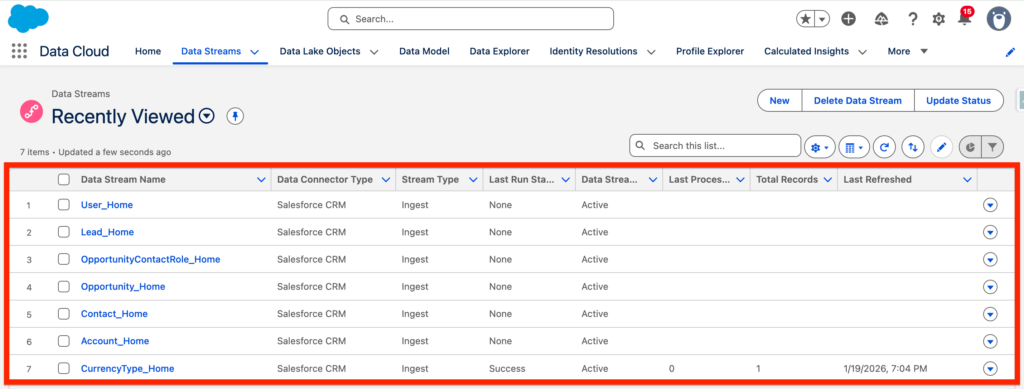
We are now able to see the Data Streams deployed within Data Cloud. The Data Streams deployed are:
- User_Home: Information related to the Users in Salesforce Sales Cloud
- Lead_Home: Information related to the Leads in Salesforce Sales Cloud
- OpportunityContactRole_Home: Represents the role that a Contact plays on an Opportunity.
- Opportunity_Home: Information related to the Opportunities in Salesforce Sales Cloud
- Contact_Home: Information related to the Contacts in Salesforce Sales Cloud
- Account_Home: Information related to the Accounts in Salesforce Sales Cloud
- CurrencyType_Home: Represents the currencies used by an organization for which the multicurrency feature is enabled.
The based Data 360 (Data Cloud) set-up is now ready.
Ressources:
- https://help.salesforce.com/s/articleView?id=data.c360_a_userpermissions.htm&type=5
- https://help.salesforce.com/s/articleView?id=data.c360_a_install_standard_data_bundles_powered_by_data_kits.htm&type=5
- https://developer.salesforce.com/docs/atlas.en-us.object_reference.meta/object_reference/sforce_api_objects_list.htm


