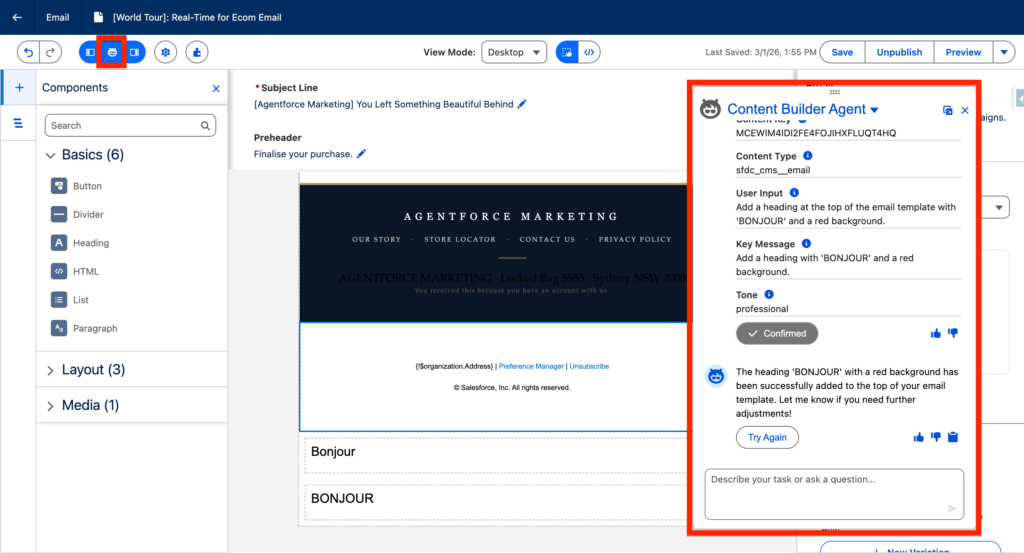
In this article, I will explain how to set-up the Content Builder Agent in Agentforce Marketing (Marketing Cloud Next). The Content Builder Agent is accessible within the Content Editor (Email, Landing page Builder) and can support your Marketers in creating marketing assets by leveraging generative artificial intelligence.
Create the Agent #
Please ensure you have enabled Einstein and Agentforce as explained in the article about the Agent Campaign Creation.
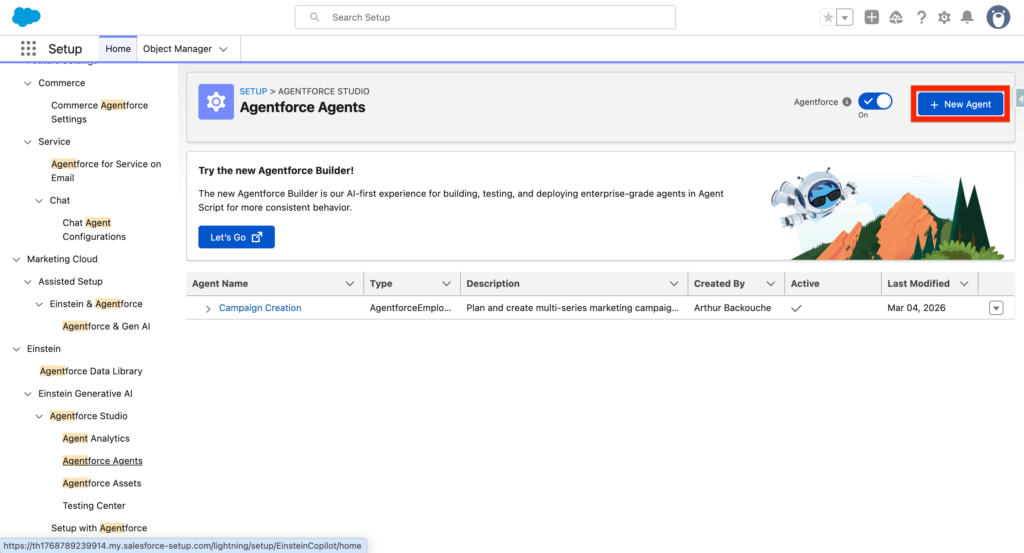
In Salesforce Set-up, navigate to Agentforce Agents and select + New Agent.
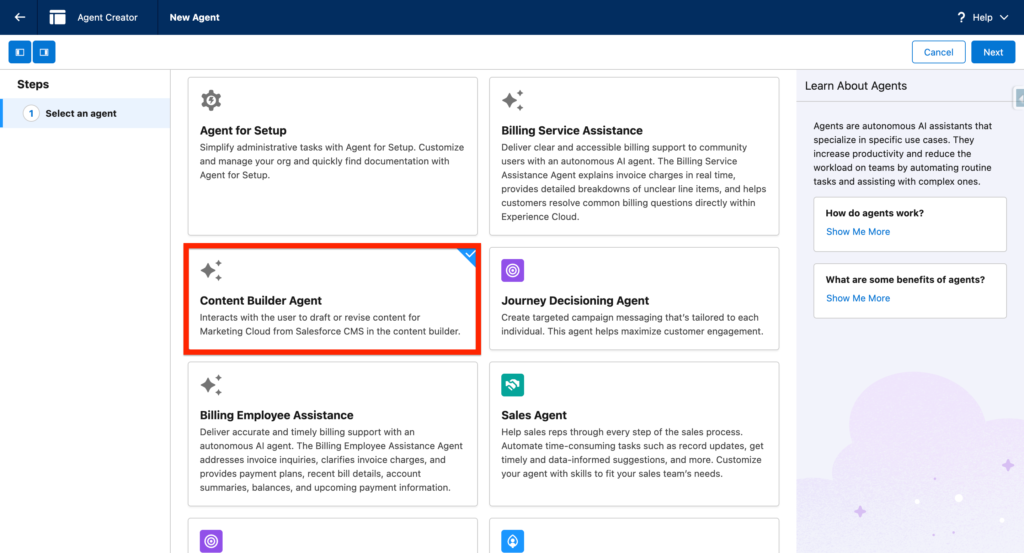
Select the Content Builder Agent card and click Next
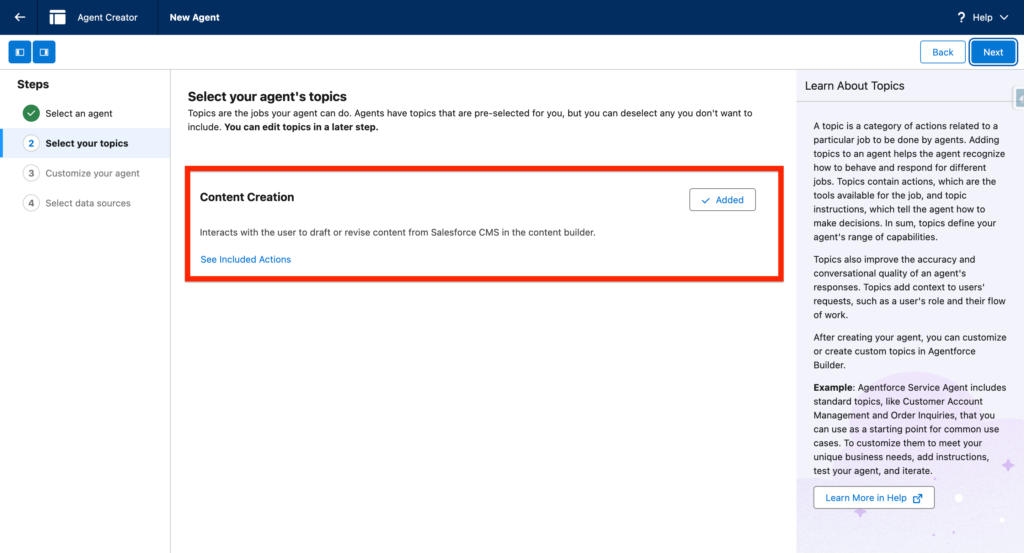
The topic named Content Creation should be already selected. Click next.
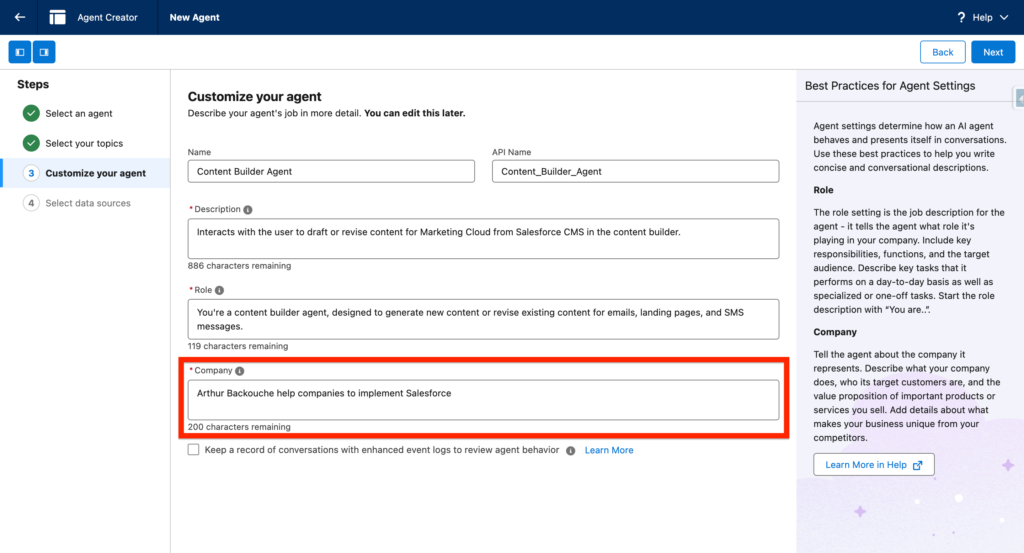
Then, you will need to include the information about your company within the input related.
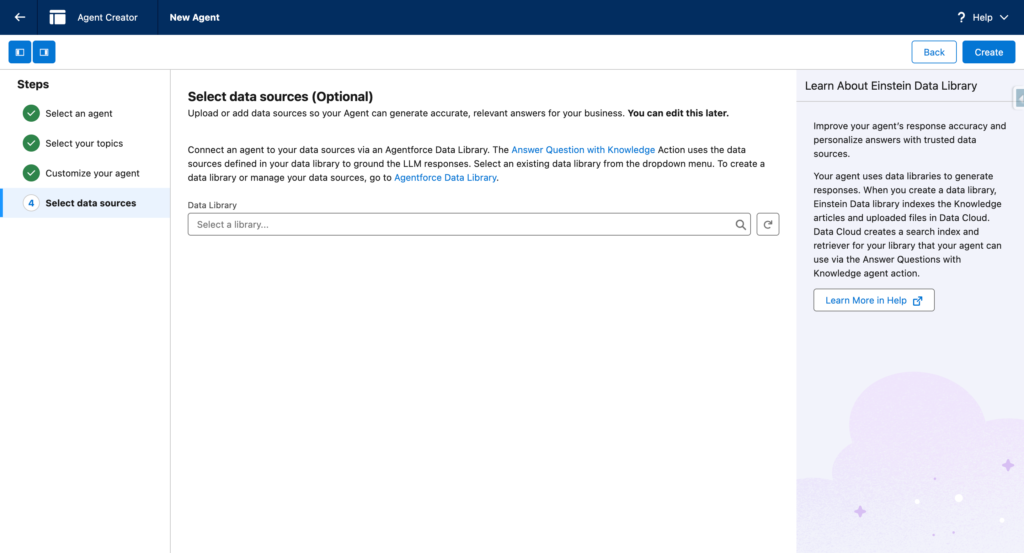
Finally, you can select a Data Library as Data Source. However in my case, I do not have any Data Source, so just click Create.
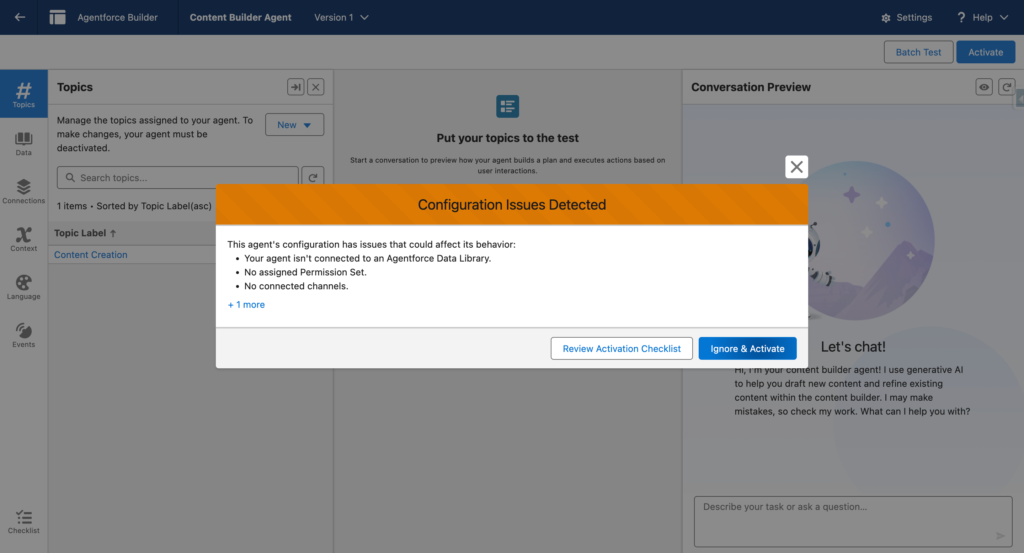
You can now activate your Agent and ignore the warning message.
Provide Agent Access #
Navigate into the Profile of the users that should access the agent and click on Agent Access.
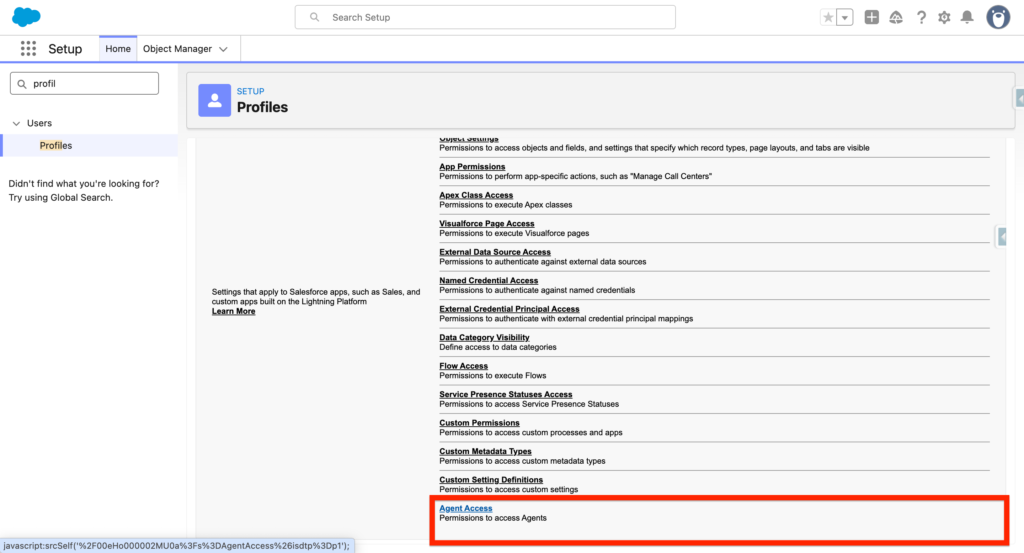
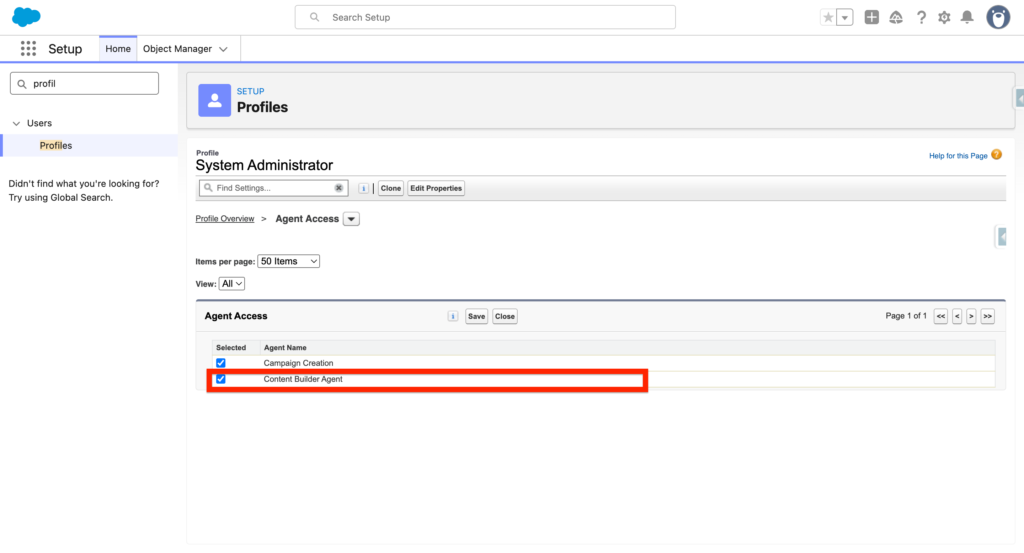
Click edit, and then select the Content Builder Agent and click save. Your users associated with the profile should now have access to the Content Builder Agent.
How to use the Agent #
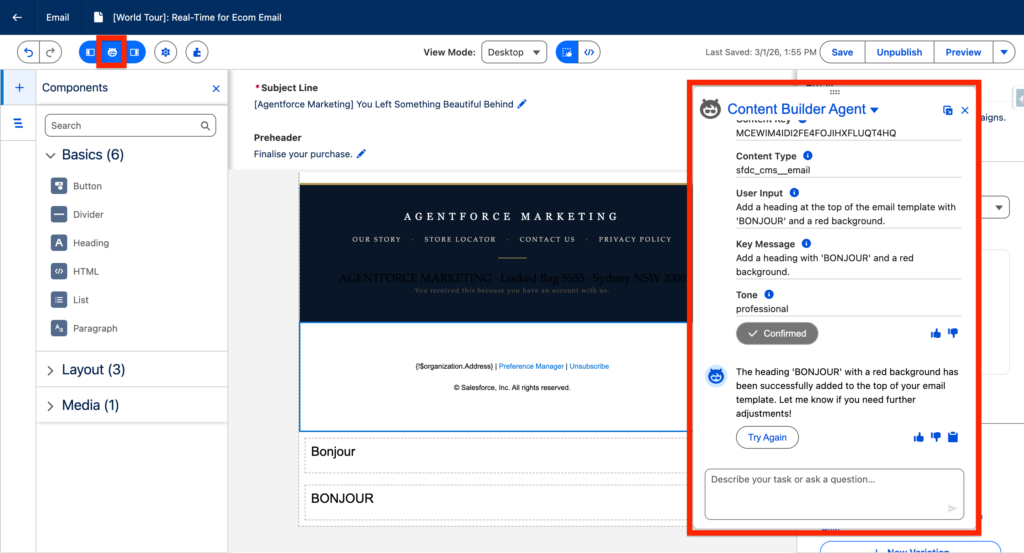
Simply open an Email Template, and click on the Agentforce Icon at the top left of the email builder. Then a chat pop-up window allows you to chat with the Agent directly. You can now ask the Agent to update the Email Template as you wish!