In this article, I will explain how to connect external cloud storage—specifically Amazon S3—to Data 360 (Data Cloud) in order to ingest external data into the platform.
The process begins by creating an Amazon S3 bucket, which will host the files that Data 360 (Data Cloud) will ingest. Next, we will configure a dedicated IAM user in AWS with the appropriate permissions. This IAM user will be used as the authentication mechanism for the connector created in Data 360 (Data Cloud).
Once the AWS configuration is complete, we will create an Amazon S3 connector in Data 360 (Data Cloud) using the IAM user credentials. This connector allows Data 360 (Data Cloud) to securely access files stored in the S3 bucket.
Finally, we will configure an Amazon S3 Data Stream in Data 360 (Data Cloud). This data stream will monitor the bucket and ingest a CSV file, automatically loading the data into a Data Lake Object (DLO) within Data 360 (Data Cloud). This enables external data stored in Amazon S3 to be centralized in the Data Cloud environment and used for identity resolution, segmentation, analytics, and activation.
Creating the Amazon S3 Bucket #
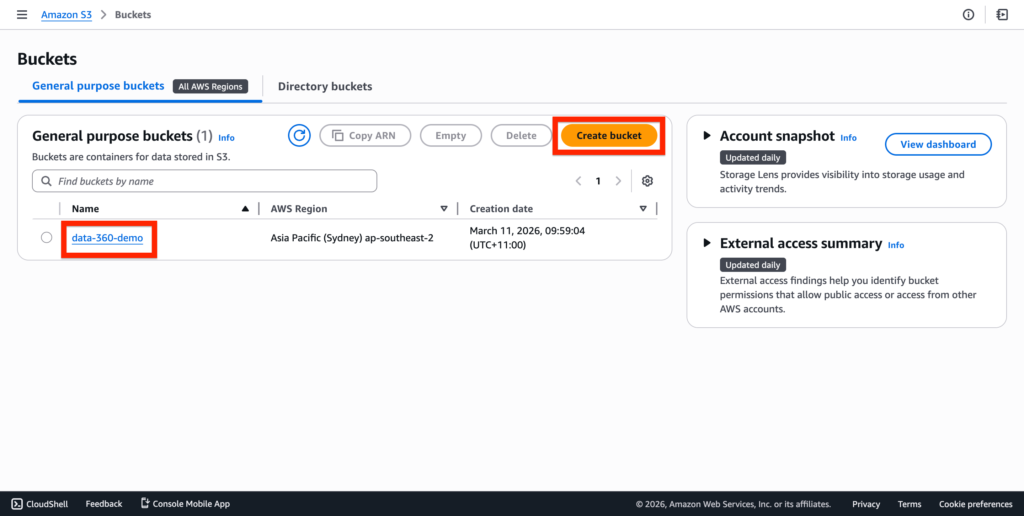
After having created an AWS account, navigate into the Amazon S3 App and create a new bucket.
I’ve named mine data-360-demo.
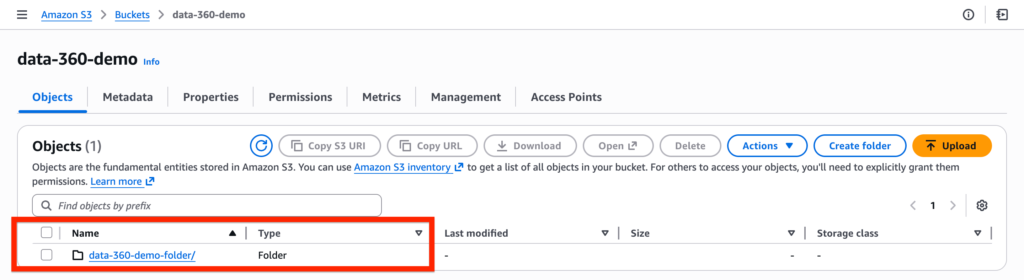
Within the bucket, create a folder. I’ve named mine data-360-demo folder.
Creating the IAM User in AWS #
We will now create the IAM User in AWS – IAM stands for Identity and Access Management – This user will be used to connect Data 360 with AWS S3.
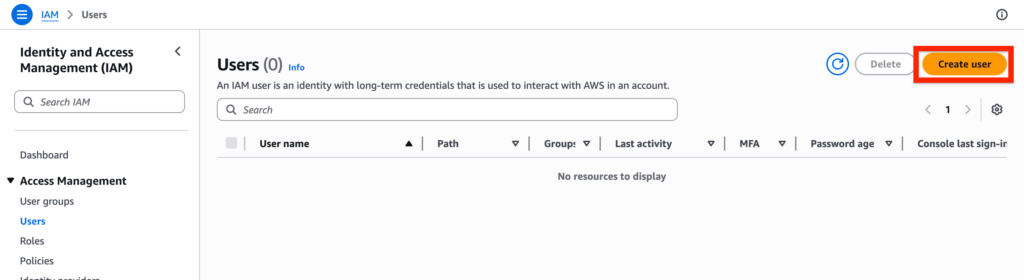
In AWS, navigate to the IAM App, select on the user tab and click create new user.
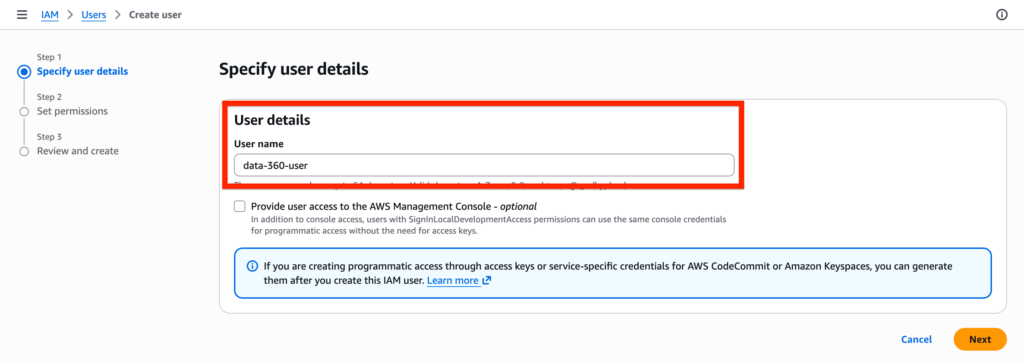
Give a name to the user, mine is data-360-user and click Next.
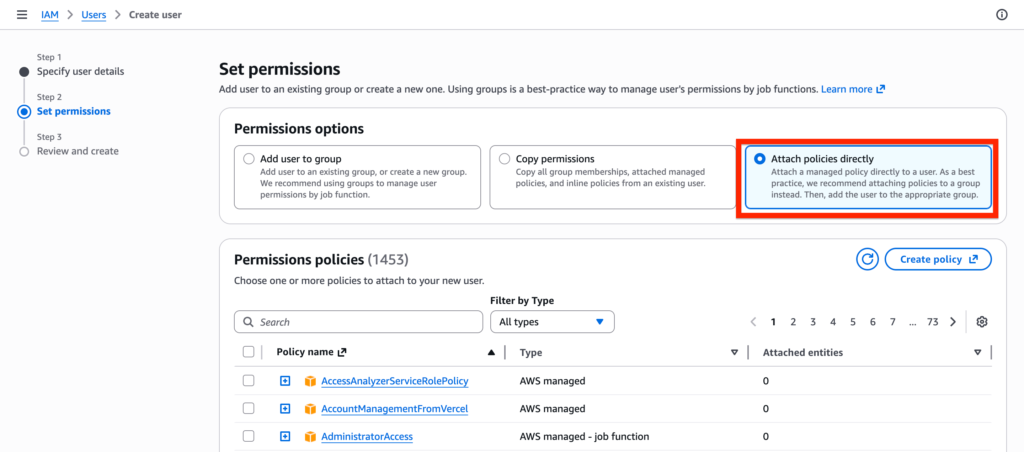
Then select the option Attach policies directly – it will allows you to create a set of permission directly related to the user. Click create policy.
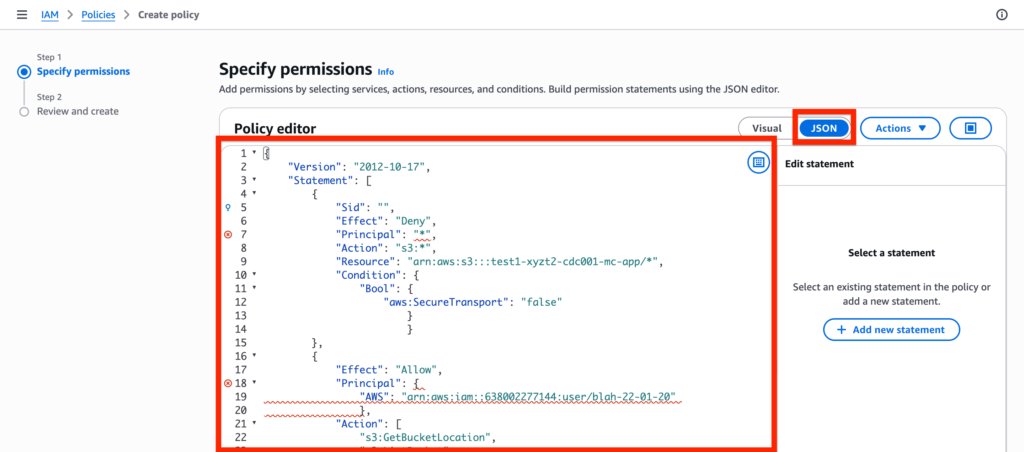
Within the policy paste the following JSON code provided within the Data 360 documentation. Click Next.
{
    "Version": "2012-10-17",
    "Statement": [
        {
            "Sid": "",
            "Effect": "Deny",
            "Principal": "*",
            "Action": "s3:*",
            "Resource": "arn:aws:s3:::test1-xyzt2-cdc001-mc-app/*",
            "Condition": {
                "Bool": {
                    "aws:SecureTransport": "false"
                        }
                        }
        },
        {
            "Effect": "Allow",
            "Principal": {
                "AWS": "arn:aws:iam::638002277144:user/blah-22-01-20"
                },
            "Action": [
                "s3:GetBucketLocation",
                "s3:ListBucket",
                "s3:GetObject*",
                "s3:PutObject*",
                "s3:GetObjectTagging",
                "s3:DeleteObject"
              ],
            "Resource": [
                "arn:aws:s3:::blah-data-exchange-blah",
                "arn:aws:s3:::blah-data-exchange-blah/*"
              ]
        }
    ]
}
Create Access Keys #
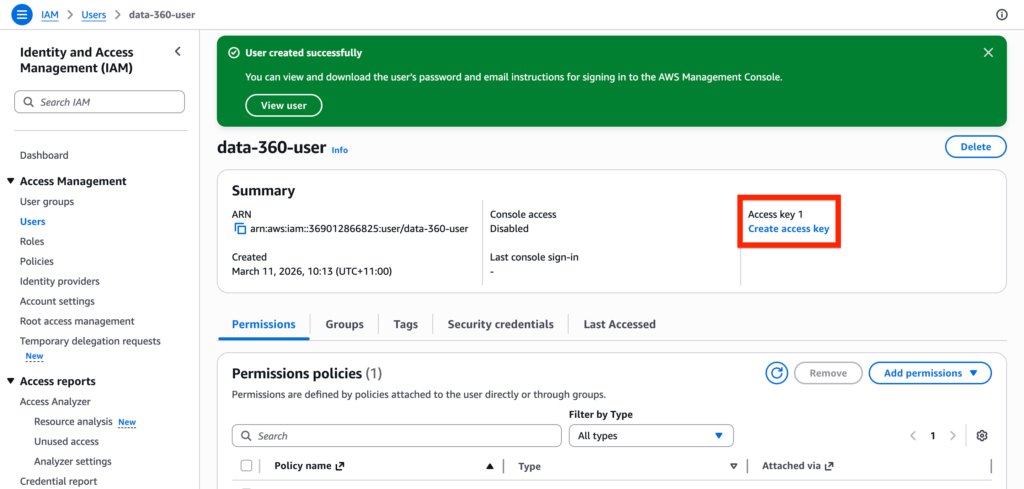
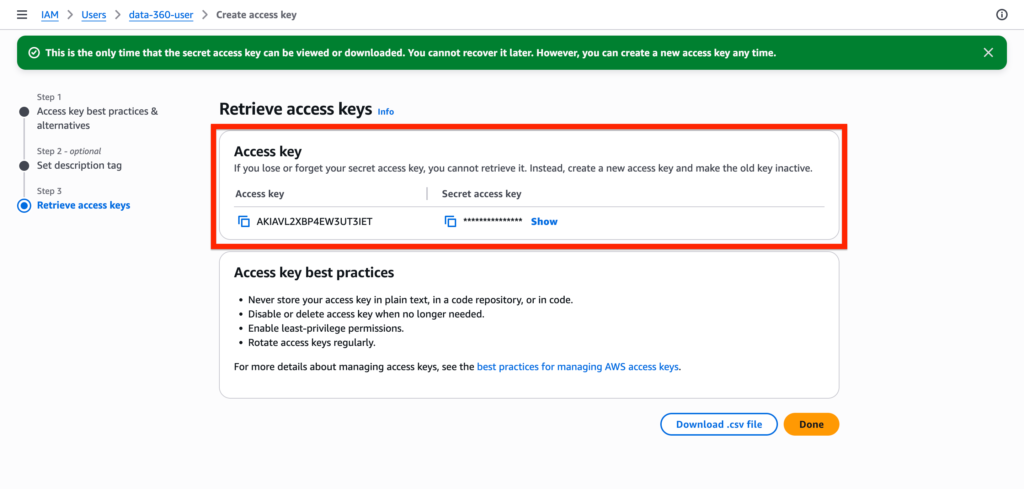
Once your AWS User is created, click Create Access Key.
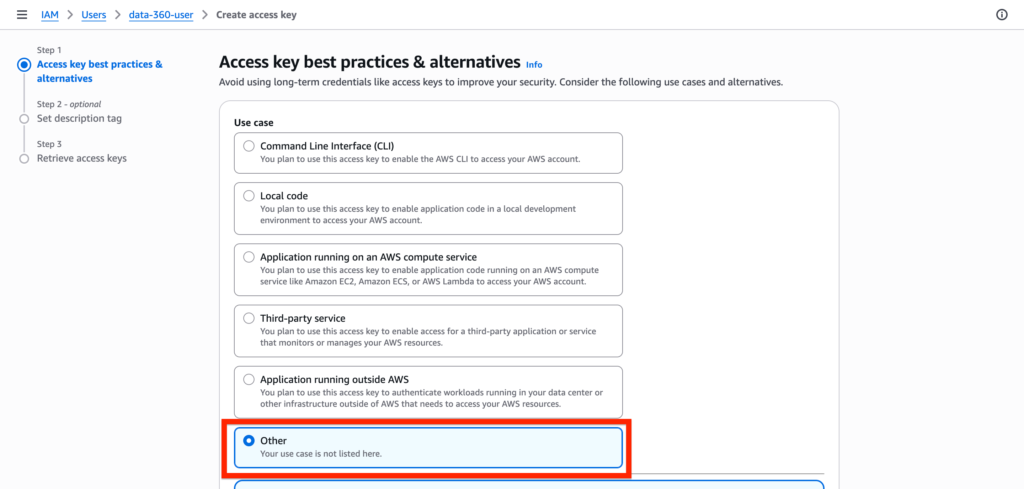
Within Access key best practices page, simply select Other and click create.
You can now visualise the access key in AWS.
Creating the Data 360 Connector #
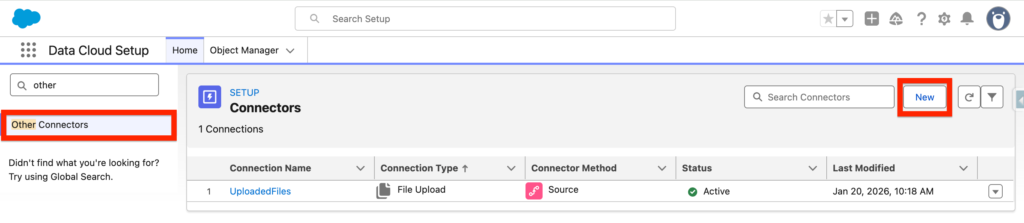
In Data Cloud Set-up, navigate to Other Connectors and click New.
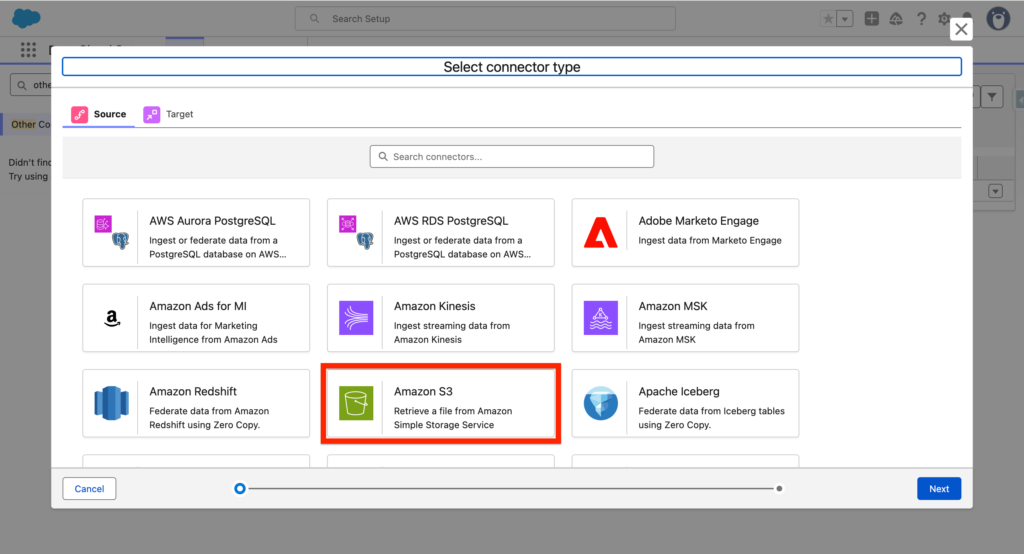
Select Amazon S3 – Retrieve a file from Amazon Simple Storage Service and click Next.
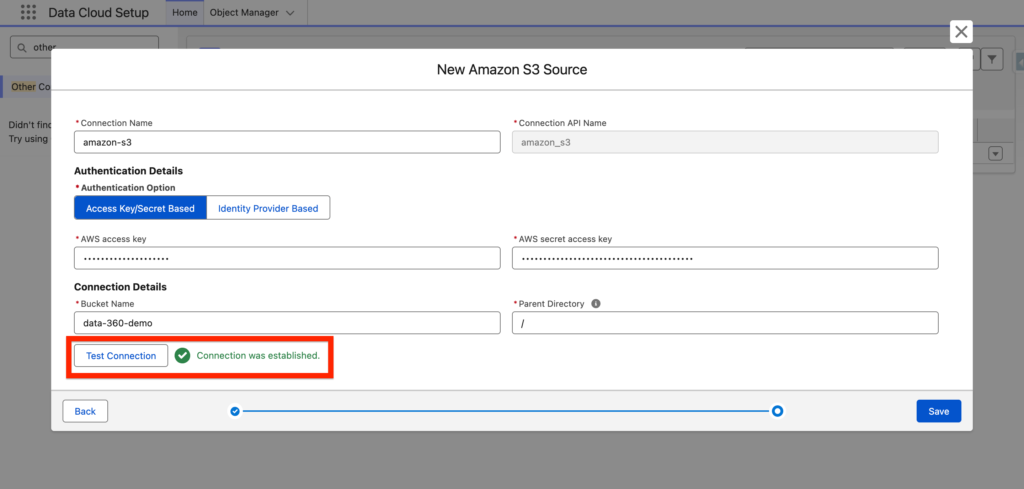
In Data-360, I will add the Access Key and Bucket Name information into the New Amazon S3 Source and I will click Test Connection to validate that it is working correctly. Then Click Save.
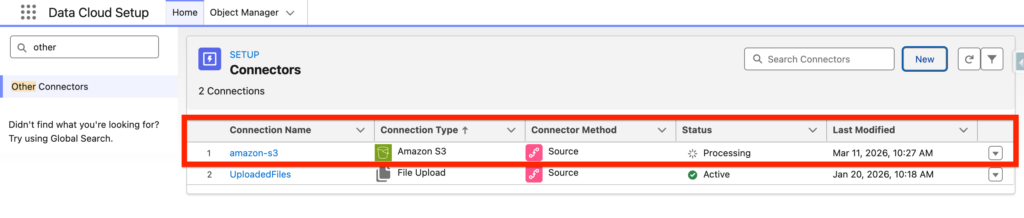
The amazon-s3 connector will then be listed – The initial status will be processing and then should switch to Active.
Creating the Data 360 Data Streams #
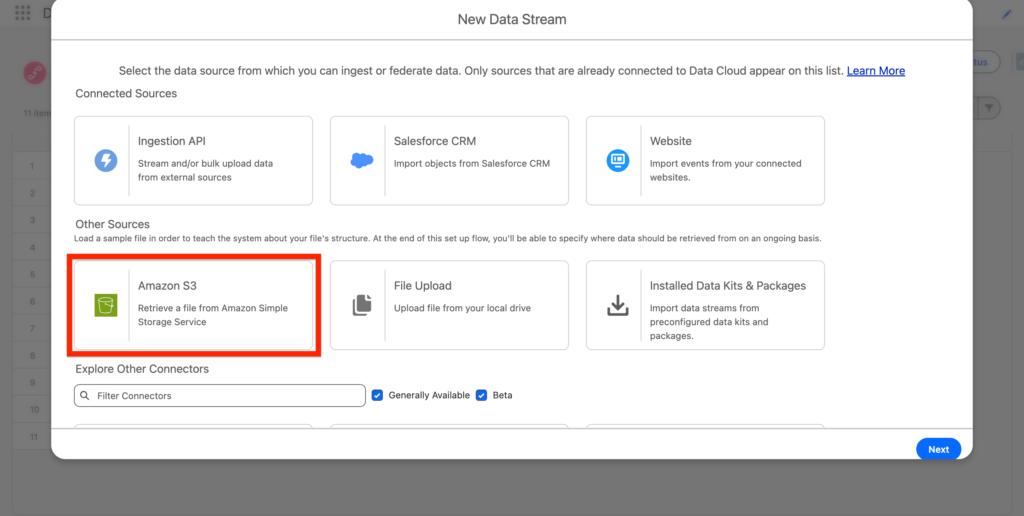
Navigate to the Data 360 App and click new. You should now be able to select Amazon S3 – Click Next.
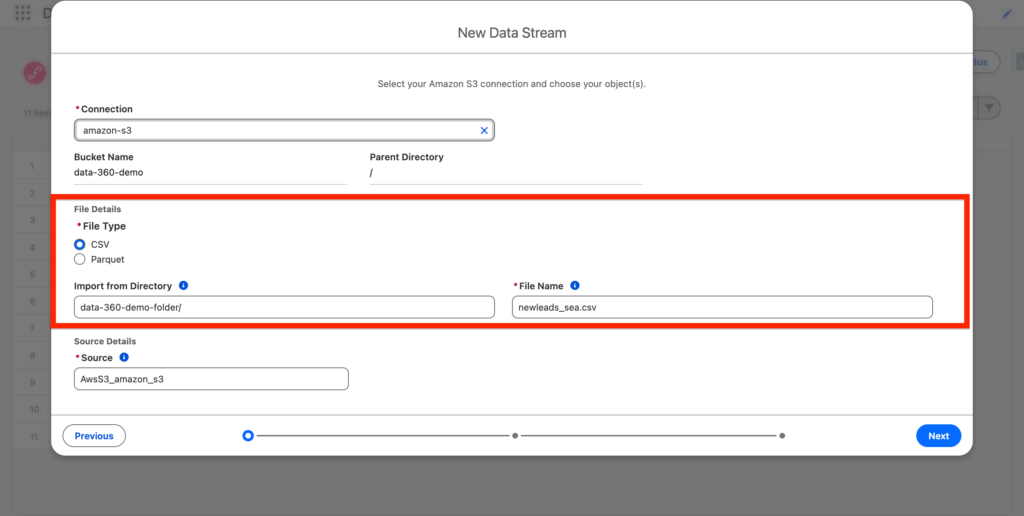
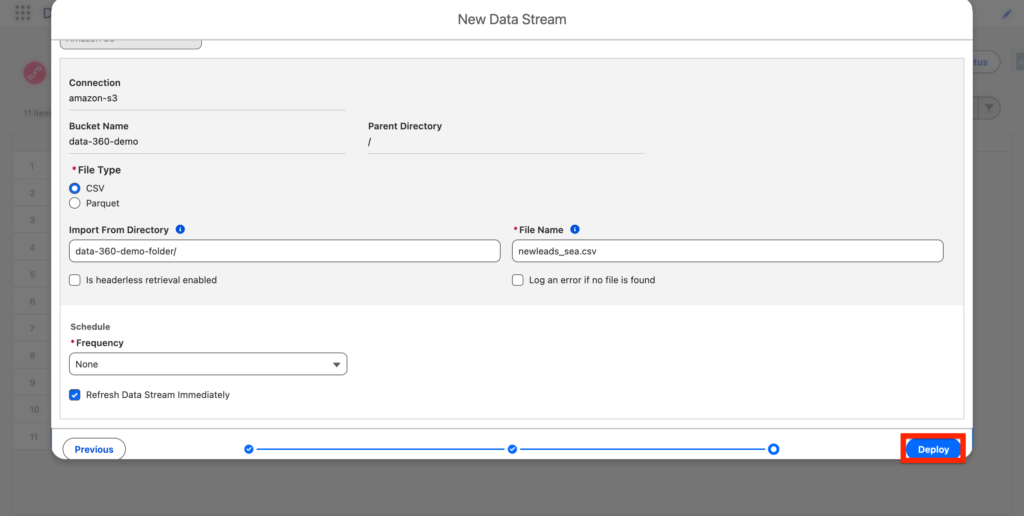
Next, I will simply specific the Amazon S3 folder where my csv file is located, as well as the file type and the File Name that will be ingested into Data 360. Then click Next.
The following step is quite interesting. We will be creating a new Data Lake Object – Where the Data ingested from Amazon S3 will be stored in. In my case I’ve created a Data Lake Object name Lead-Connected. We will also have to define the Data Lake Object Type (Profile, Engagement, Other). and the Primary Key (Id in our case).
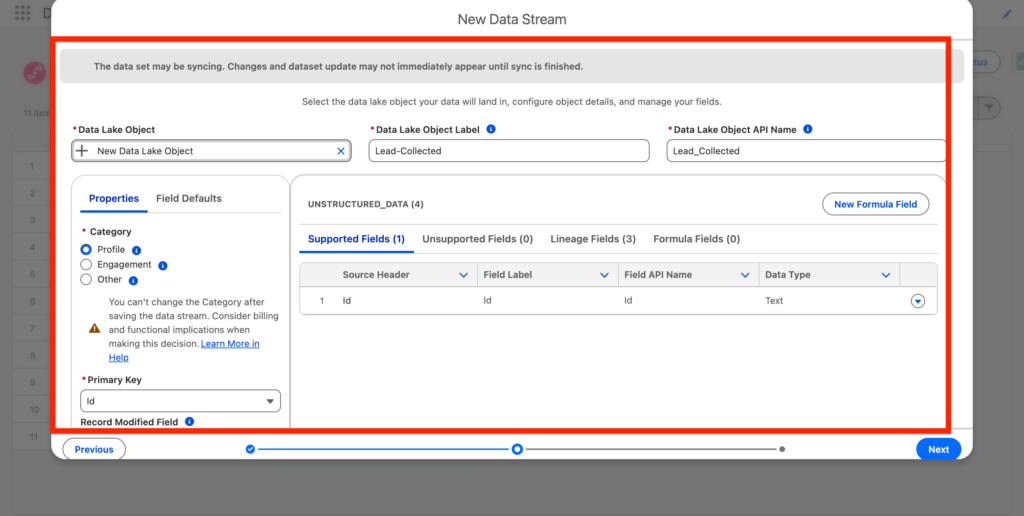
Next, we will need to define the refresh type – Upsert will add data on top after each refresh (Schedule) and Full Refresh will erase the data and add it on top of it.
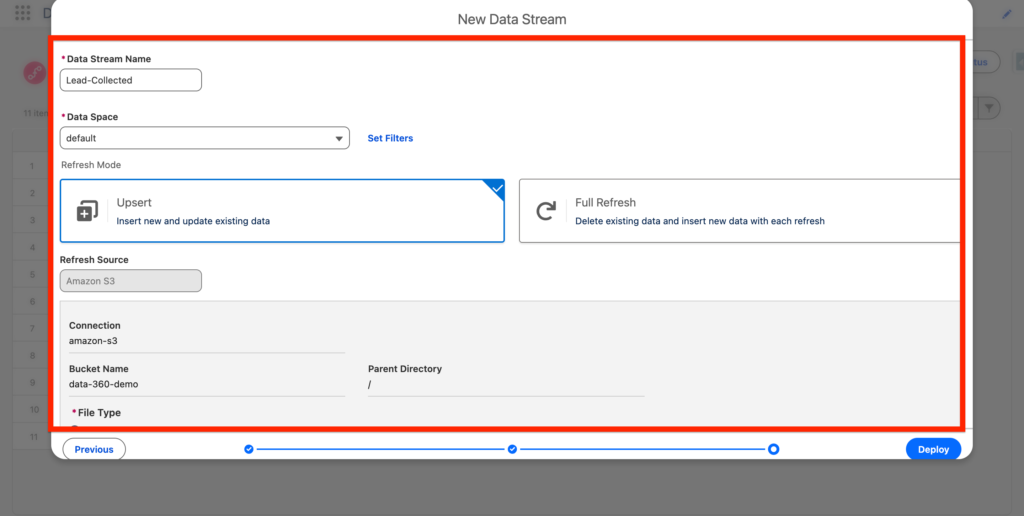
Finally Click Deploy.
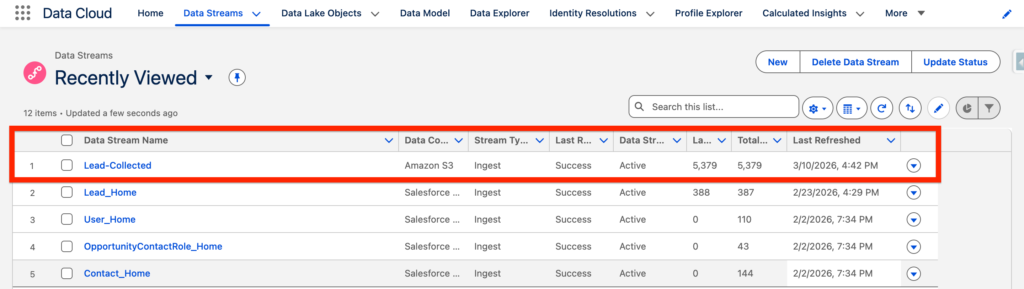
You can now see the Data Stream named Lead-Collected that have ingested a total of 5,379 records.