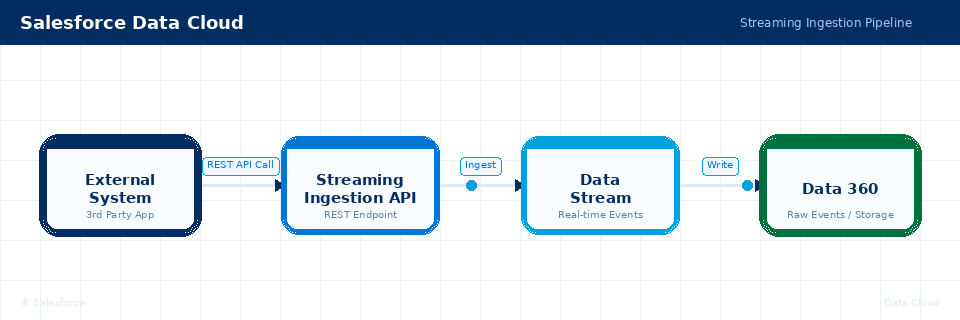
In this article we will learn how to ingest Data via API into Data 360. Plenty of Out of the box connectors are existing in Data 360 – however in some case you might need to leverage the Ingestion API Data Stream in order to build a custom integration to ingest data.
Create API Ingestion Connector #
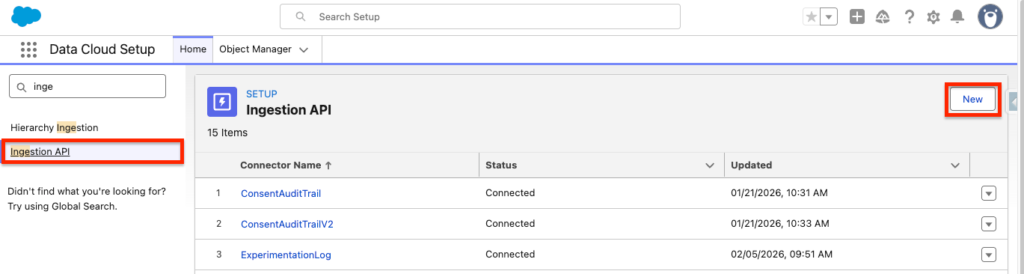
In Data Cloud Set-up, navigate to the Ingestion API tab and click New. Give it a name such as Data-360-Connector.
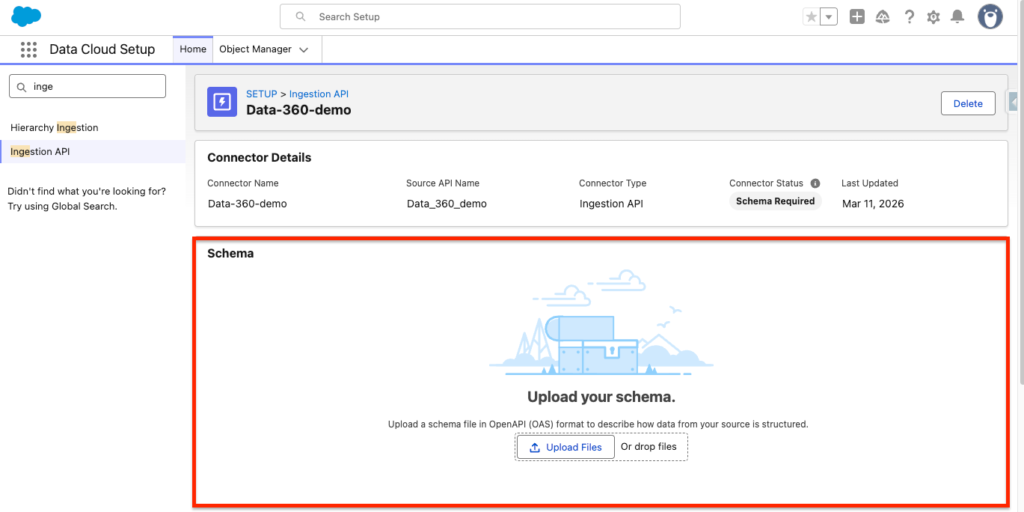
Next step is to define a Schema that is defining the structure of the Data that will be ingested.
We will upload a schema file in OpenAPI (OAS) format to describe how data from your source is structured.
In my case I will create a simple Open API (OAS) snippet that contains a few information about my customers (Email Address, FirstName, LastName).
openapi: 3.0.1
info:
  title: Customer Schema
  version: 1.0.0
components:
  schemas:
    Customer:
      type: object
      properties:
        email:
          type: string
          format: email
        firstName:
          type: string
        lastName:
          type: string
      required:
        - email
        - firstName
        - lastName
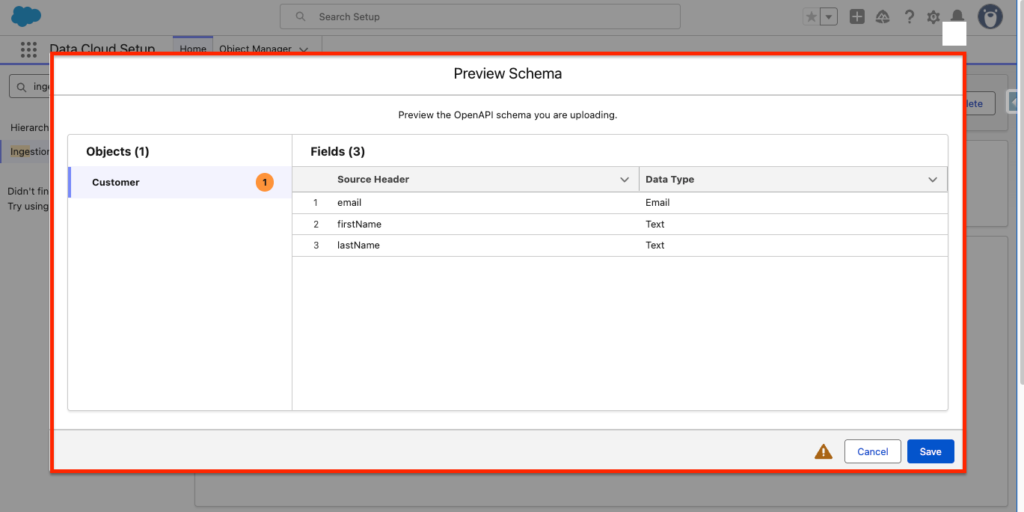
After Uploading it within the API Ingestion Connector, Data 360 will read the yaml file above and you will need to confirm that the structure is right. Click Save.
Create a API Ingestion Data Stream #
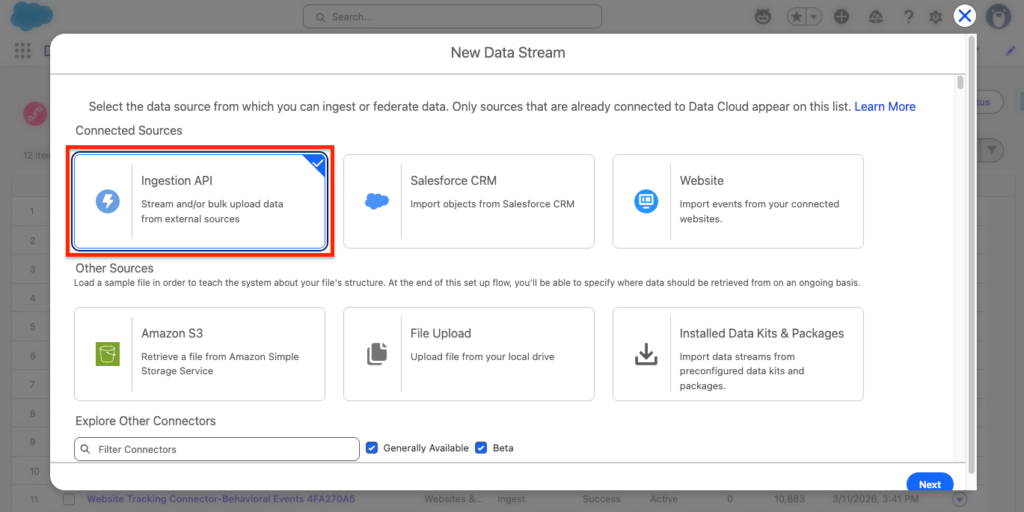
In Data 360, navigate to the Data Stream tab, click new and select the Ingestion API Source. Click Next.
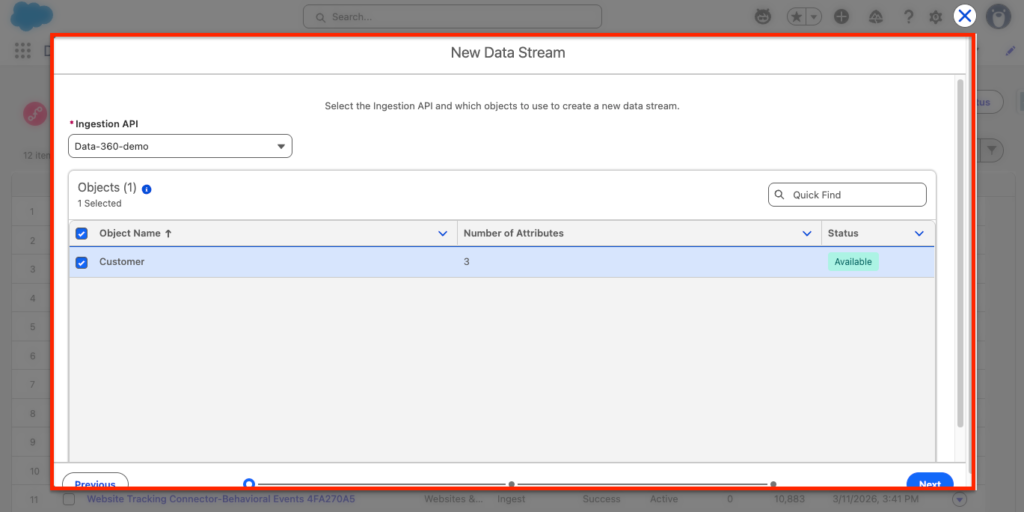
Select the Ingestion API Connector that we created (Data-360-demo) and select the Object Customer (Populated from the yaml file).
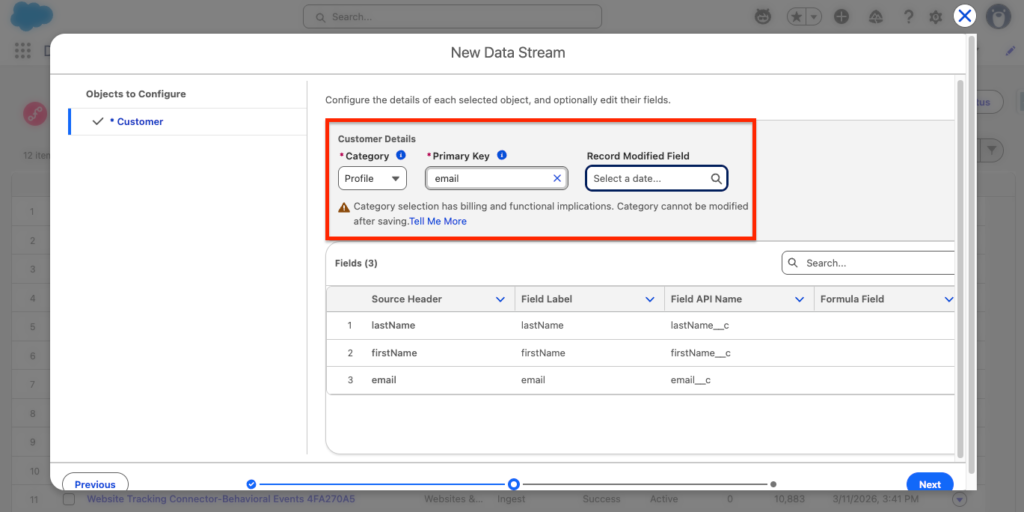
Select the Category of Data ingested – in our case we are ingesting Customer Data so it is relating to the Profile Category and the Primary Key must be email.
Now select, how the data is ingested, by default it will be Upsert as the Data is added on top of existing Data. You also have the possibility to select the Data Space where data will be ingested as well as setting a filter to only ingest specific data. Click Deploy.
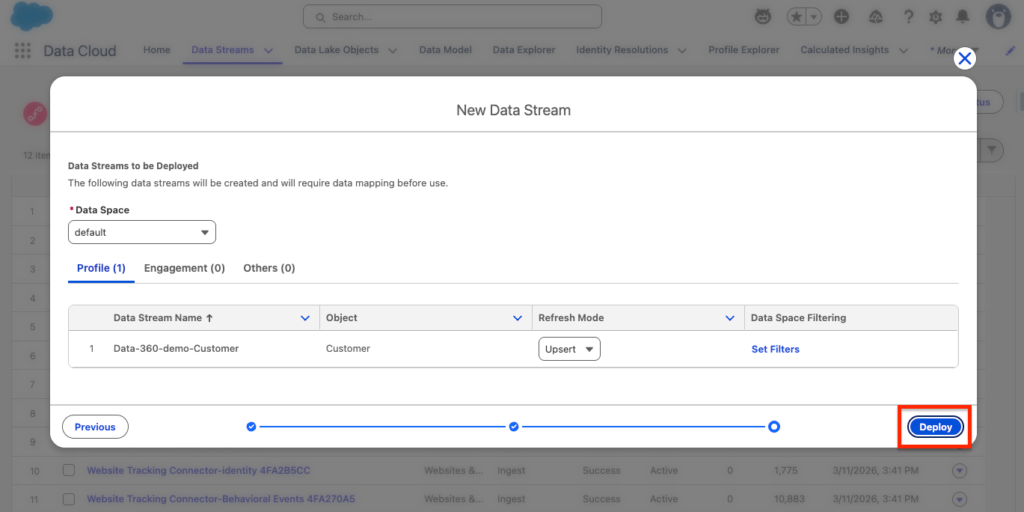
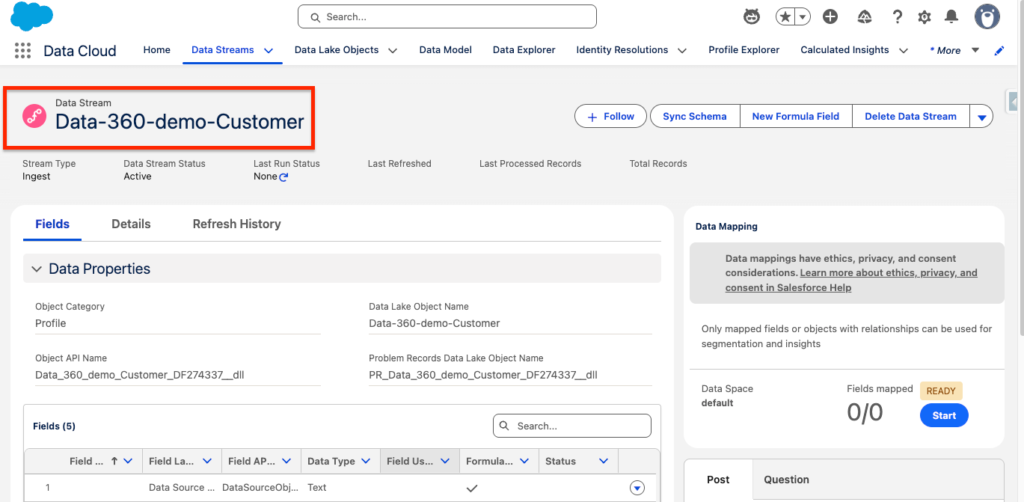
The Data Stream will be automatically created as well as the Data Like Object (DLO) where the raw data ingested will be stored. In our case the name of the DLO is Data-360-demo-Customer.
Create External Client App for Authentication #
I’ve created an article where I cover the steps to generate an External Client App for Authentication.
Send Data using the Ingestion API (Postman) #
Get the Salesforce Access Token #
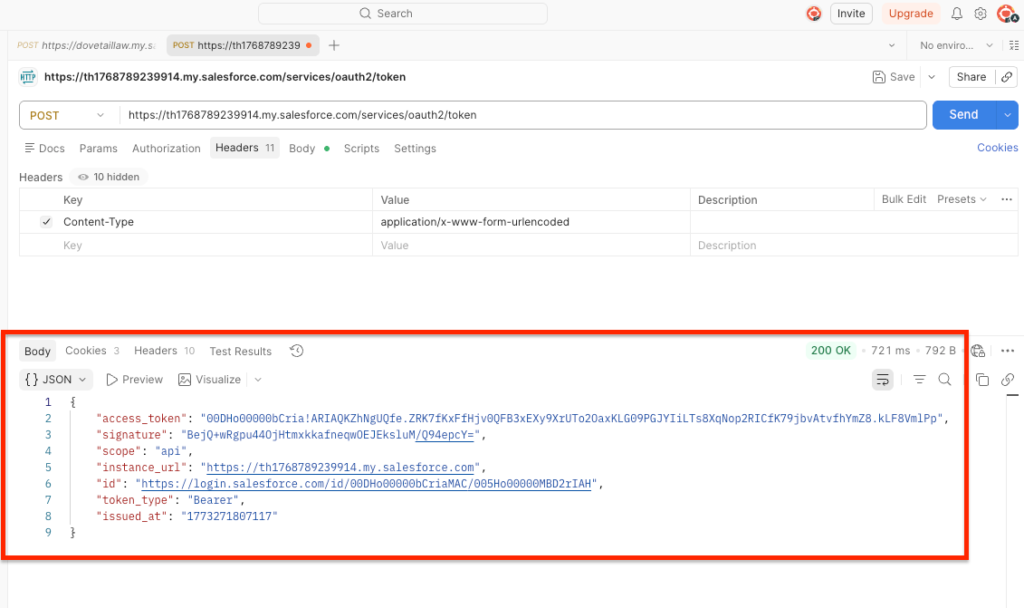
We will create the HTTP Post request that allow us to get the access token.
POST Request: https://th1768789239914.my.salesforce.com/services/oauth2/token
- grant_type: client_credentials
- client_id: 3MVG9Rr0EZ[…]
- client_secret: 22AF62FD230908905[…]
Get the Data 360 Access Token #
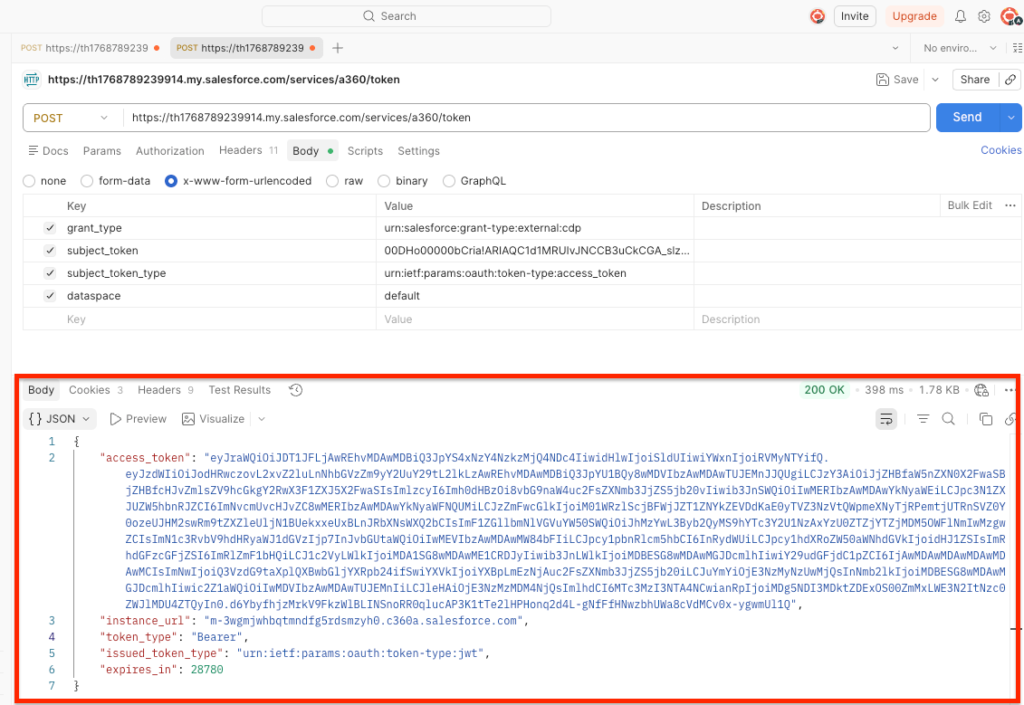
We will now get the Data 360 Access Token. Please note that the initial Salesforce Token captured above is used in order to get the Data 360 Access Token.
- POST: https://th1768789239914.my.salesforce.com/services/a360/token
- grant_type: urn:salesforce:grant-type:external:cdp
- subject_token: 00DHo00000bCria!ARI[…]
- subject_token_type: urn:ietf:params:oauth:token-type:access_token
- dataspace: default
Push Data via the Ingestion Data API #
We will download the file listed at the bottom of the Ingestion API connector that we initially created (Download All Object Endpoints). The file must contain an URL such as: https://m-3wgmjwhbqtmndfg5rdsmzyh0.c360a.salesforce.com
/api/v1/ingest/sources/Data_360_demo as well as the object /Customer
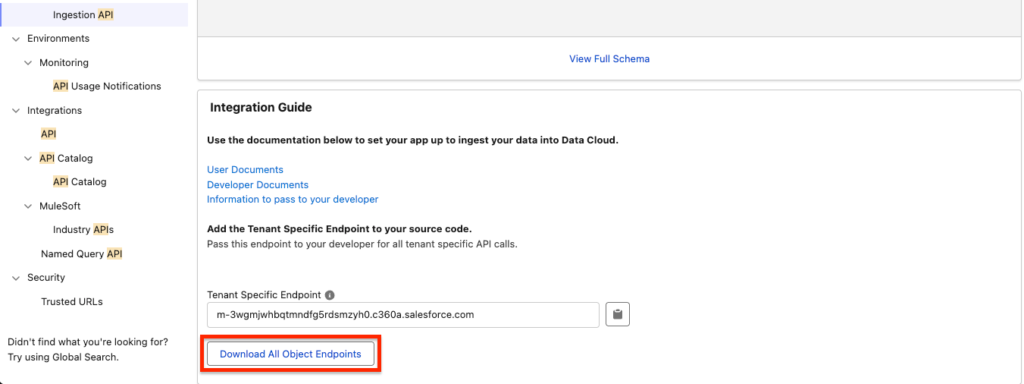
In Postman, we will create the following request:
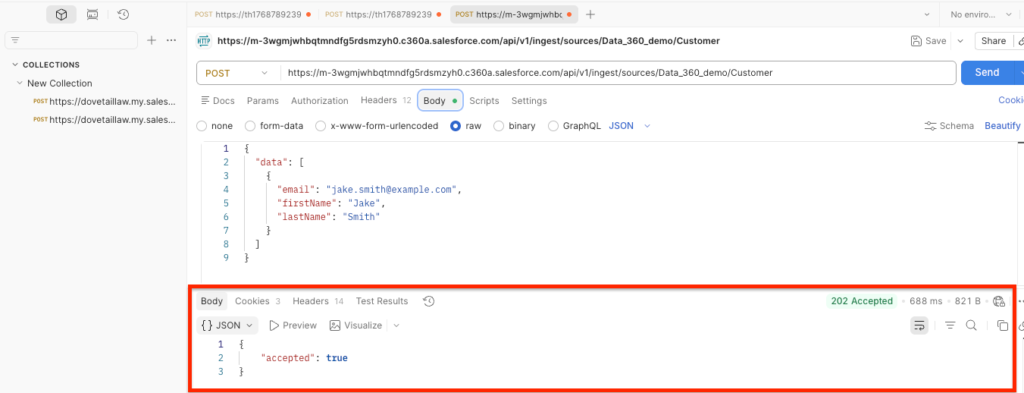
- POST: [HTTP ENDPOINT] + /api/v1/ingest/sources/Data_360_demo/Customer
- Header:
- Authorization: Bearer + [Data 360 Access Token]
- Content-Type: application/json
- Body:
- JSON:
{
  "data": [
    {
      "email": "jake.smith@example.com",
      "firstName": "Jake",
      "lastName": "Smith"
    }
  ]
}
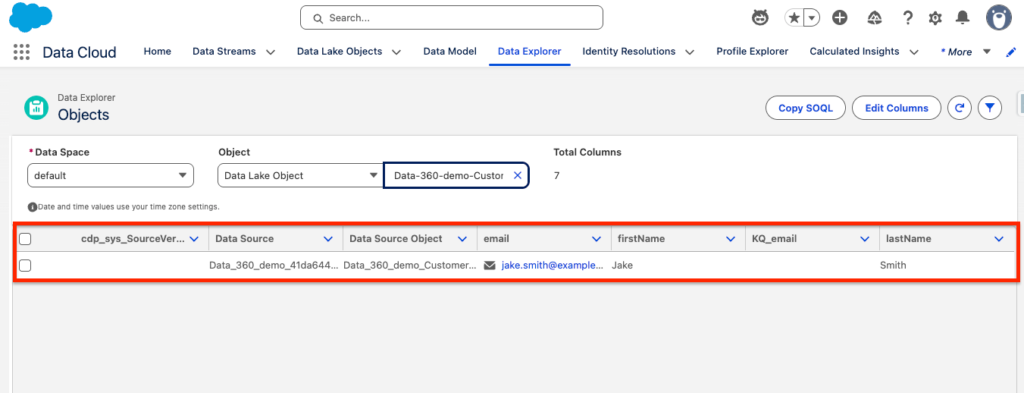
Verifying the Data Ingested in Data 360 #
If you want to make sure the record you created from the Data 360 Ingestion API is existing within the Data 360 platform, Simply navigate to Data Explorer – Select Data Lake Object – Pick the Object that you created from the Ingestion Data API Connector (mine was customer). You will see the record created from API available.