
After integrating Data 360 and Marketing Cloud Engagement, you will have the possibility to create segments directly into Data 360 (Data Cloud), and activate them in Marketing Cloud Engagement. The very first step is to create the Marketing Cloud Connector in Data 360.
Create a Marketing Cloud Engagement Connection #
We covered how to create a Marketing Cloud Engagement Connection within another tutorial. Please refer to it in order to get started.
Create a Segment in Data 360 #
In Data 360, navigate to segments and create a new segment. In our case I’ve created a generic segment named [Demo]: Segment
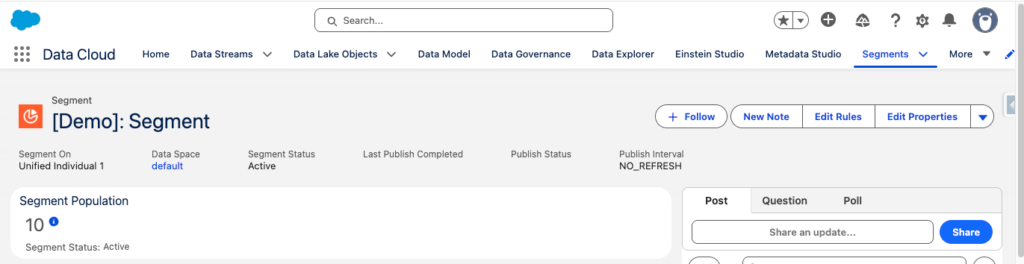
Create an Activation Target #
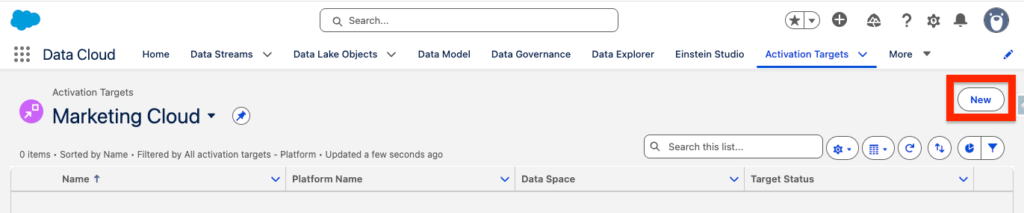
Creating an Activation Target dedicated to Marketing Cloud Engagement is like setting-up a pipeline from Data 360 to Marketing Cloud Engagement. In Data 360, select the Activation Targets tab and click New.
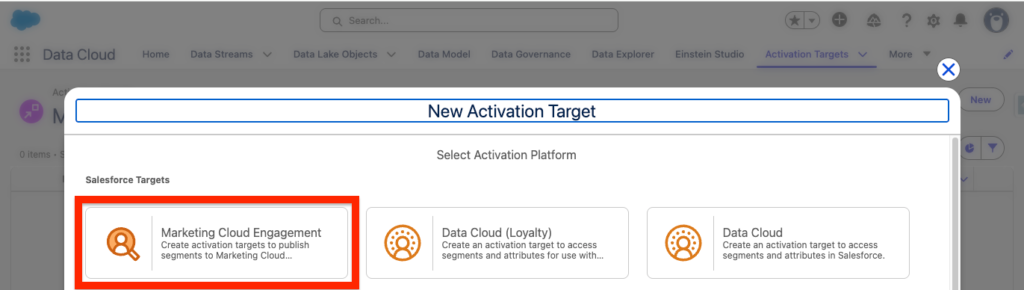
Now simply select Marketing Cloud Engagement and click Next again.
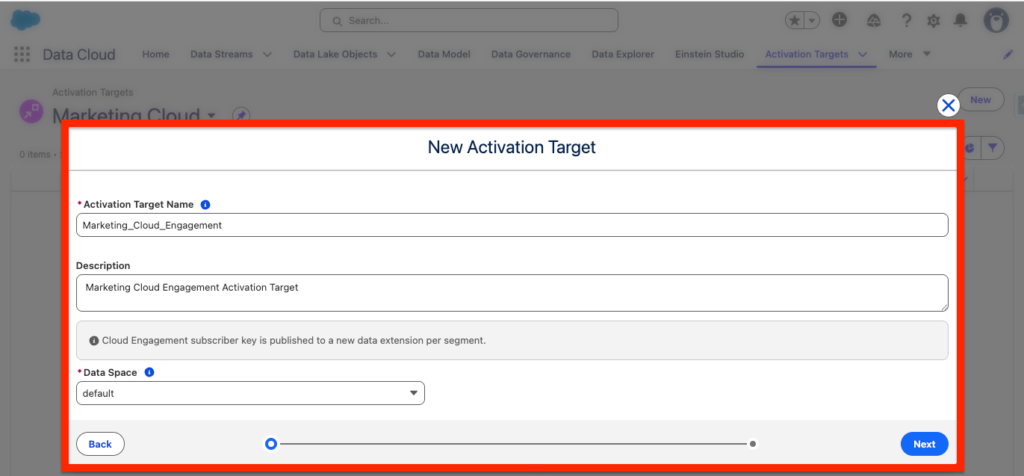
You will have the possibility to create a New Activation Target by providing the following information:
- Activation Target Name: Marketing_Cloud_Engagement
- Description: Marketing Cloud Engagement Activation Target
- Space: Default
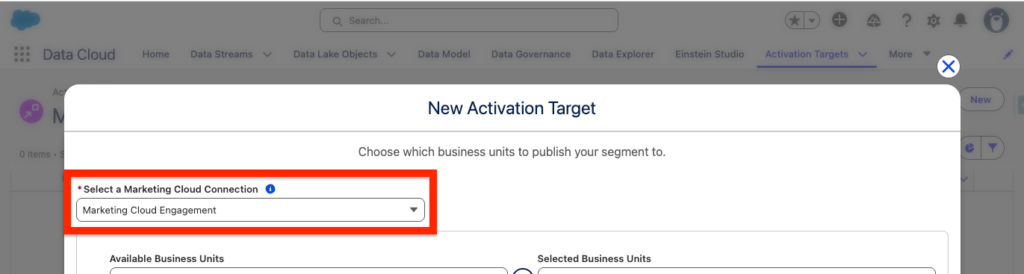
You will then have the possibility to select the connection that we initially created as well as the business unit that will be able to access the segment.
Create an Activation #
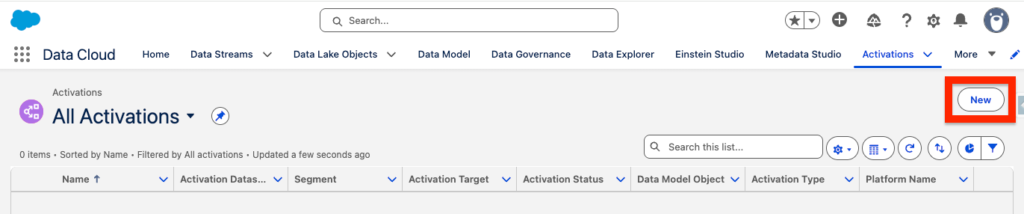
Still in Data 360, select the Activation Tab and click New.
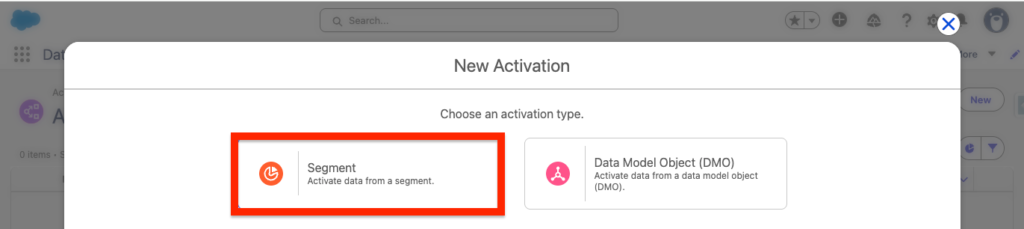
Next select Segment, as our objective is to push a Data 360 segment into Marketing Cloud Engagement.
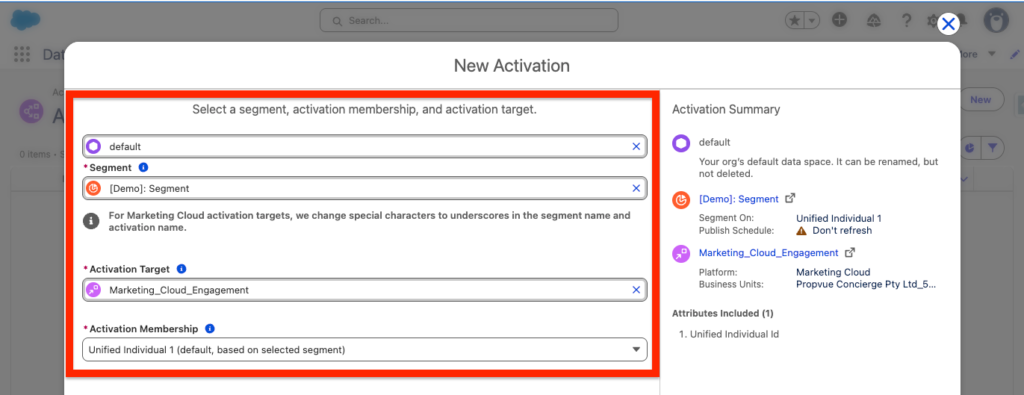
Here’s the interesting part, we will now need to select the following:
- Data Space: default
- Segment: The segment named [Demo]: Segment created earlier
- Activation Target: Marketing_Cloud_Engagement: Created earlier as well
- Activation Membership: The way we identity a customer, either Unified Individual or Individual
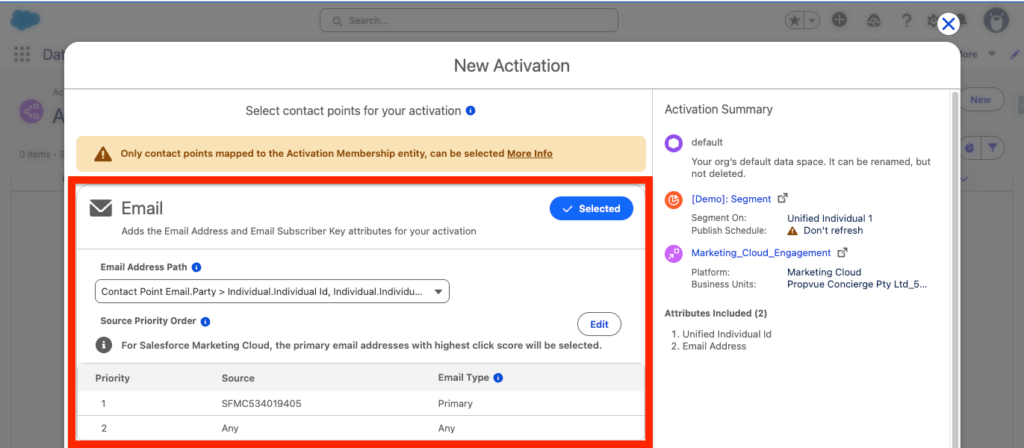
You will now be able to select how Data 360 prioritise how to recognise a customer that will be activated. For example, if we select Email, the default way of prioritisation will be to refer to the email address with the highest click score.
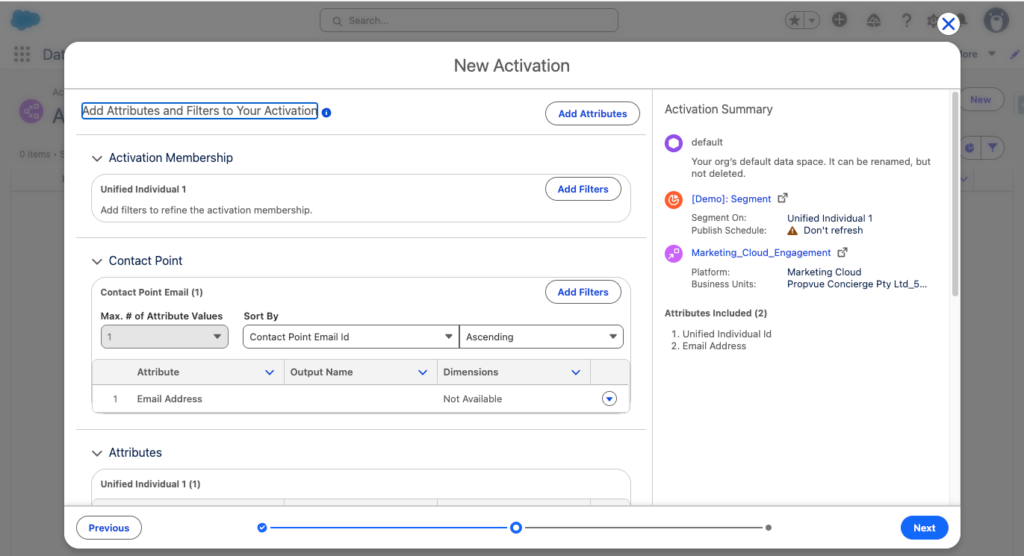
Now you will have the possibility to filter the data that you will be activating in Marketing Cloud Engagement.
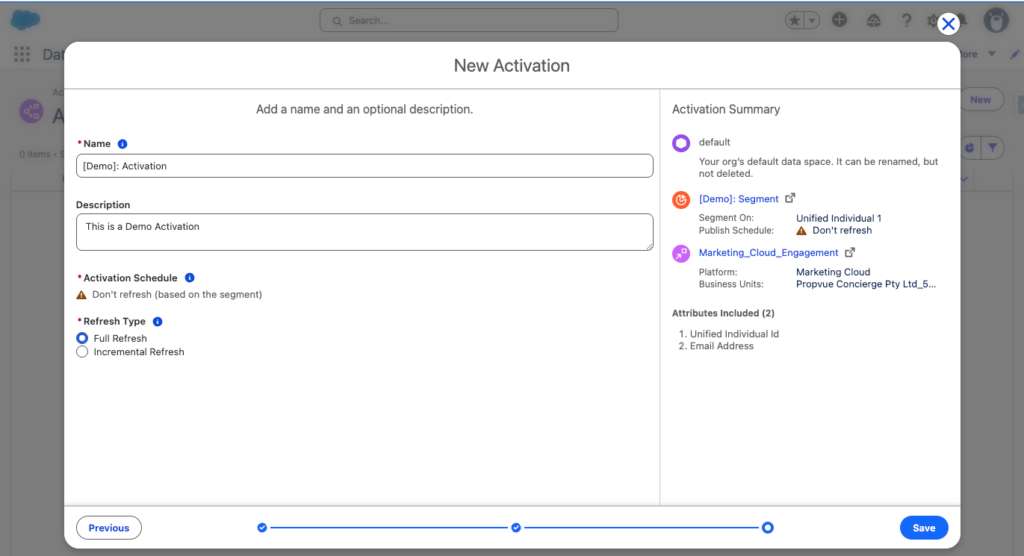
Finally give the Activation a Name and a description and choose if the refresh must be incremental (Append) or Full Refresh (Overwrite) then click Save.
Check the Segment in Marketing Cloud Engagement #
You can now navigate into Marketing Cloud Engagement and the segment should be available within the folder (it can take up to 24 Hours when initiating the process).




