
In this article I’m explaining how it is possible to create a Calculated insight in Data 360 allowing you to measure how engaged your customers are. The calculated Insight is using Data ingested from Marketing Cloud Engagement – In this tutorial we are assuming that we have already connected and ingested Marketing Cloud Engagement into Data 360. Here is the tutorial if needed.
Creating the Calculated Insight #
In Data 360, navigate to Calculated Insights and click New.

Select Calculated Insight and Use SQL Authoring, then click Next.
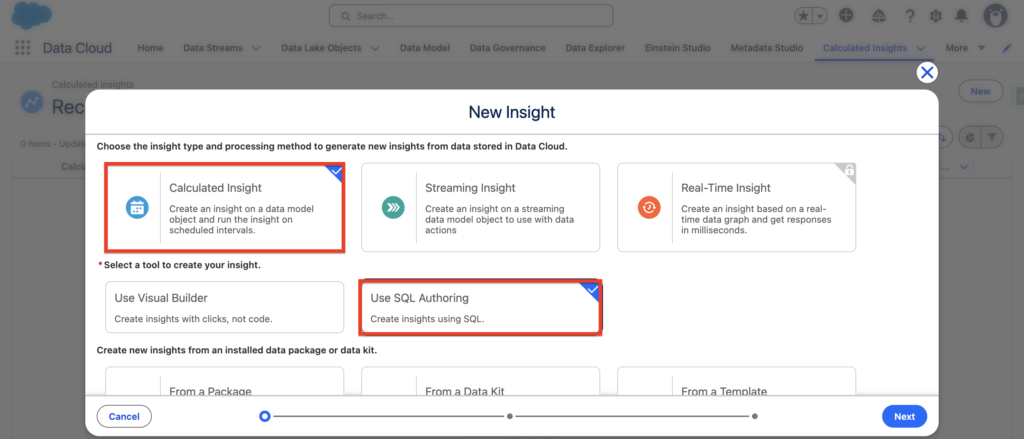
Give a name to the calculated insight: Email Engagement Score.
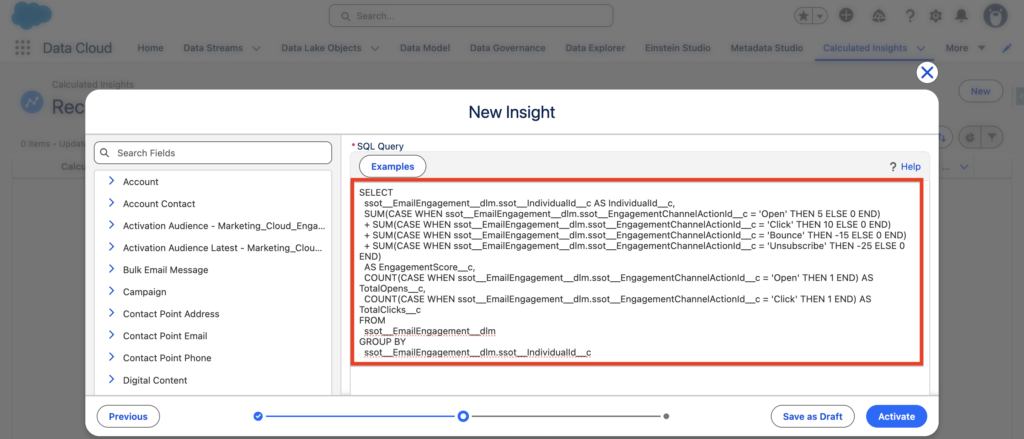
In the SQL Query, paste the following code:
SELECT
  ssot__EmailEngagement__dlm.ssot__IndividualId__c AS IndividualId__c,
  SUM(CASE WHEN ssot__EmailEngagement__dlm.ssot__EngagementChannelActionId__c = 'Open' THEN 5 ELSE 0 END)
  + SUM(CASE WHEN ssot__EmailEngagement__dlm.ssot__EngagementChannelActionId__c = 'Click' THEN 10 ELSE 0 END)
  + SUM(CASE WHEN ssot__EmailEngagement__dlm.ssot__EngagementChannelActionId__c = 'Bounce' THEN -15 ELSE 0 END)
  + SUM(CASE WHEN ssot__EmailEngagement__dlm.ssot__EngagementChannelActionId__c = 'Unsubscribe' THEN -25 ELSE 0 END)
  AS EngagementScore__c,
  COUNT(CASE WHEN ssot__EmailEngagement__dlm.ssot__EngagementChannelActionId__c = 'Open' THEN 1 END) AS TotalOpens__c,
  COUNT(CASE WHEN ssot__EmailEngagement__dlm.ssot__EngagementChannelActionId__c = 'Click' THEN 1 END) AS TotalClicks__c
FROM
  ssot__EmailEngagement__dlm
GROUP BY
  ssot__EmailEngagement__dlm.ssot__IndividualId__c
This query looks at every email engagement record in Data Cloud and groups them by Unified Individual. For each individual, it assigns a weighted score — +5 per open, +10 per click, -15 per bounce, -25 per unsubscribe — and sums them into a single EngagementScore__c value. It also counts total opens and clicks as separate metrics. The result is one row per individual with their overall engagement score, which can then be used in segments, activations, or copied back to the CRM Contact record via a Copy Field Enrichment.
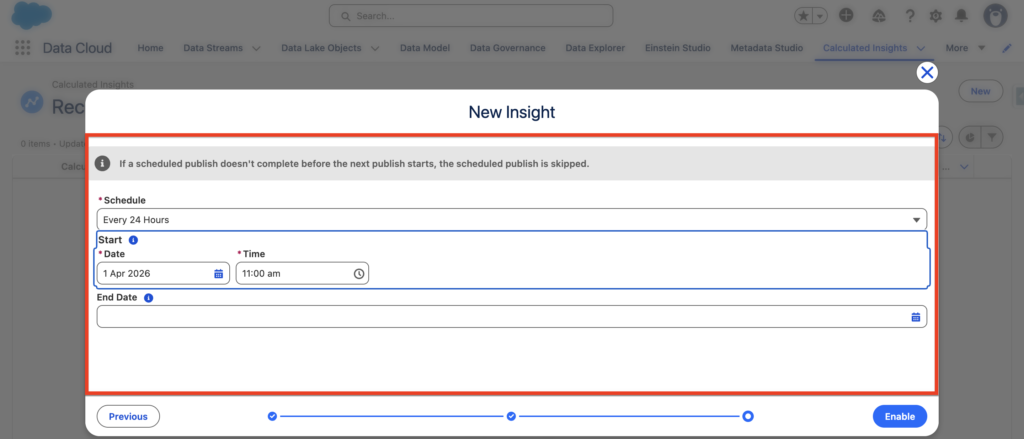
Select a schedule frequency for the calculated insight such as refresh every 24 hours – and click enable.
Creating a Report to visualise Calculated Insight #
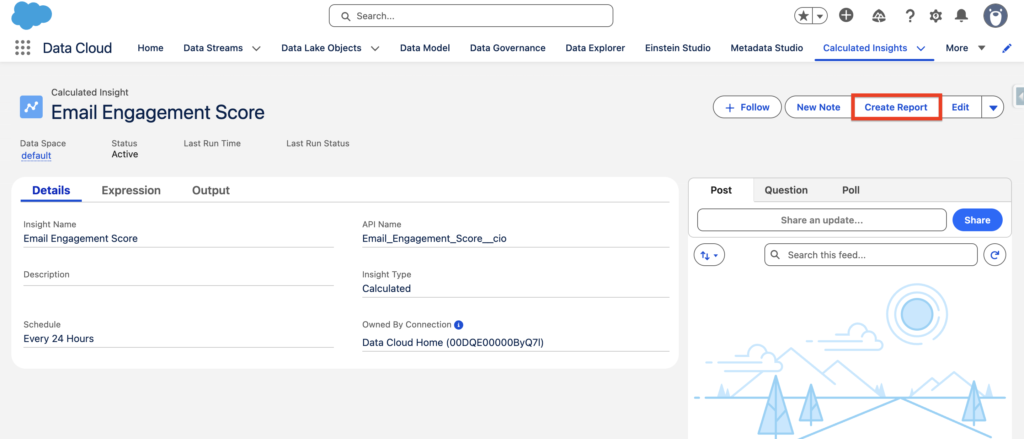
Once your calculated insight is created and Active, you will be able to click Create Report. This handy feature will allow you to visualise directly the value of the Calculated Insights and get an understanding of the scoring for each Unified Individuals.
Add the scoring to a LWC on a Contact/Lead page #
You will also have the possibility to add the Scoring information on a Contact/Lead Record in Salesforce CRM. All you need to do is to edit the page, select the Data Cloud Profile Insight widget and select the Calculated Insight we just created.





