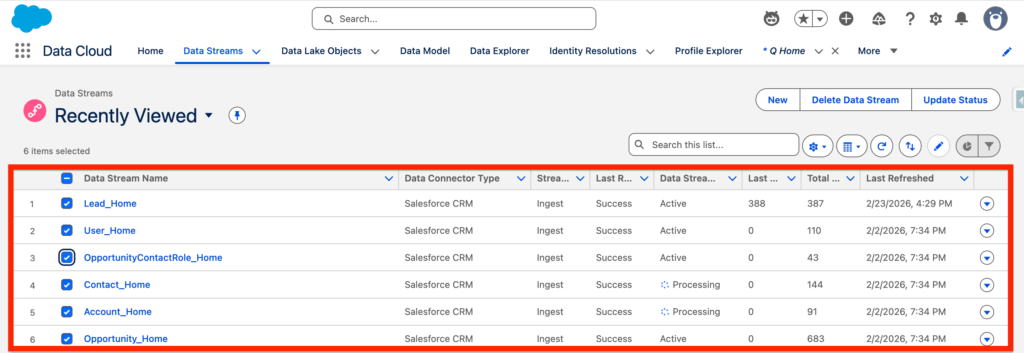
In this article we will learn step by step how to configure the Salesforce CRM Connector in Data 360 (Data Cloud). In order to get started, we will navigate to the Data Streams tab and click New.

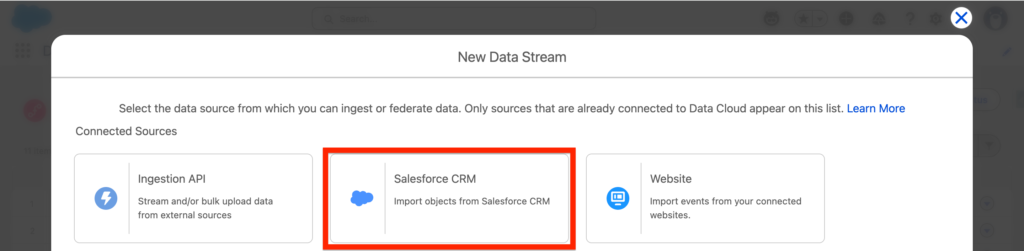
Next, we will be selecting the Salesforce CRM Connected Source and click Next.
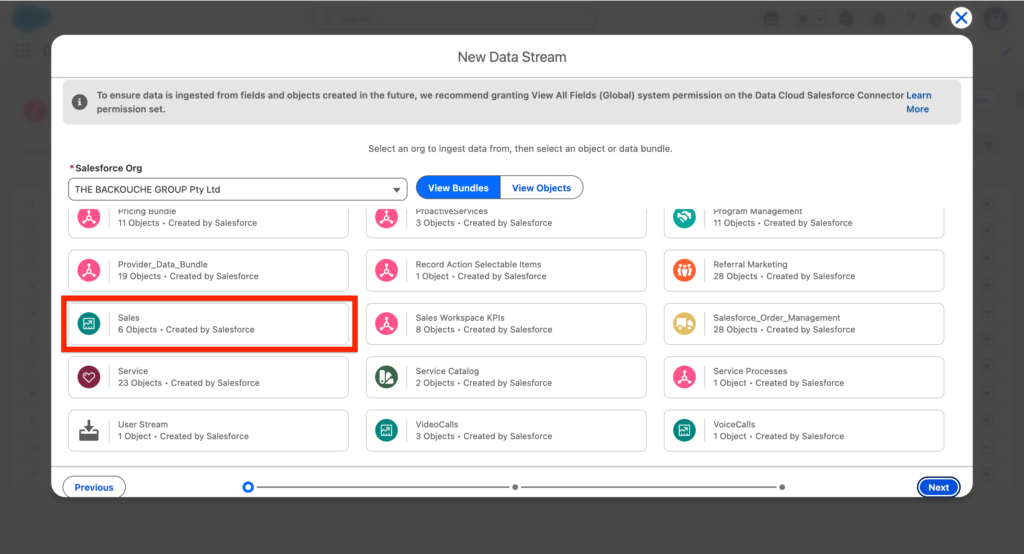
Then, we will be selecting the Sales Bundle. Bundles includes a range of selected Objects and fields – making it easy to get started with ingesting Data. If needed, there is also the possibility to select Objects individually.
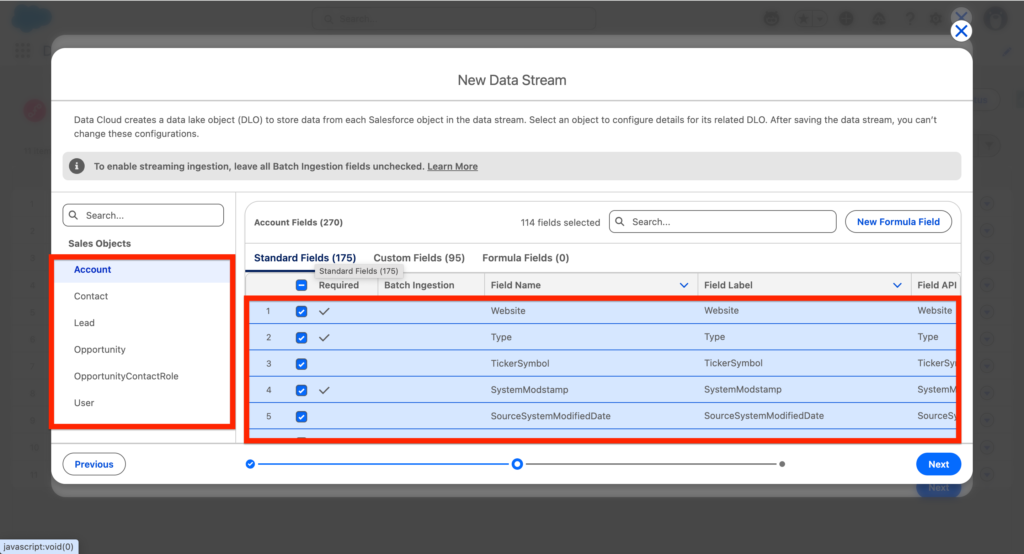
Next, we will have the possibility to review each objects that are about to be ingested in Data 360 as well as their field attributes – When using the Bundles, the default fields will be pre-selected, and we will need to select custom fields if needed. We can then click Next.
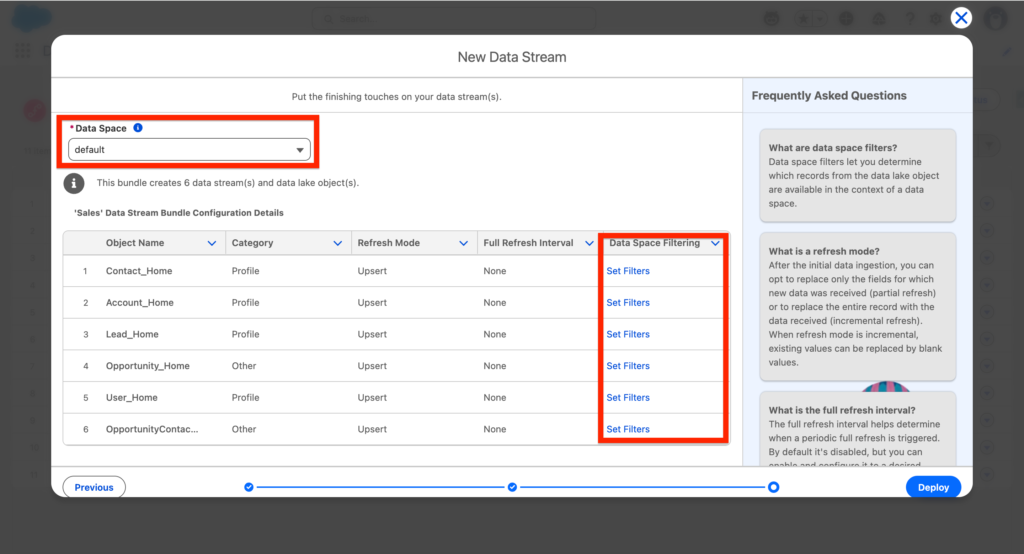
Just before the Data Streams, you will have the possibility to select the Data Space where it will be deployed (i.e. The Data 360 bucket where the Data will land). You will also be able to add filters on the different Data Streams so that Data can be imported based on specific filters. Once done click Deploy.
After deploying the Data Streams, you will be able to visualise in the list of view within the Data Stream tab. Each Data Streams will contain:
- Data Connector Type: The source of the Data Stream (Salesforce CRM)
- Streaming Type: Ingest
- The Last Refresh Status: Success/Fail
- Data Stream Status: The Status of the Data Stream (Active, Processing)
- Last Processed Record: The last number of records processed
- Total Record: The total number of records ingested with this Data Stream
- Last Refreshed: When the Data Stream was last refreshed