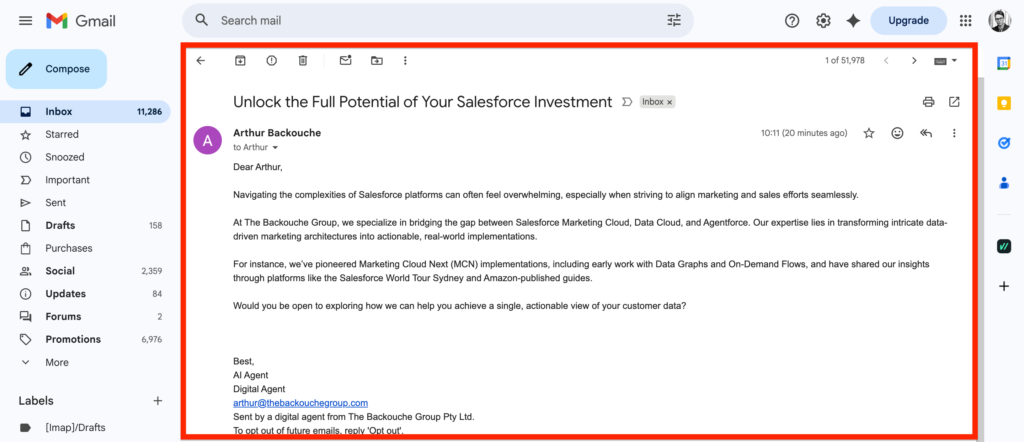
The Agentforce Nurturing Agent is capable of understanding if a lead in Salesforce is likely to become a customer based on specific criteria, as well as interacting with leads via email and measuring their interest in your organization’s products and services. It can also reply to questions asked by the lead within the email thread.
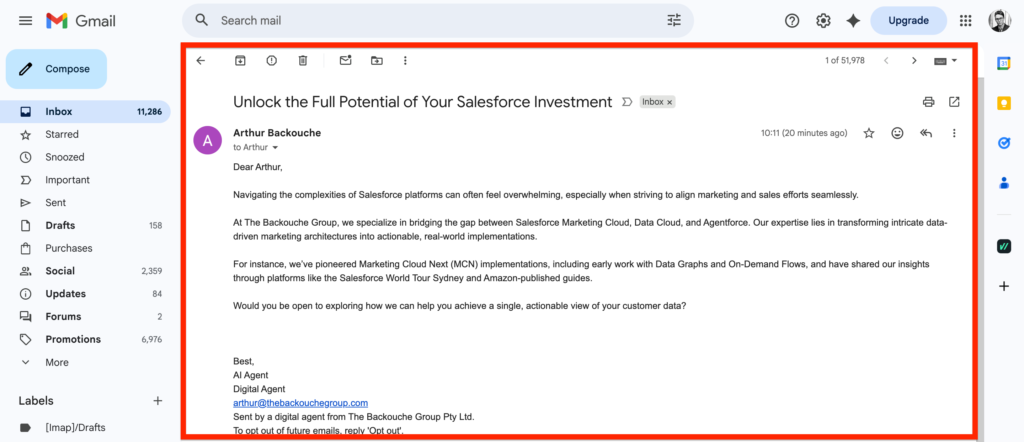
Creating the Nurturing Agent #
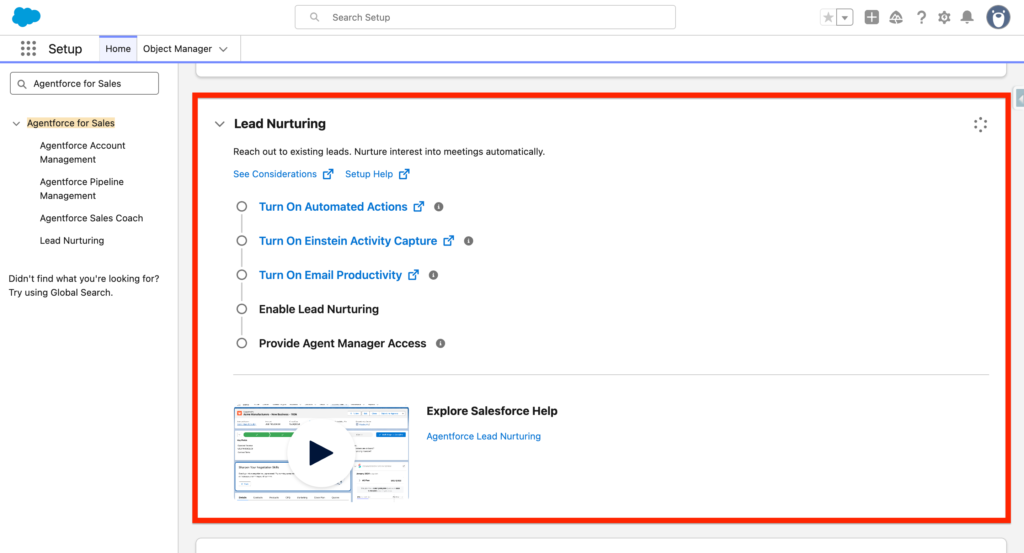
In Salesforce Setup, navigate to Agentforce for Sales, click on the Lead Nurturing tab and scroll down to the Lead Nurturing section. Enable it.
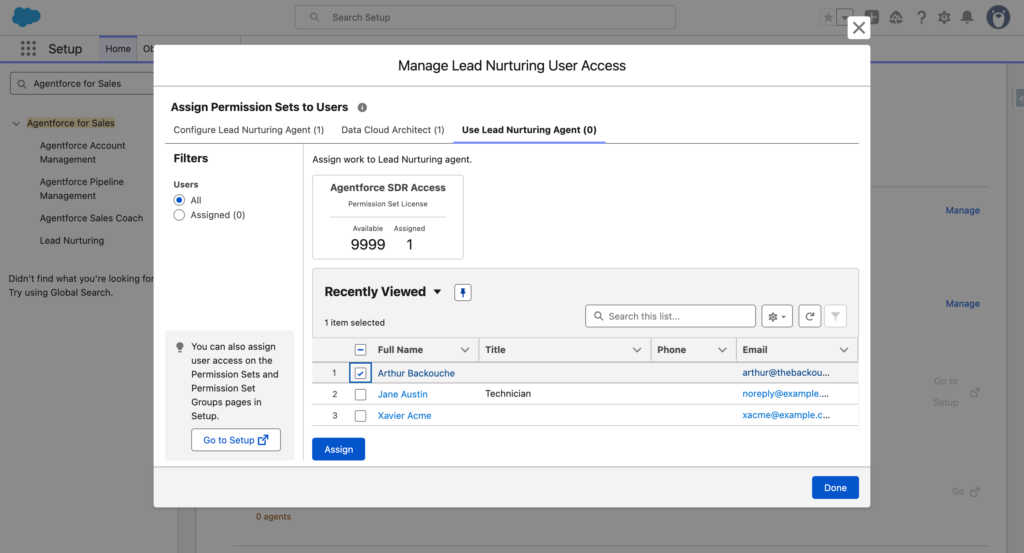
Within the Manage Access for Managers and Users section, you will need to click Manage and assign your user to Use Lead Nurturing Agent. This gives you the permission to create new Lead Nurturing Agent. It is a key requirement for the next steps.
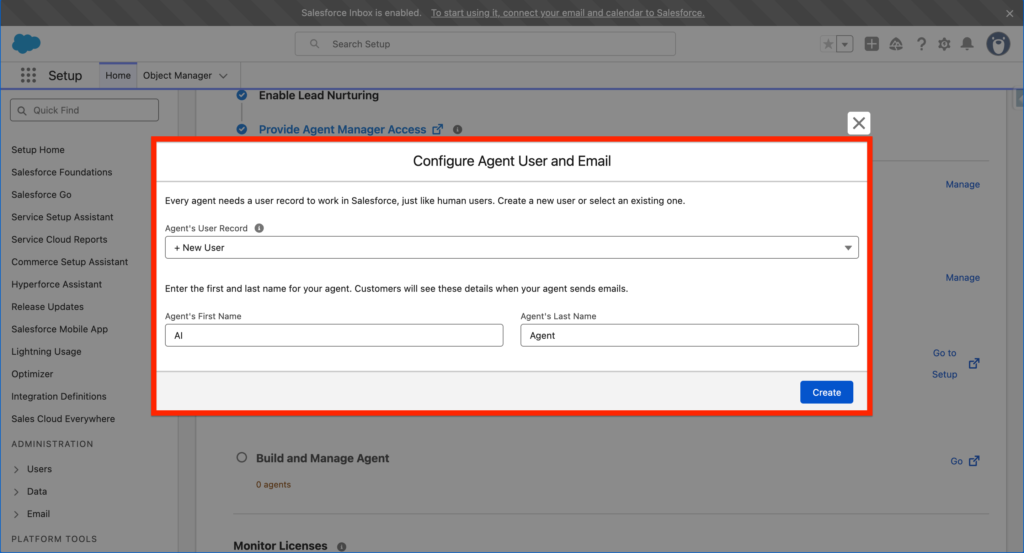
After that, within the Manage Agent’s User Record and Email section, you will need to create a Agent User. An Agent User is like a regular user in Salesforce – it can read, write, delete records based on the permissions associated.
You will also need to configure the Agent by giving him a name as well as connecting him to your email address (Gmail or Outlook). Pick wisely the email address connected as the Agent will have the possibility to reply to your email on your behalf.
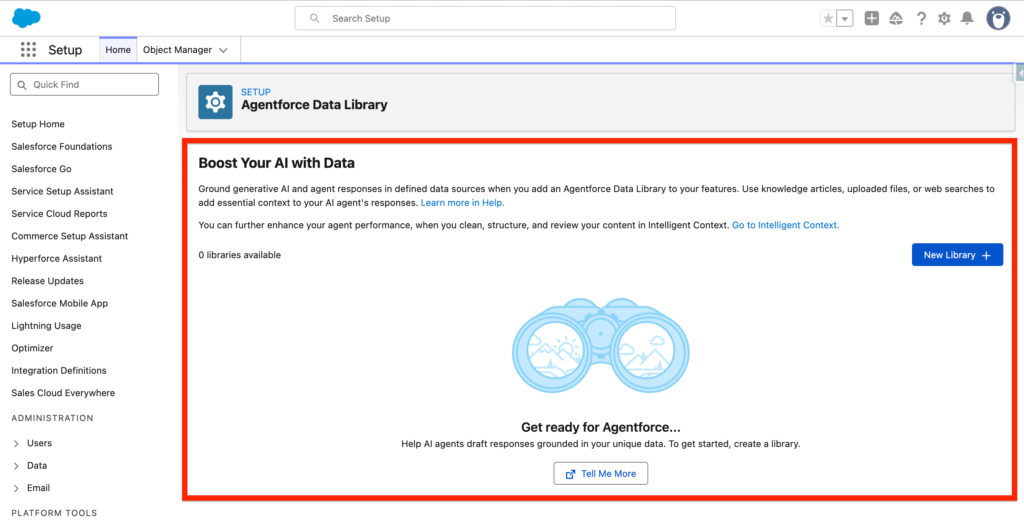
Within the Data Library section you will be able to configure the Data that your agent can access. It can either be your knowledge base, some pdf documents (Unstructured Data), or searching on the web information directly.
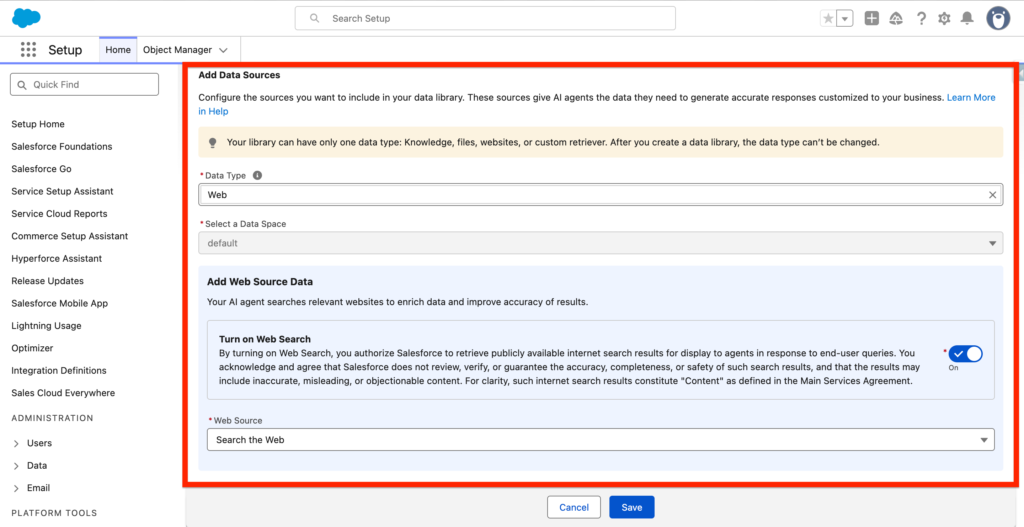
In my case I’ve selected Web because I want my Agent to research information directly on the web.
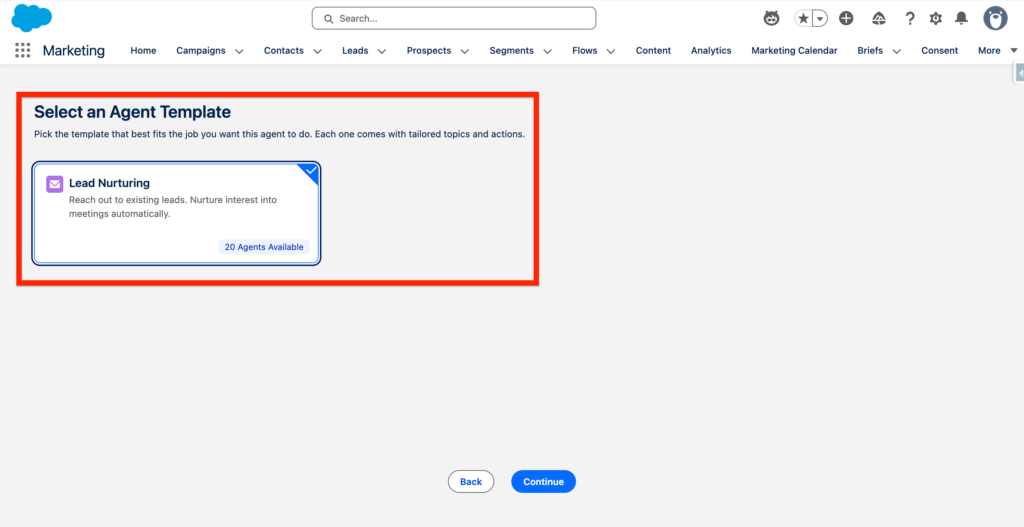
Within the Build and Manage Agent, I’ve clicked Go and I’m now redirected to a guided set-up. I have the possibility to select an Agent Template: Lead Nurturing. In a nutshell, an agent template is a form that will allow you to configure your Agentforce Agent by answering questions on how it should behave.
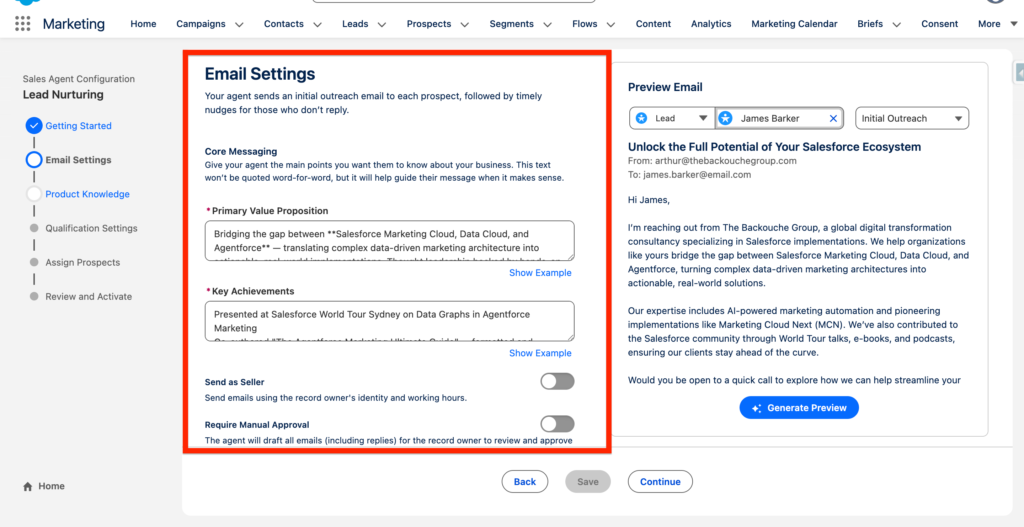
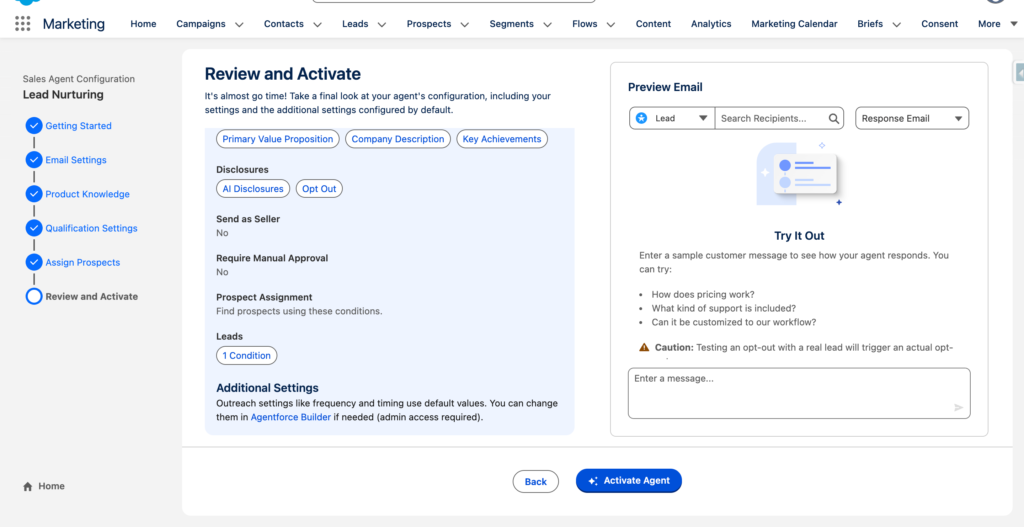
Throughout the guided process of setting up the Lead Nurturing Agent you will need to have answer a range of questions about your organization and the key aspects of it (i.e. What is your activity, how can you help your customers). Based on the questions answered you will be able to Generate a preview of what an Email looks like. You will be able to preview and test with a Lead of your choice.
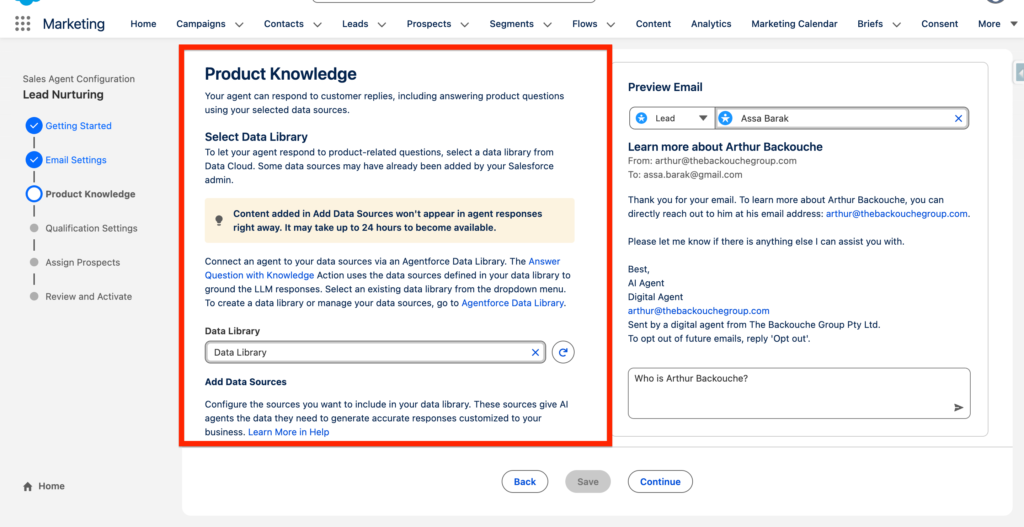
Within the product knowledge section, you will be able to select the Data Library that we have initially created. This will allow your agent to answer any incoming questions. In my case, I’ve allowed the agent to research the web in order to provide an answer.
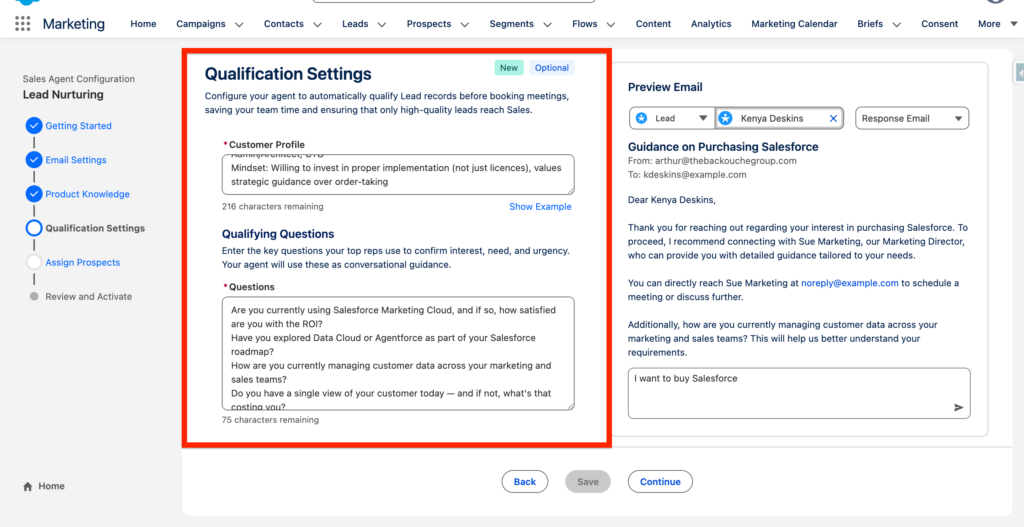
Qualification setting relates to all the attribute fields the Agent should evaluate as well as all the questions that should be asked to the lead in order to understand if the lead is a potential client or not. Within this step, you will teach your agent to understand if a Lead is important as well as asking the right questions to evaluate his level of interest in your products and services.
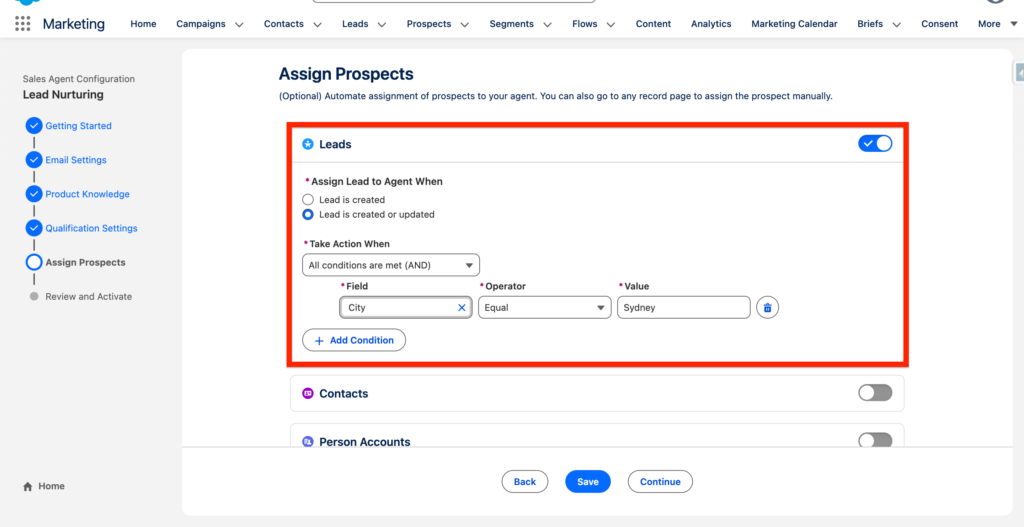
Next, I have added all the conditions to assign the leads to the Agent when they meet specific conditions such as their city or job title. This can be quite interesting. If the Lead that is entering Salesforce or is updated and have field attributes (City, Title) that are equal a value (Sydney, CEO) the Lead will be automatically assigned to the Nurturing Agent.
Finally I can review and activate the agent. Once the Agent is Activated we will need to enable and associate a Messaging Channel.
How to use the Nurturing Agent #
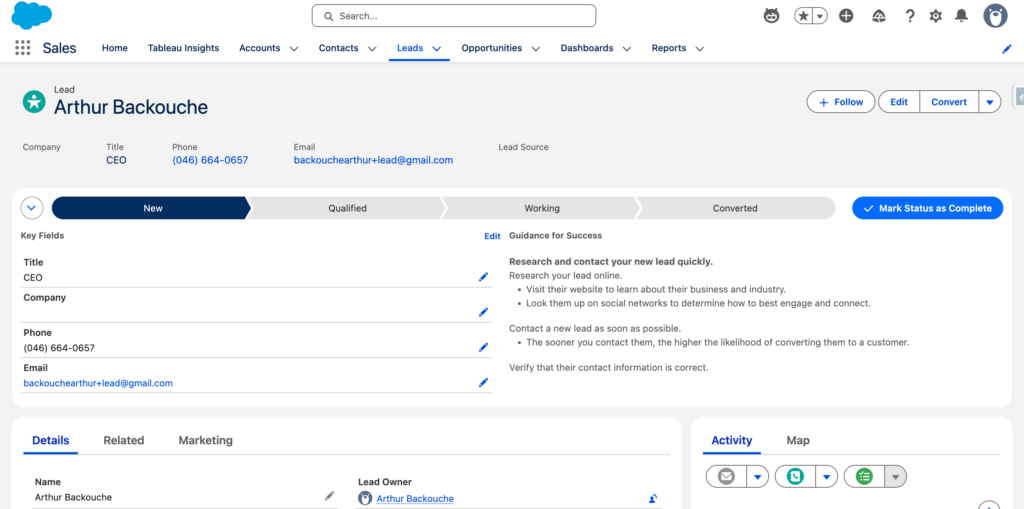
I’ve created a new Lead in my Salesforce CRM.
Here’s the email received in my inbox after a few minutes.