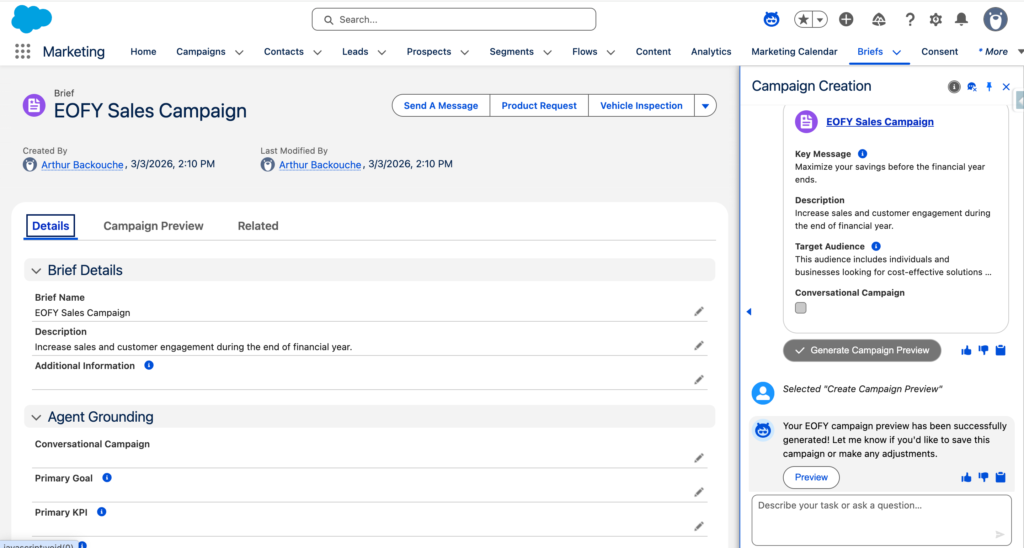
As you may know, Agentforce Marketing (Marketing Cloud Next) is using the Campaign Object as a central element for organizing and setting up your Marketing Communications (Email Broadcast, Journeys). Each Campaign within Agentforce Marketing contains a tab named Brief that allows your marketers to define and explain the objective of a campaign. By using the Campaign Creation Agent within Agentforce Marketing, we have the possibility to generate campaigns simply by chatting with the Campaign Agent as well as auto-populating the campaign briefs.
How to set-up the Campaign Creation Agent #
In a few steps we will be learn how to create the Campaign Agent in Salesforce.
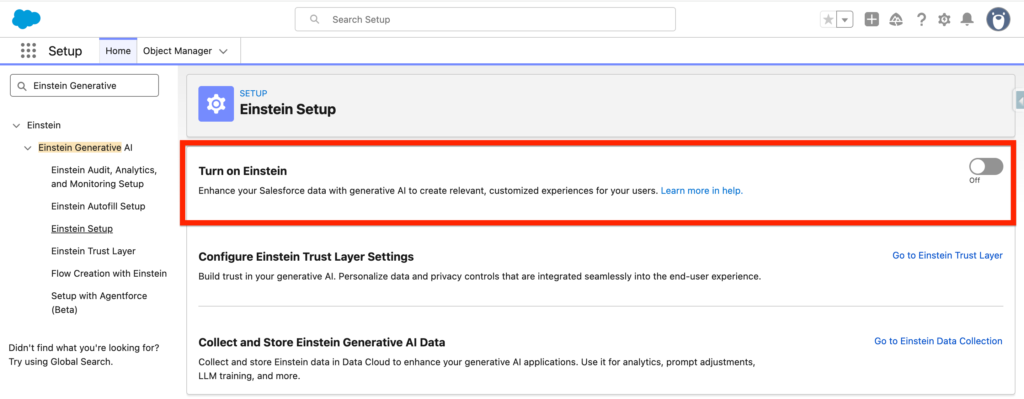
Activate Einstein #
In Salesforce Set-up, Navigate To Einstein Setup and Turn on Einstein.
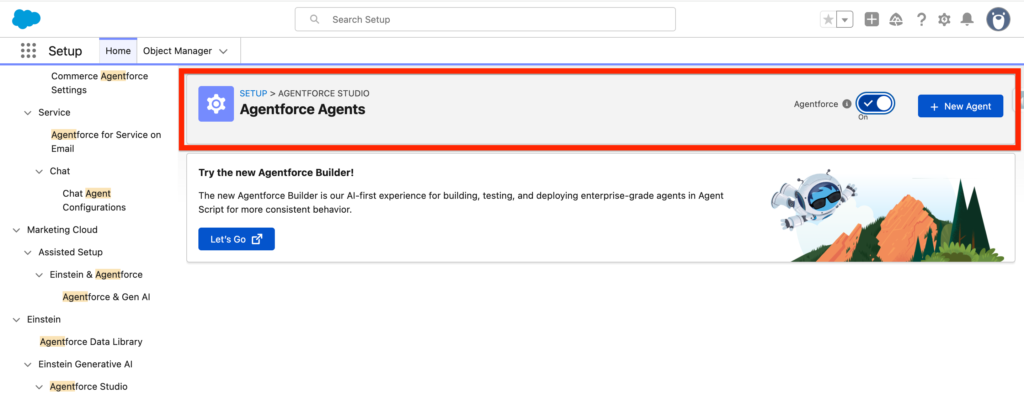
Activate Agentforce #
In Salesforce Set-up, Navigate to Agentforce Agents and Turn on Agentforce. Next click New Agent.
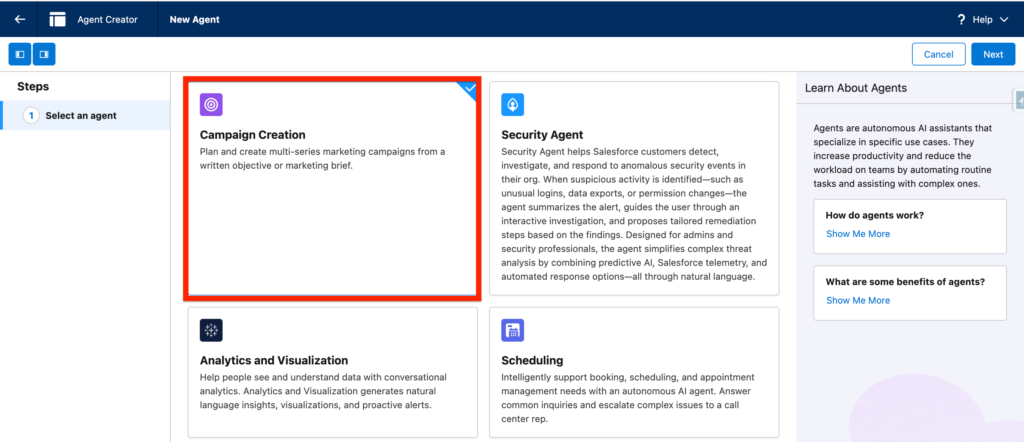
Build the Agent #
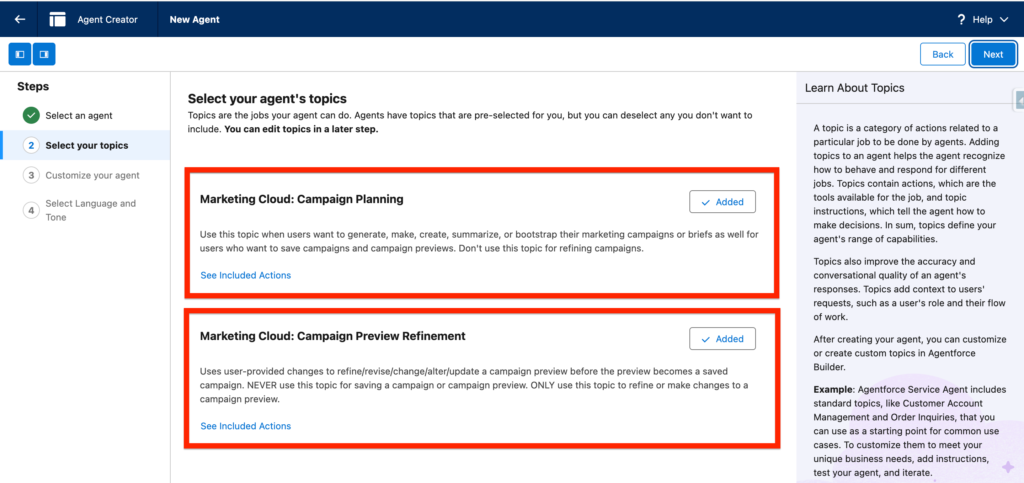
Within the Agentforce Builder, select the Campaign Creation Card and Click Next.
The following Topics should be already added:
- Marketing Cloud: Campaign Planning
- Marketing Cloud: Campaign Preview Refinement
Click Next
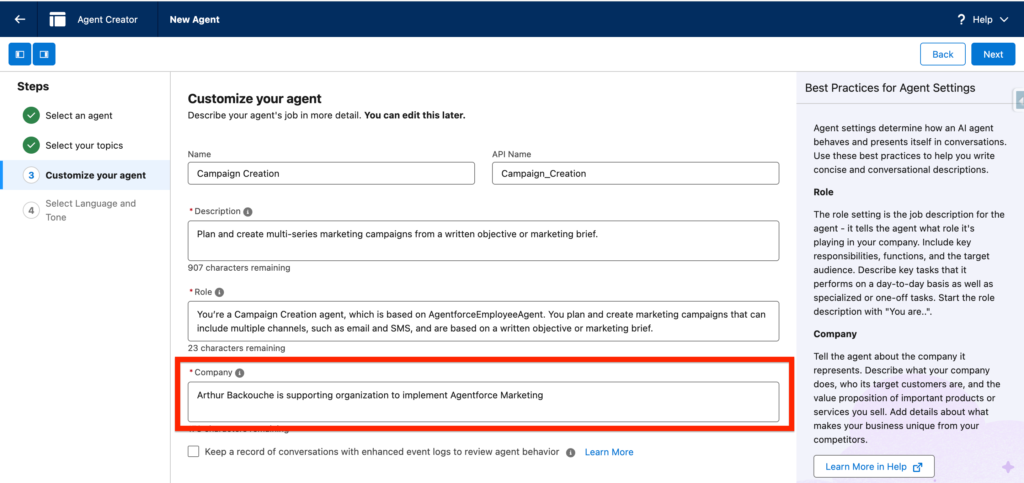
The fields should be pre-populated, simply add information about your company, and click Next
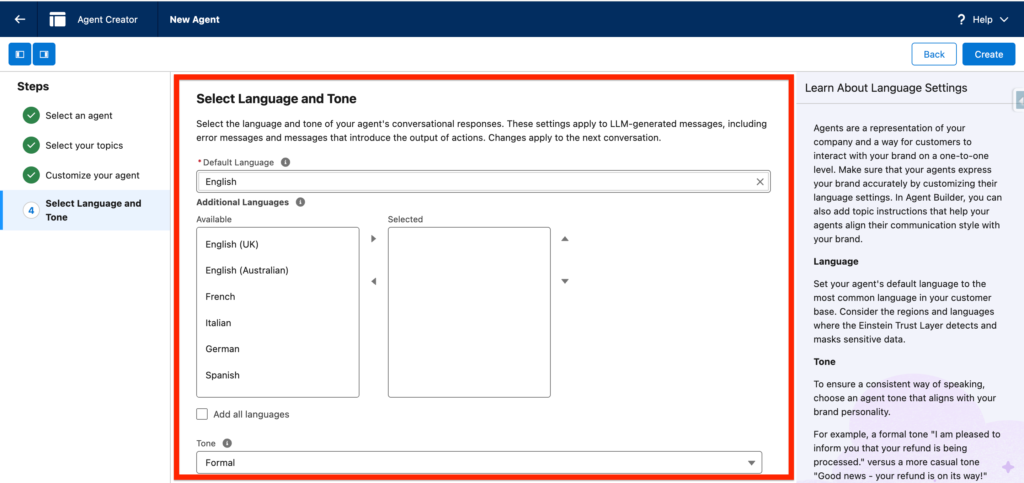
Finally, you will have the possibility to add the languages supported as well as the tone of the Agent. Click Create.
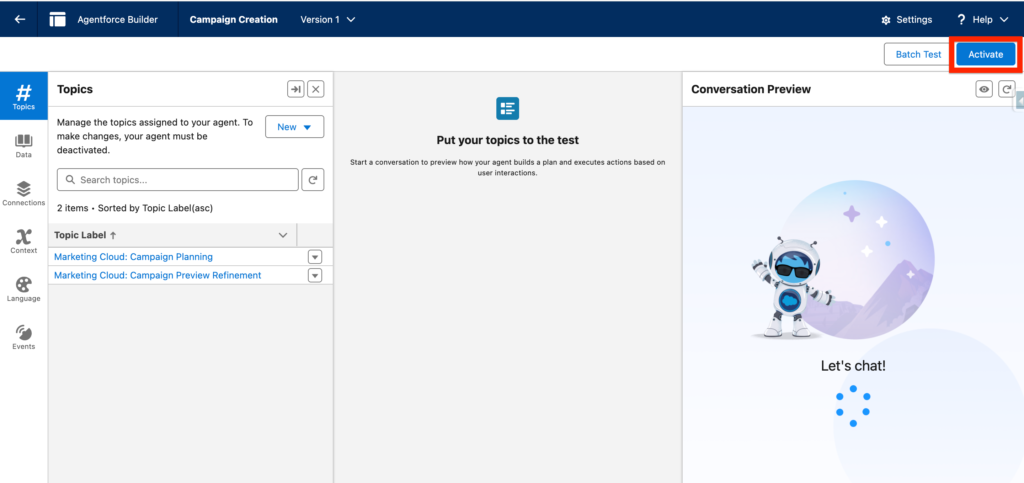
Now you can activate the Agent.
How to provide Agent access to Users #
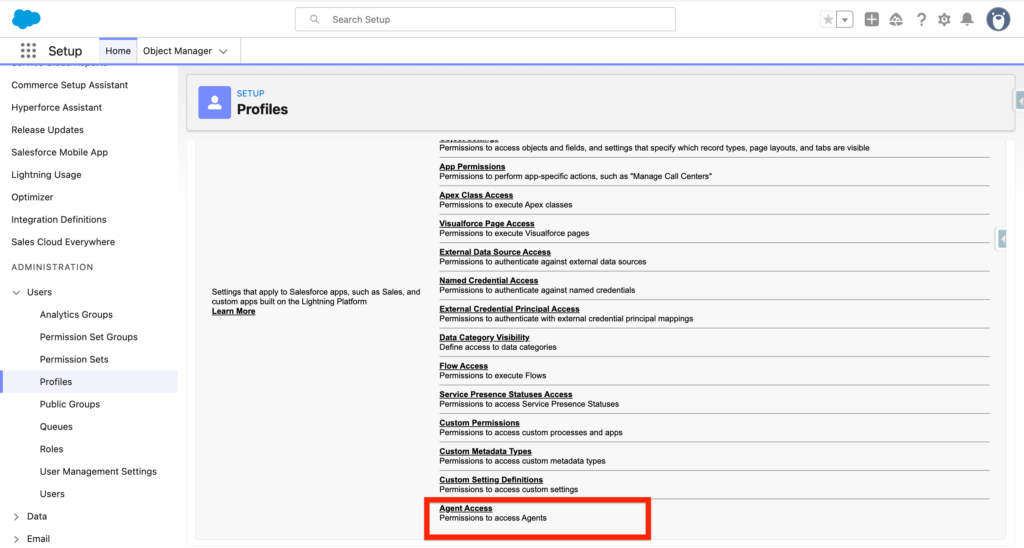
In Salesforce Setup, navigate to Profiles tab and select a user Profile (In my case system administrator). Then scroll down and click on Agent Access. Please note that you can also use a Permission Set instead of a Profile.
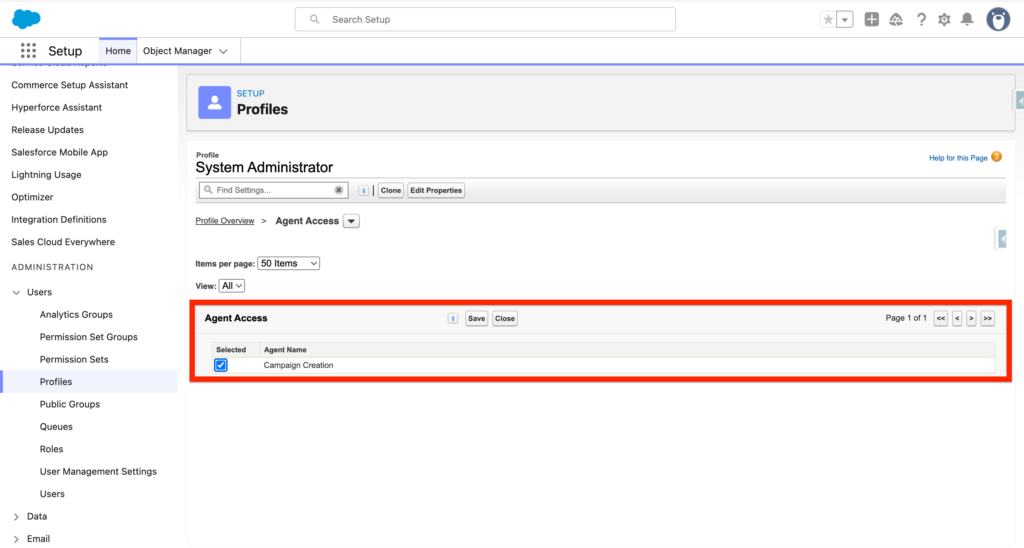
Within the Agent Access, click Edit and then tick the checkbox next to the Campaign Creation Agent and Save. All the user with the Profile selected should now have access to the Campaign Creation Agent.
How to use the Campaign Agent #
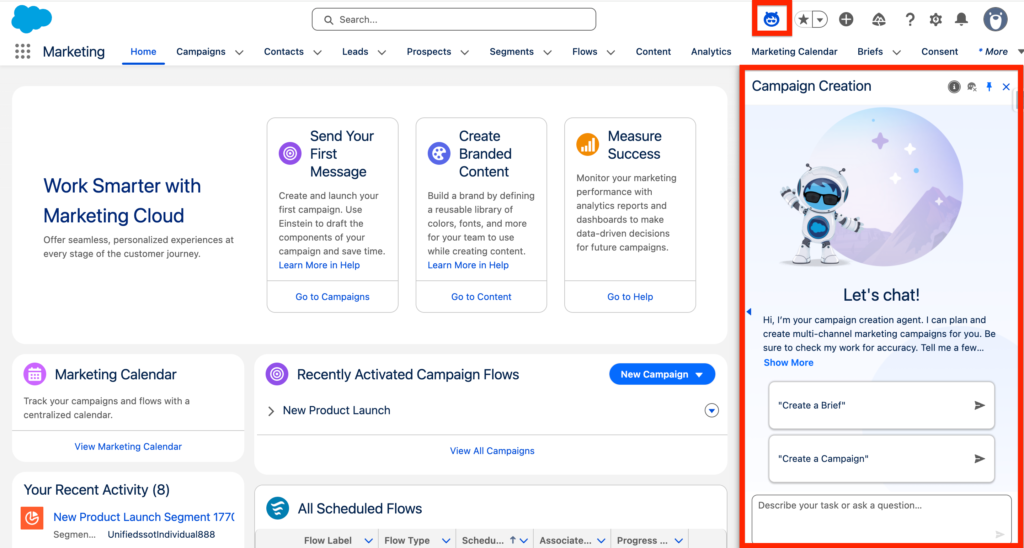
Click on the Agent Button on the Top Right of the screen, then the Agentforce Pop-up window will open – Select either Create Campaign or Create a Brief.
The Agent will automatically create a Brief based on what I’ve asked (i.e. End of Financial Year. EOFY Campaign).
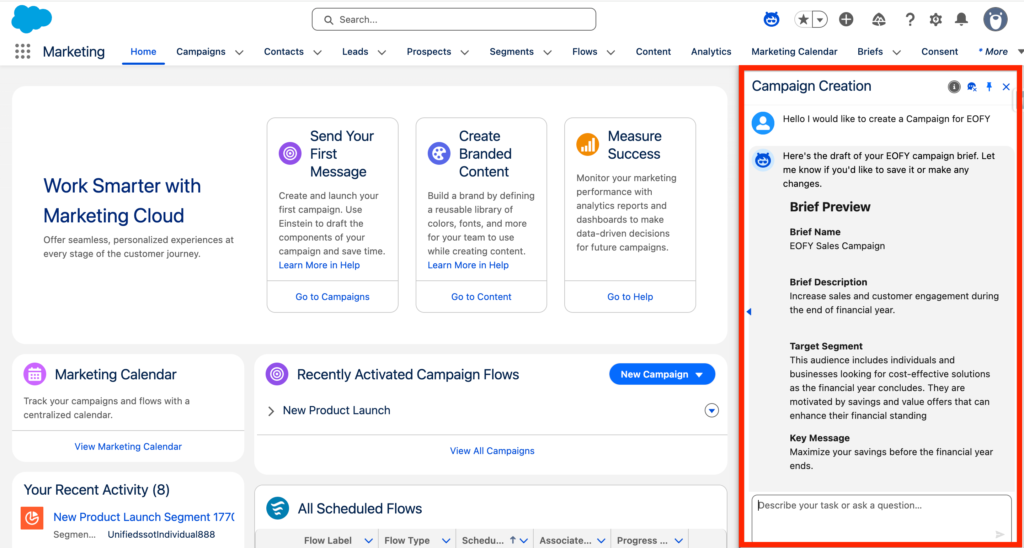
And a Campaign with the Brief associated will be directly populated. You have the possibility to preview the Campaign before creating it by Clicking on Generate Campaign Preview.