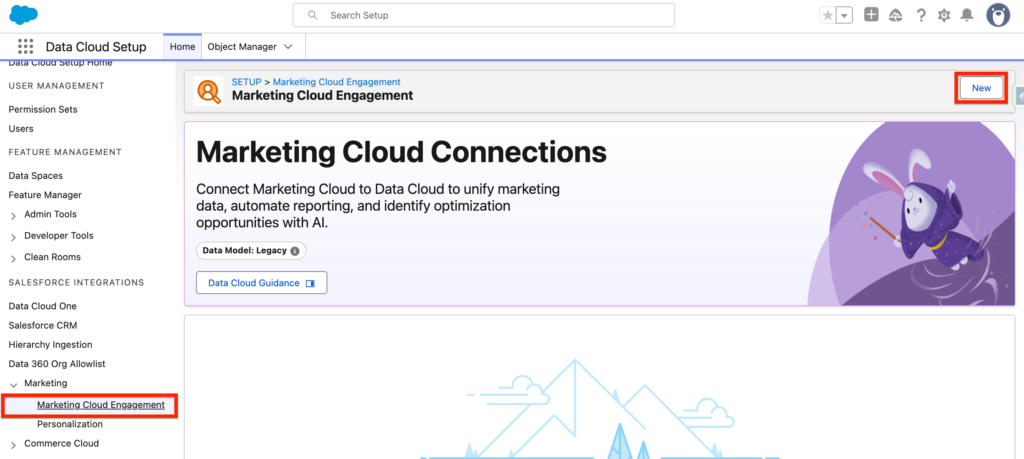
In this is article we will learn how to ingest Data from Marketing Cloud Engagement into Data 360. The very first step is to navigate into Data Cloud set-up and select the tab Marketing Cloud Engagement. After that you can click New.
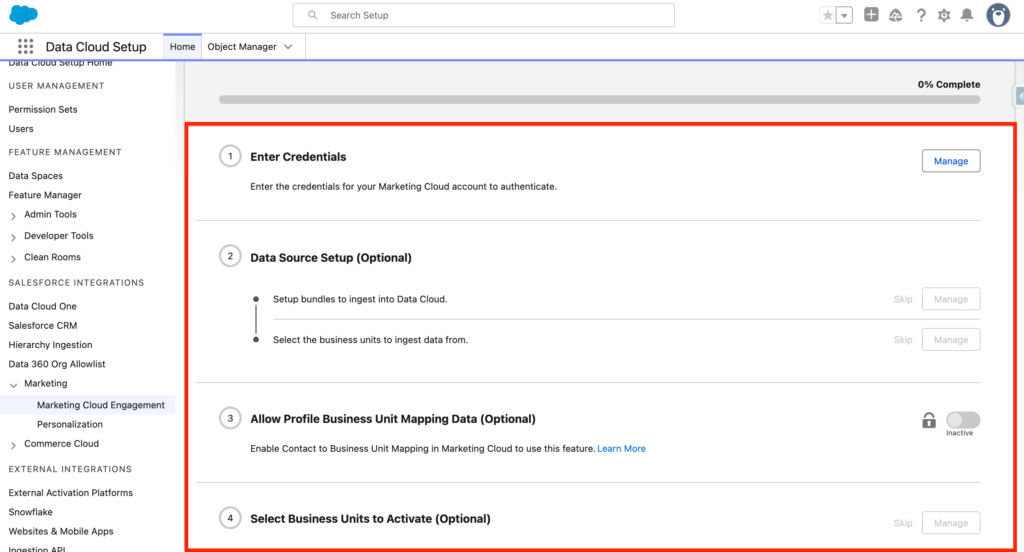
After that a quick step by step guide will be visible with different steps including:
- Enter Credentials
- Data Source Set-up (Optional)
- Allow Profile Business Unit Mapping Data
- Select Business Units to Activate
But first, we will need to create an integration user in Marketing Cloud Engagement.
Integration user in MC Engagement #
The user created in Marketing Cloud Engagement will be named Data360_Connector and will need to have the following permission sets:
- Marketing Cloud Administrator
- Administrator
If you are using multiple business units, ensure to associate the default parent business unit to the integration user, as well as ticking the checkbox API user.

Enter Credentials #
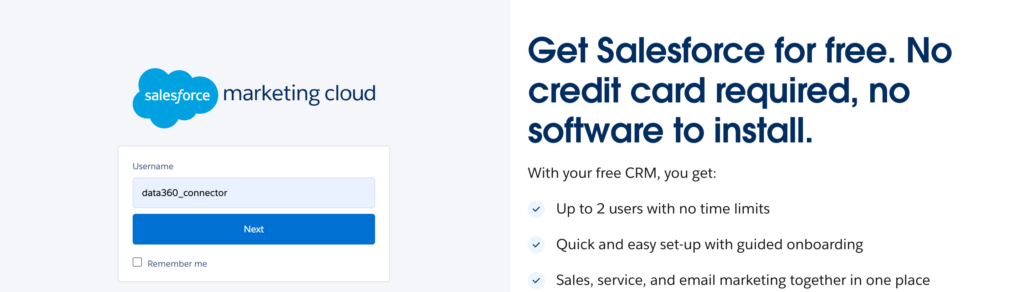
I usually recommend login in Salesforce again within an incognito window. Then clicking on the Manage button within the section Enter Credentials.
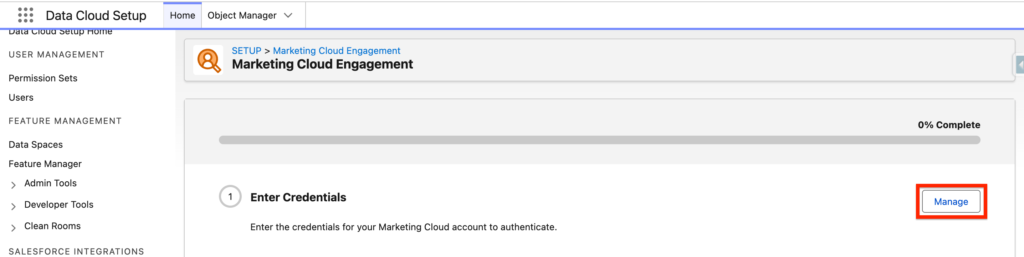
In here the Marketing Cloud Engagement login page will appear, simply enter the credentials of the integration user and the connection between the 2 platform will be established.
Data Source Set-up #
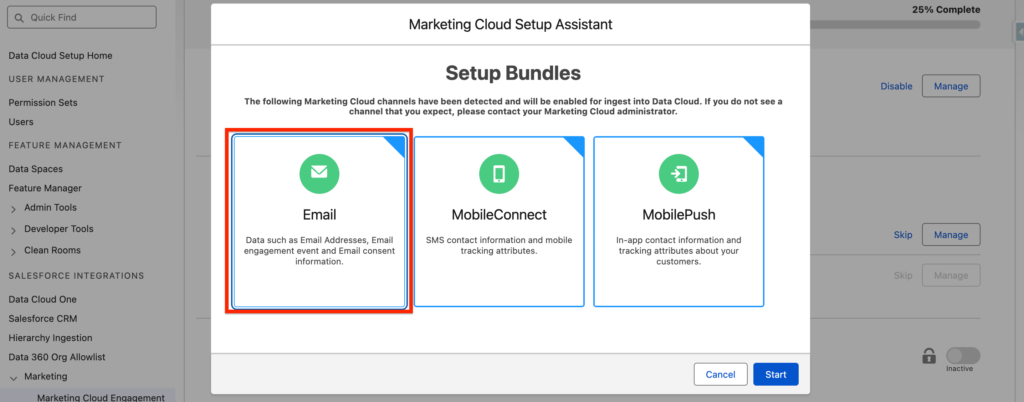
In Data Source Set-up, we will be selecting the Data that can be ingested from Marketing Cloud Engagement into Data 360.

When clicking on Manage, you will have the possibility to select the Marketing Cloud Business Units where you will receive Data from as well as the Bundles that are represented by categories such as Email, MobileConnect and MobilePush.
Select Business Units to Activate #
In the Last step of the Marketing Cloud Connector set-up we will select the Business Units that will receive Data or Information from Data360 such as Segments. Click Manage and Select the Business units that can be used as Activation.

Creating the Marketing Cloud Data Streams #
Now that the Marketing Cloud is created and active, we will create Marketing Cloud Engagement Data Streams to ingest the Data into Data360.
Within the Data360 (Data Cloud) App, I will navigate into the Data Streams App and click New, then select Marketing Cloud. Click Next.
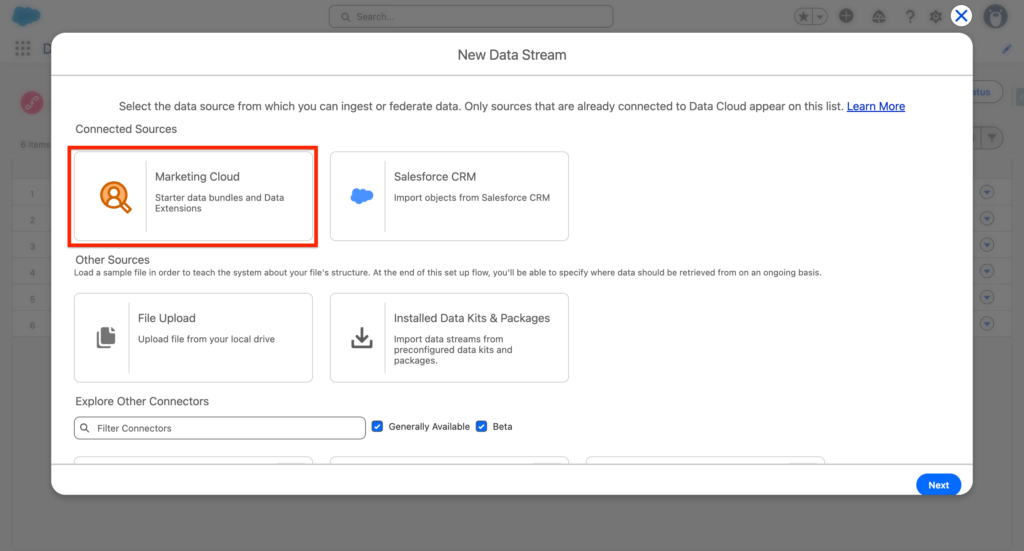
I will then have the possibility to either use a Bundle (Email Studio, Mobile Studio, Mobile Push) or select directly Data Extension from Marketing Cloud Engagement to ingest into Data 360. A Bundle contains pre-configured data streams and field attributes that simplifies the ingestion process.
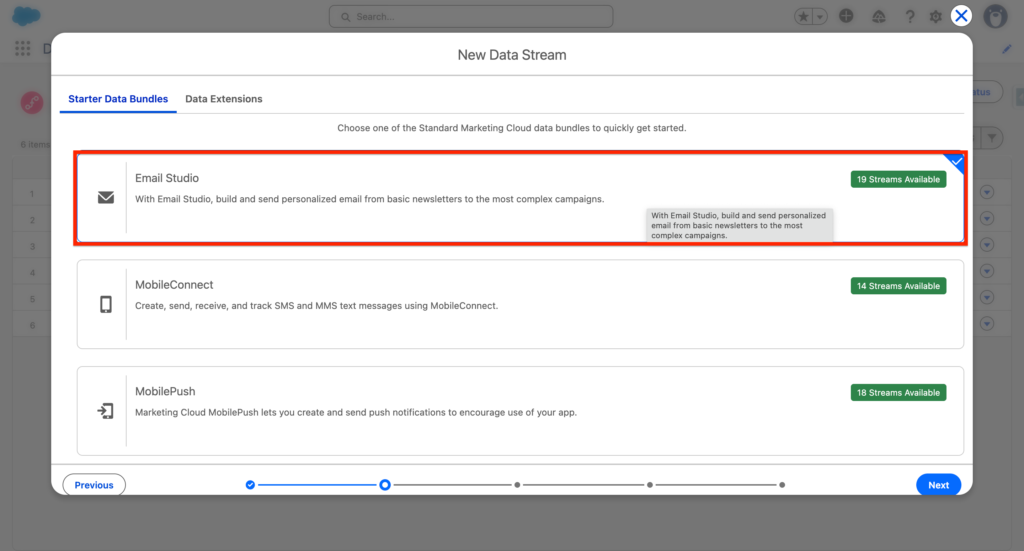
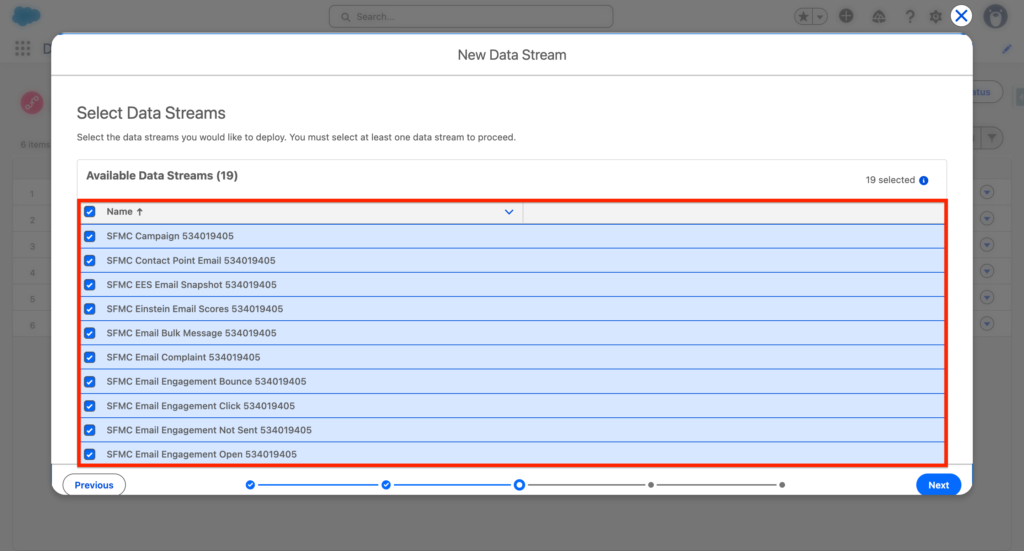
After selecting the Bundle (Email Studio in my case), I will have the possibility to review the pre-selected Data Streams that will be created from the Bundle.
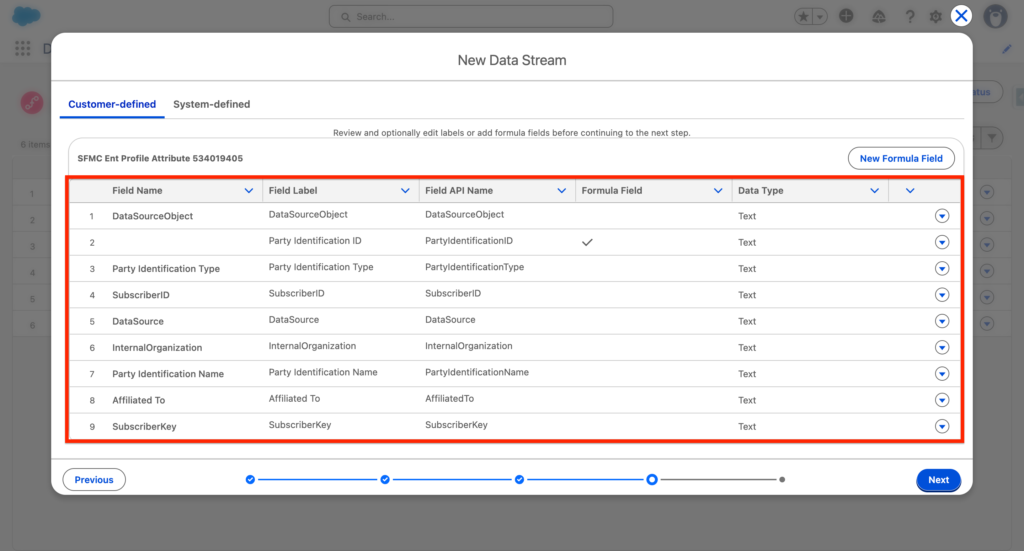
I will have the possibility as well to review the filed that will be ingested from the Data streams pre-selected.
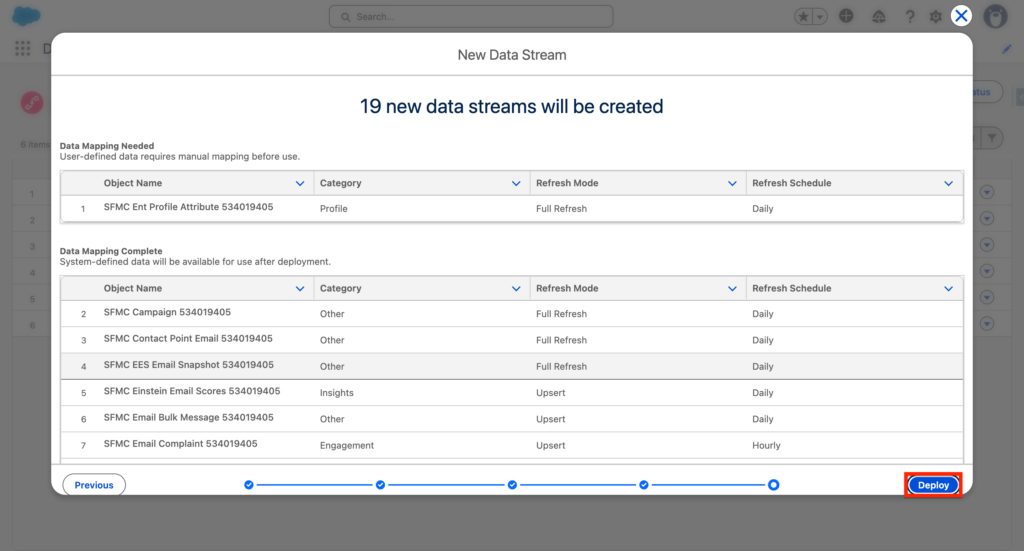
Finally I can click Deploy and the Data Streams will be available into Data360.
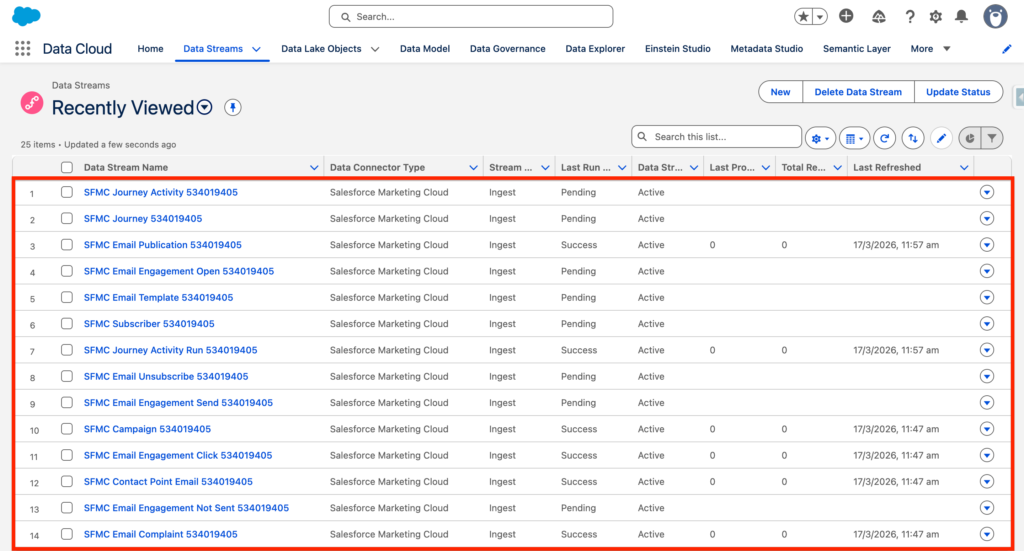
The list of the Marketing Cloud Engagement Data Streams will appear here: