In this article I will explain how to set-up a Data 360 Connector with the REST API.
Pre-requisite: Create an external App for Authentication #
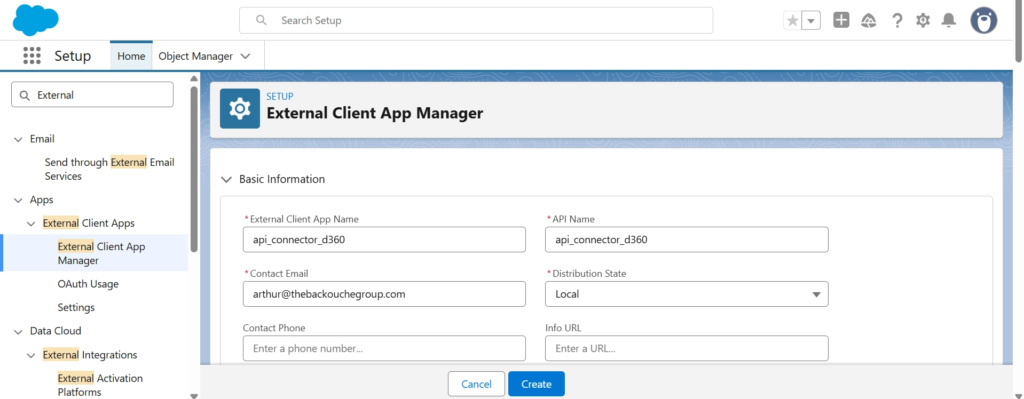
The first step is to create an External Client App to access Salesforce from the API. in Salesforce Set-up click on External Client App and New External Client App.

Then I will be indicate the following information for my External Client App:
- External Client App Name: api_connector_d360
- API Name: api_connector_d360
- Contact Email: <YourEmail>
- Distribution State: Local
Also added the following permissions:
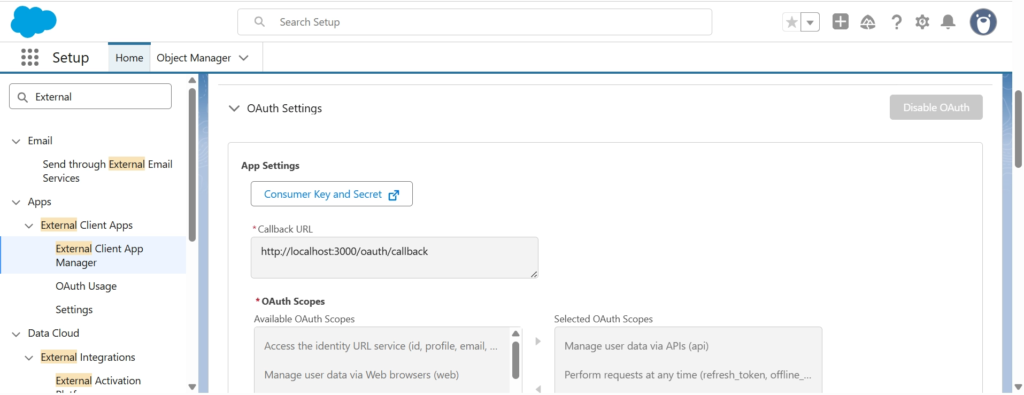
- Enable OAuth: True
- Callback URL: http://localhost:3000/oauth/callback
- OAuth Scopes: Manage user data via APIs (api), Perform requests at any time (refresh_token, offline_access)
- Enable Client Credentials Flow: True
- Require secret for Web Server Flow: True
- Require secret for Refresh Token Flow: True
- Require Proof Key for Code Exchange (PKCE) extension for Supported Authorization Flows: True
Also add the following Scope Permissions to access Data 360:
cdp_apicdp_query_apicdp_profile_apicdp_ingest_api
You can now click Create.
After creating the App, navigate on the Policies tab of it and click Edit.
Within permitted users, select ‘Admin approved users are pre-authorized’ and within OAuth Flows and External Client App Enhancements, select your username (arthur@thebackouchegroup.com).
You can now navigate on Settings, and then click on Consumer Key and Secret. This will expose the 2 key needed to access the Salesforce instance via API.
1. Requesting the Salesforce Access Token in Postman #
The next step will be to login to Postman, a platform used to test/create API Connections and request an access token in order to access the Salesforce Instance.
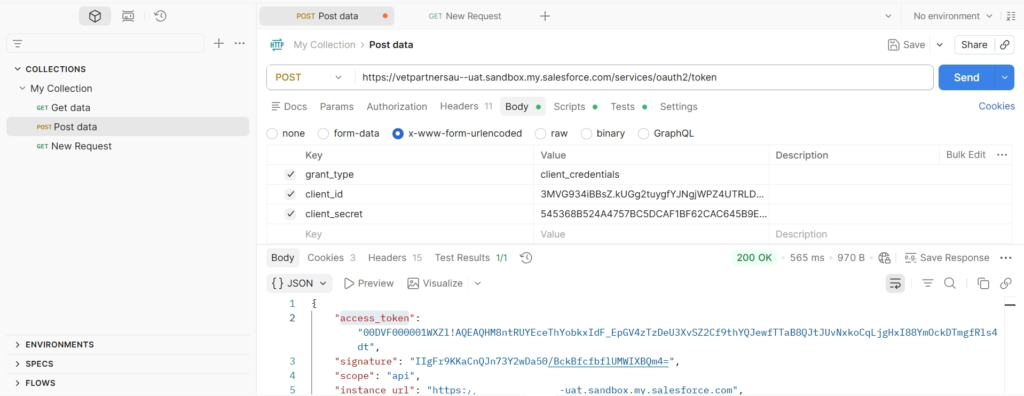
We will create an HTTP POST request with the following header: https://<YourSalesforceDomain>.my.salesforce.com/services/oauth2/token.
The HTTP POST request will contain the header:
- Content-Type: application/x-www-form-urlencoded
The HTTP POST request will contain the body:
- grant_type: client_credentials
- client_id: <Customer keys>
- client_secret: <Customer secret>
Then Click Send, and the Access Token will be Returned. access_token
2. Getting the Data 360 Access Token #
Now that we got access to the Salesforce platform we can request a specific access to the Data 360 platform.
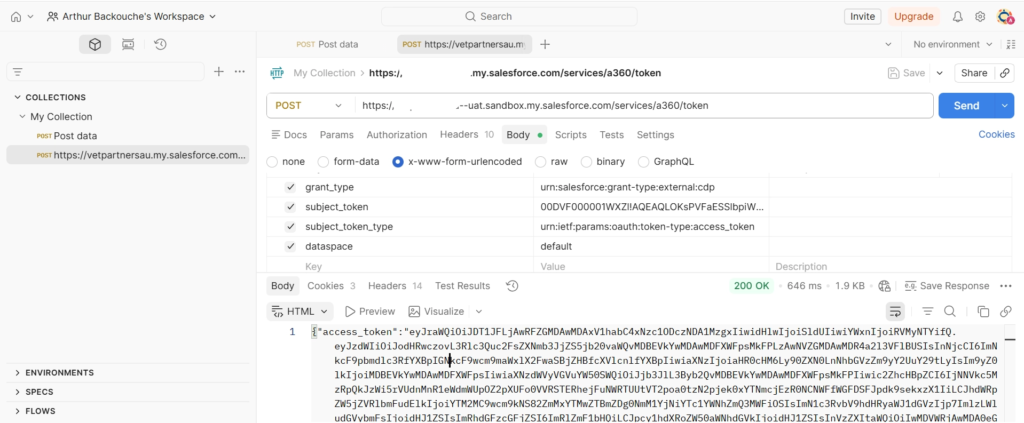
We will need to create a new HTTP Post Request in Postman that contains the following information:
- POST URL: https://<YourDomain>.sandbox.my.salesforce.com/services/a360/token
- grant_type: urn:salesforce:grant-type:external:cdp
- subject_token: <SalesforceAccessToken>
- subject_token_type: urn:ietf:params:oauth:token-type:access_token
- dataspace: default
Salesforce will provide you with the Data 360 Access Token:
3. Data 360 Sanity Check #
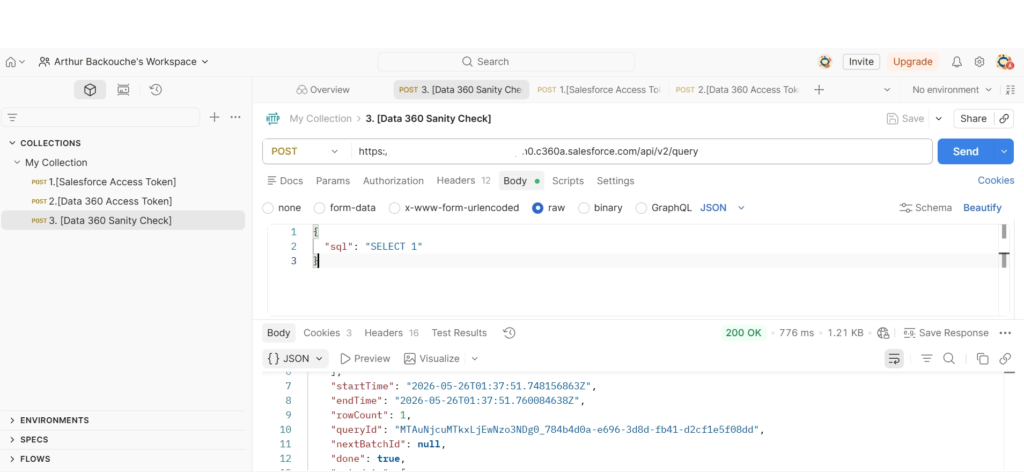
We now need to ensure we are able to access the Data within Data 360. In order to do so, we will create a POST Query in post man with the following parameters:
POST: https://<Data360InstanceURL>.c360a.salesforce.com/api/v2/query
Headers:
- Authorization: Bearer <Data360 Token>
- Content-Type: application/json
Body:
{
  "sql": "SELECT 1"
}
4. Get Existing Data 360 Connectors via API #
Please note that we have created a few AWS RDS Connectors manually from the user-interface in order to capture the schema needed from Data 360.
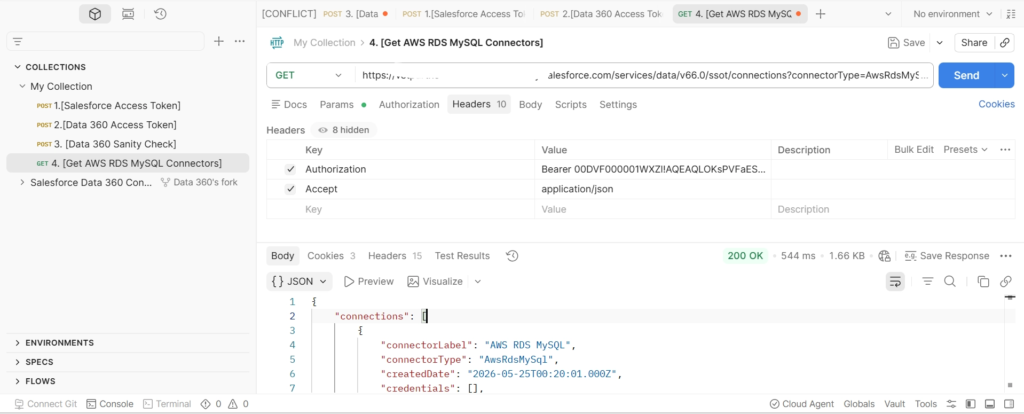
We now need to get all the Data 360 Connectors existing for AWS RDS MySQL (Connector that we would like to bulk create via API). We will be running the following GET Query to retrieve them.
- GET: https://<SalesforceOrg>/services/data/v66.0/ssot/connections?connectorType=AwsRdsMySql
- Header:
- Authorization: Bearer <SF Access Token>
- Accept: application/json
5. Get Data 360 Connector Schema #
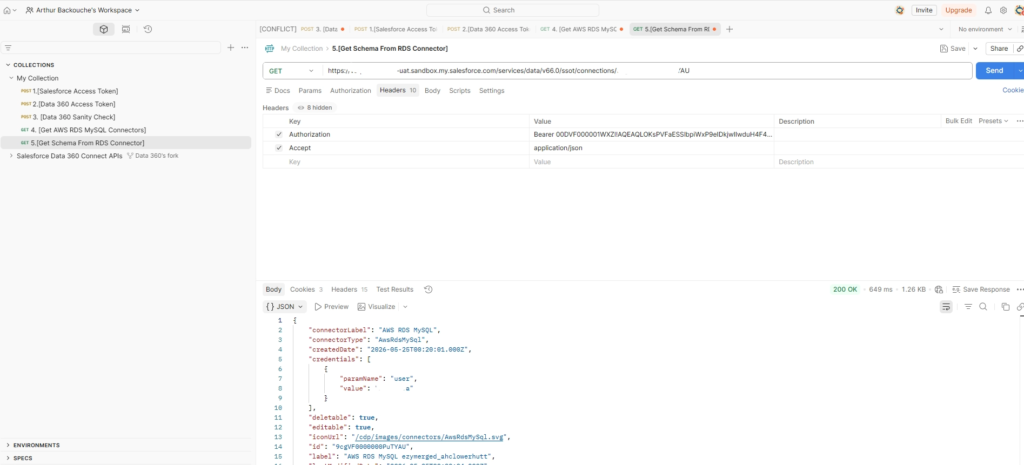
As we need to understand the structure of the AWS RDS MySQL Connector that is already existing so that we can reproduce it using the REST API we will be running the following Query:
GET: https://<SalesforceInstanceDomain>/services/data/v66.0/ssot/connections/<ConnectorID>
The Connector ID can be retrieved from the output of the last GET Query.
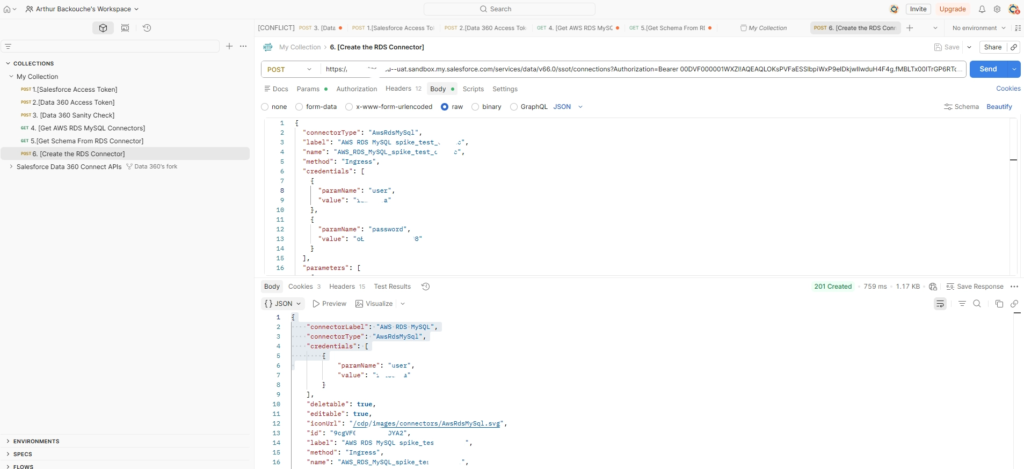
6. Create the Data 360 Connector via API #
Now that we have collected the Schema of existing connector in the system we will be able to create a new HTTP POST Query to build the new AWS RSD MySQL Connector via API.
- POST <SalesforceDomain>/services/data/v66.0/ssot/connections?Authorization=Bearer 00DVF000001WXZl!AQEAQLOKsPVFaESSlbpiWxP9eIDkjwIIwduH4F4g.fMBLTx00lTrGP6RTcvyKKGFAJ2Svj0aiX9TJGATB.n4b6_Rwrv6HEid&Accept=application/json
- Header:
- Authorization: Bearer <SalesforceAccessToken>
- Accept: application/json
- Body:
{
  "connectorType": "AwsRdsMySql",
  "label": "AWS RDS MySQL spike_test_clinic",
  "name": "AWS_RDS_MySQL_spike_tes",
  "method": "Ingress",
  "credentials": [
    {
      "paramName": "user",
      "value": "<USER>"
    },
    {
      "paramName": "password",
      "value": "<REPLACE_WITH_REAL_RDS_PASSWORD>"
    }
  ],
  "parameters": [
    {
      "paramName": "jdbc_connection_url",
      "value": "<AWS RDS URL>"
    },
    {
      "paramName": "DATABASE",
      "value": "<DB Name>"
    }
  ]
}
Result in Data 360 #
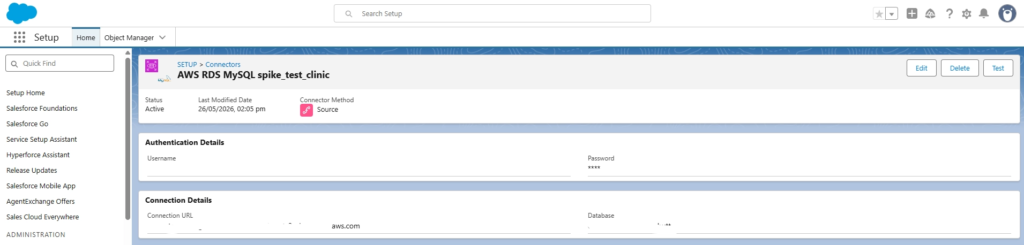
When navigating in Data Cloud Set-up, Other Connectors, we are now able to see the newly AWS RDS Connector created via REST API.

—