Website engagement is a critical data source for building a unified customer profile. By ingesting GA4 data into Data Cloud, you can connect anonymous and known web behaviour — page views, events, and session data — with CRM and marketing engagement data to power segmentation, identity resolution, and audience activation. This article walks through the three steps to get GA4 data flowing into Data Cloud: configuring the Google Analytics MI connector, setting up the data streams, and verifying ingestion via Data Explorer.
TLDR: To ingest GA4 into Data Cloud (Data 360), you:
- Create a Google Analytics MI Connector in Data Cloud Setup → Other Connectors, authenticate with Google, paste your GA4 Property ID, and test the connection.
- Create Data Streams from that connector — select all 4 objects (Page Views, Events, Analytics View, Website Analytics), map each to a Data Lake Object with Engagement category, and deploy.
- Verify via Data Explorer to preview ingested data.
Create the Google Analytics Connector #
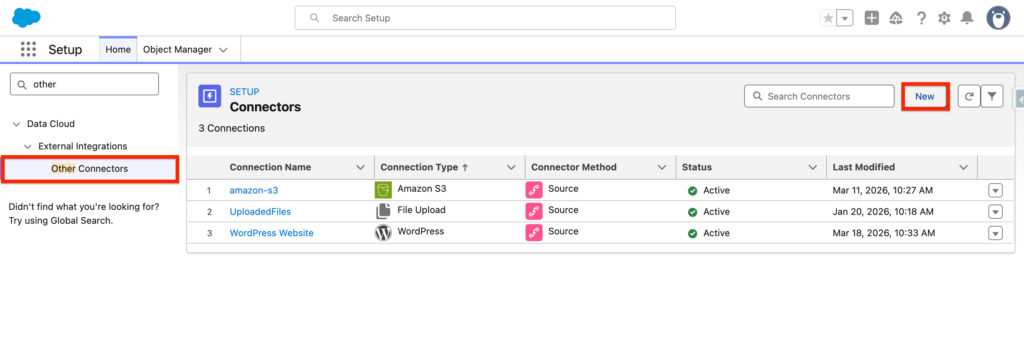
In Data 360 Set-up, select the other connectors tab and click New
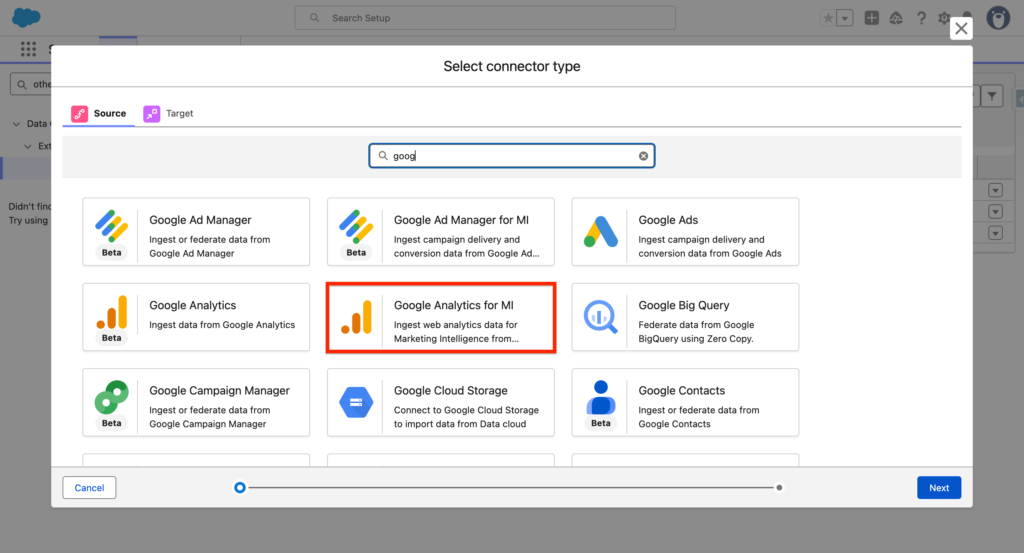
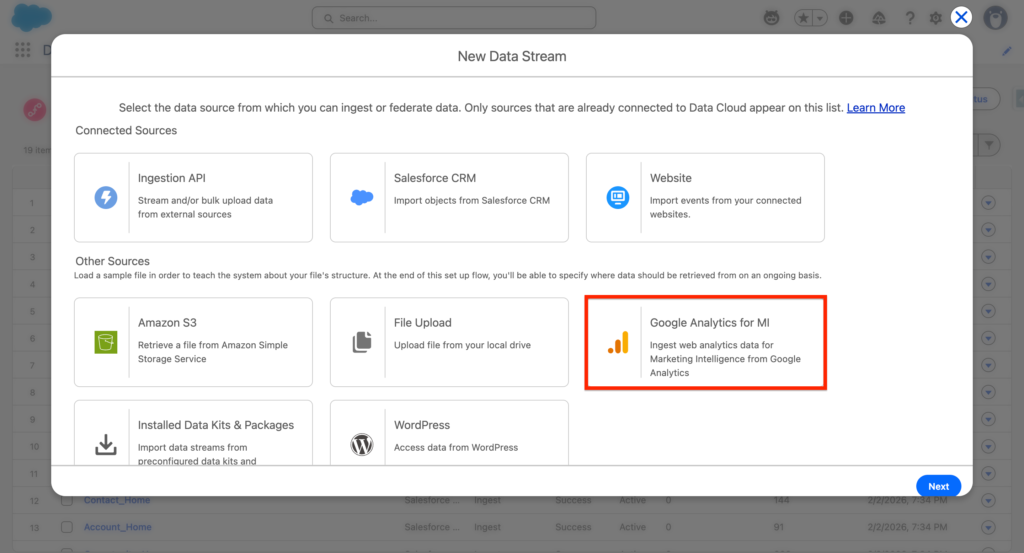
Within the Connector Type, search for Google Analytics for MI (Marketing Intelligence) and click Next. In a Nutshell, this connector is collecting information about how visitors are engaging with your website.
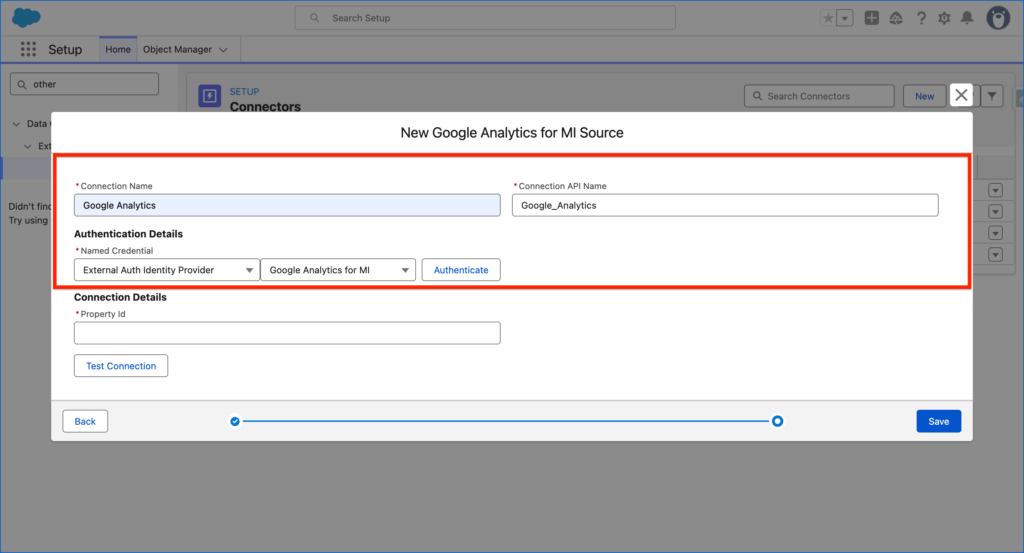
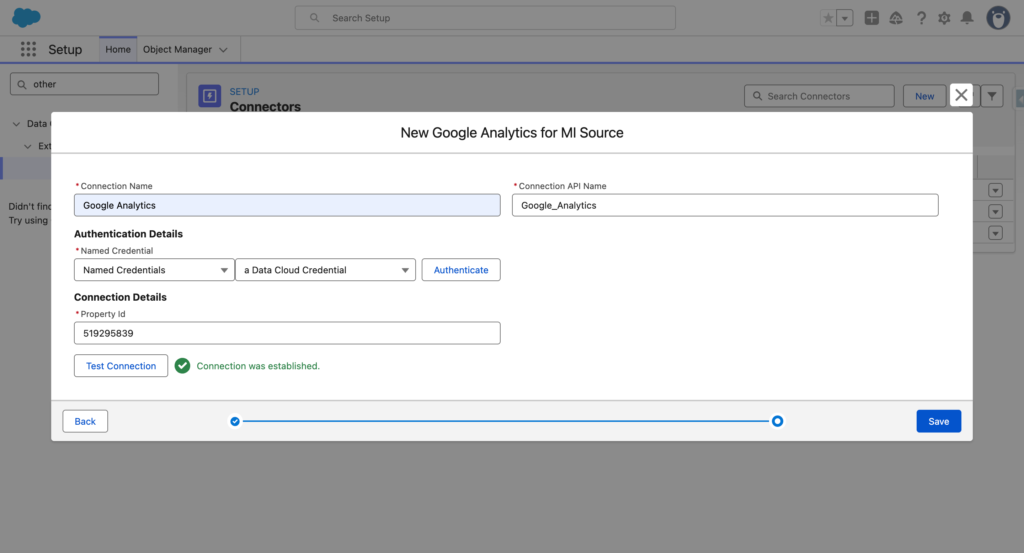
In order to establish the connection you will need to give a name to the Google Analytics connector. Select External Auth Identity Provider and Google Analytics for MI and click Authenticate.
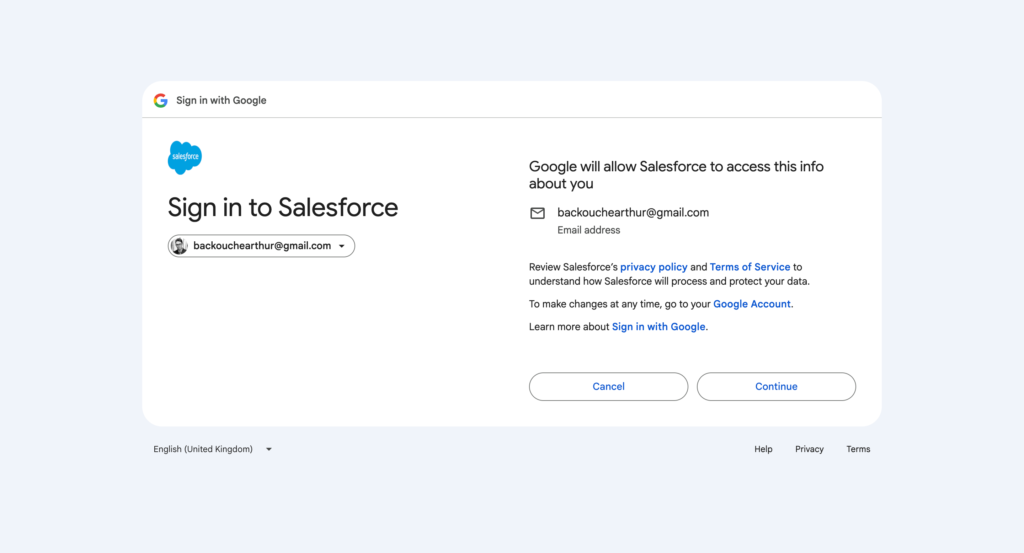
After clicking on Authenticate you will be redirected to the Sign in with Google page. Click Continue.
Then go in Google Analytics and search for the property ID of the website that you would like to ingest.

Paste the Value within the Connector click Test the Connection. If the confirmation ‘Connection was established is validated’ you can click Save.
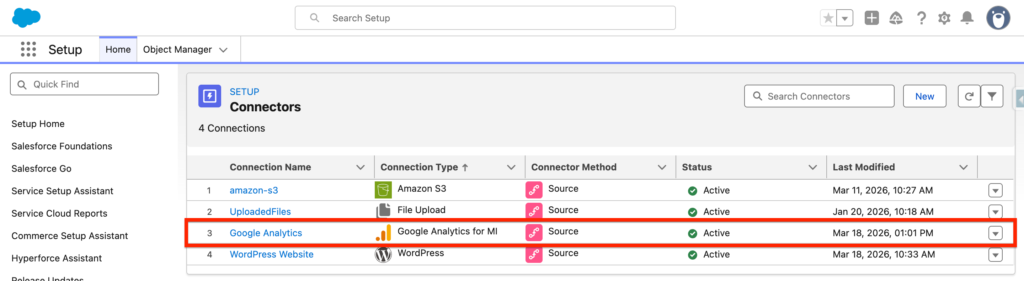
The Google Analytics connector should now be listed as Active.
Create the Google Analytics Data Stream #
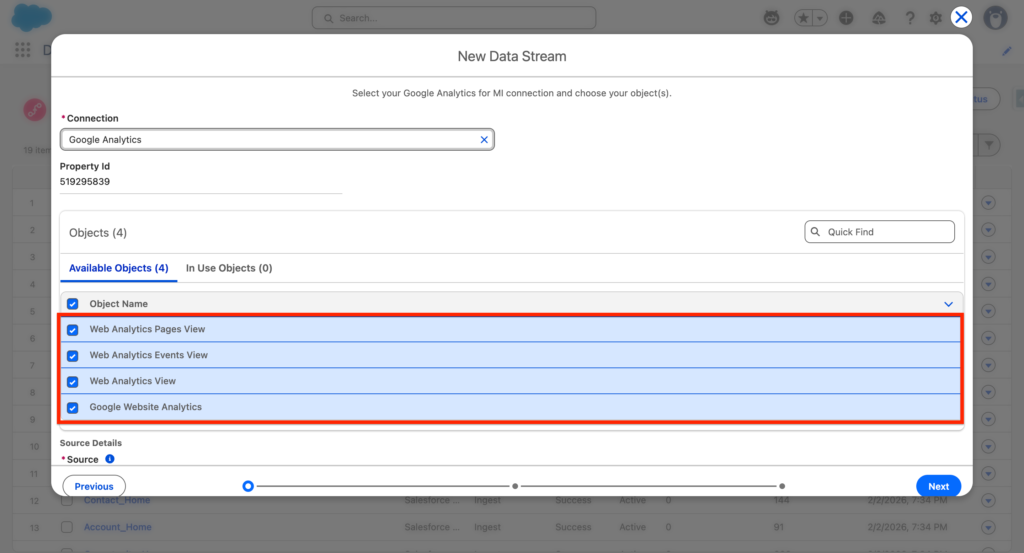
Navigate to the Data 360 App and within the Data Streams tab click New. Select the Google Analytics MI connector and click Next.
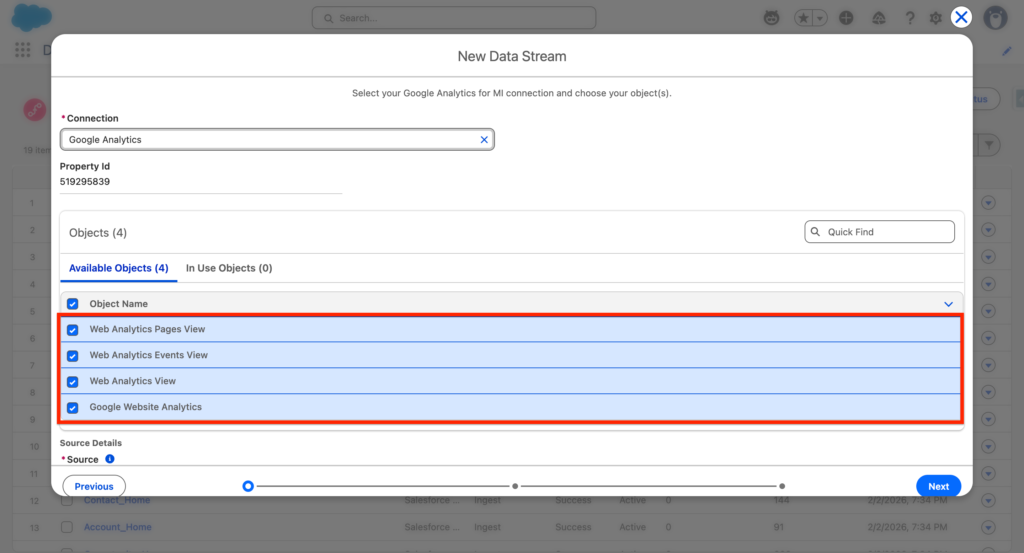
4 Objects are listed within the connector, select all of them:
- Web Analytics Pages View
- Web Analytics Events View
- Web Analytics View
- Google Website Analytics
We will then need to define the Data Lake related to each Google Analytics objects that we will be ingesting into Data 360. Including the type of Data that we are ingesting (Engagement) as well as the fields that we want to ingest on each objects.
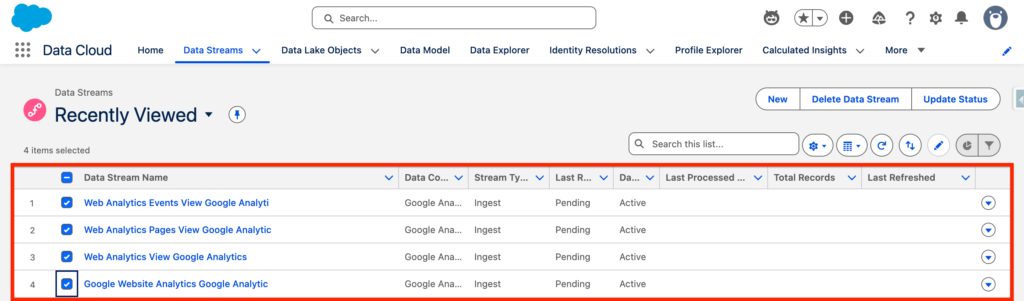
After deploying the data streams, they will be listed as per the screenshot below.
Previewing the Data Ingested #
To preview the Data ingested from Google Analytics into Data 360, simply navigate to Data Explorer and select the Data Lake Object that you would like to explore.