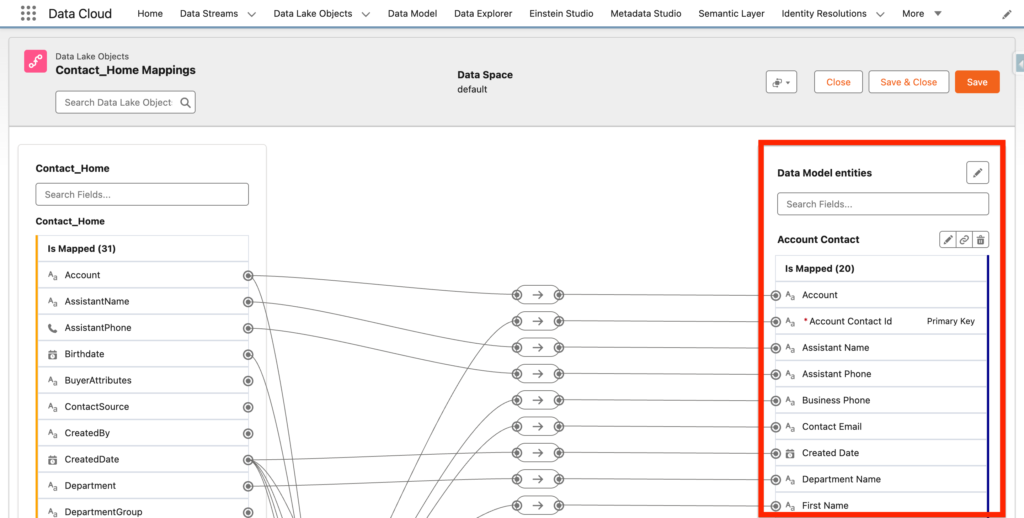
After setting up Data Cloud and Marketing Cloud Next pre-requisites we will need to import you customers into Marketing Cloud Next, they will be represented as Individuals and Unified Individuals.
Data Cloud #
As Marketing Cloud Next is an ‘App’ seating on Data Cloud, most of the Data configuration is happening in Data Cloud. Data Cloud will allow you to import Customers from Salesforce Products (Sales, Service Clouds) but also external platforms (SAP, Amazon S3 etc.).
Create a Data Stream #
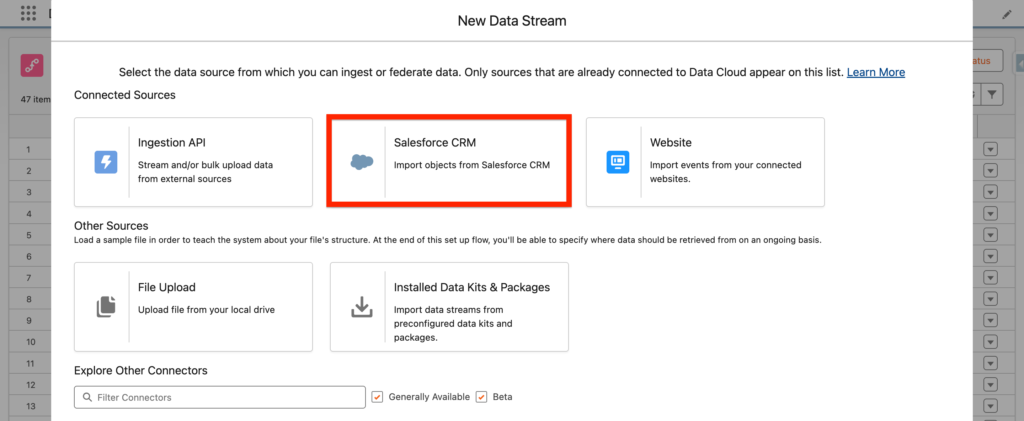
The most common use-case to get started with Marketing Cloud Next will be to ingest Data from Salesforce CRM. In order to achieve that we will simply go into Data Cloud Cloud, click the tab Data Streams, New and then create a Salesforce CRM Data Stream.
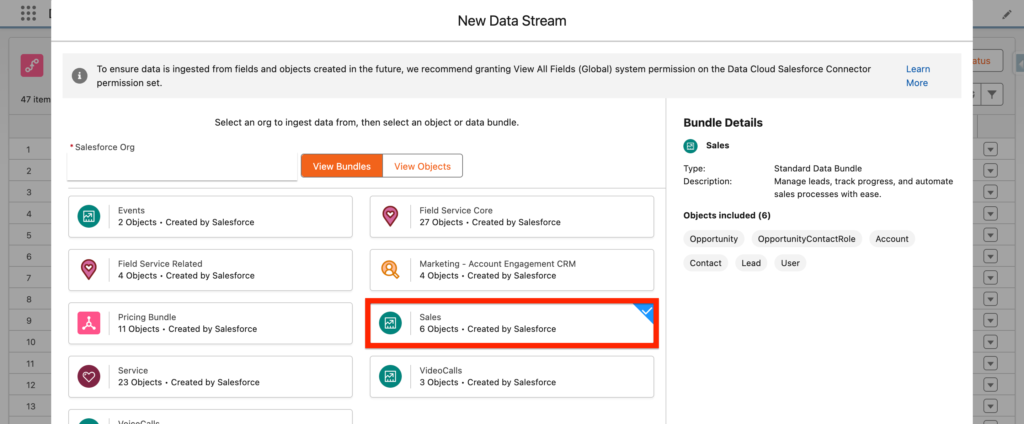
The second step will be to select a Bundle, essentially it is pre-grouped objects and fields from a system (in this case Salesforce Sales Cloud), pre-defined by Salesforce. The advantage of using bundle is that it guarantee a smooth ingestion process. It is the best way to kick-start the ingestion process
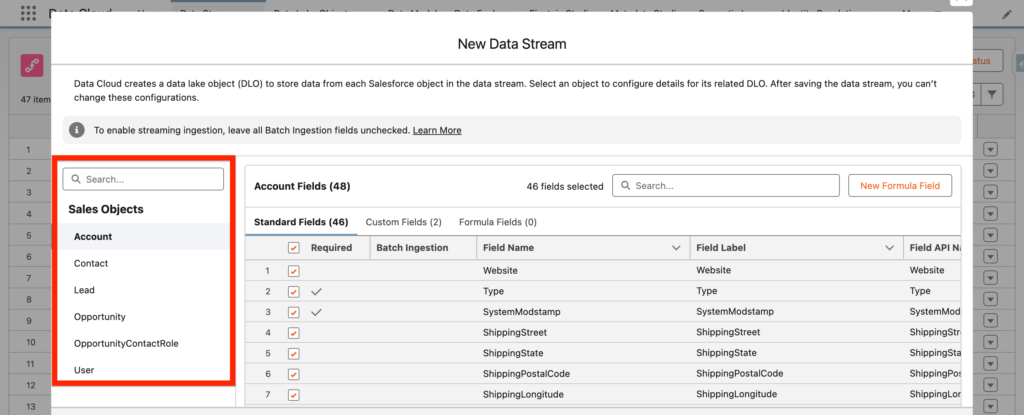
The third step will be to select the fields that will be ingested for each objects of the bundle. You can review object by object what are the fields that you want to import into Data Cloud, and Marketing Cloud Next. All the Standard fields are selected by Default, however the custom fields needs to be reviewed and selected manually.
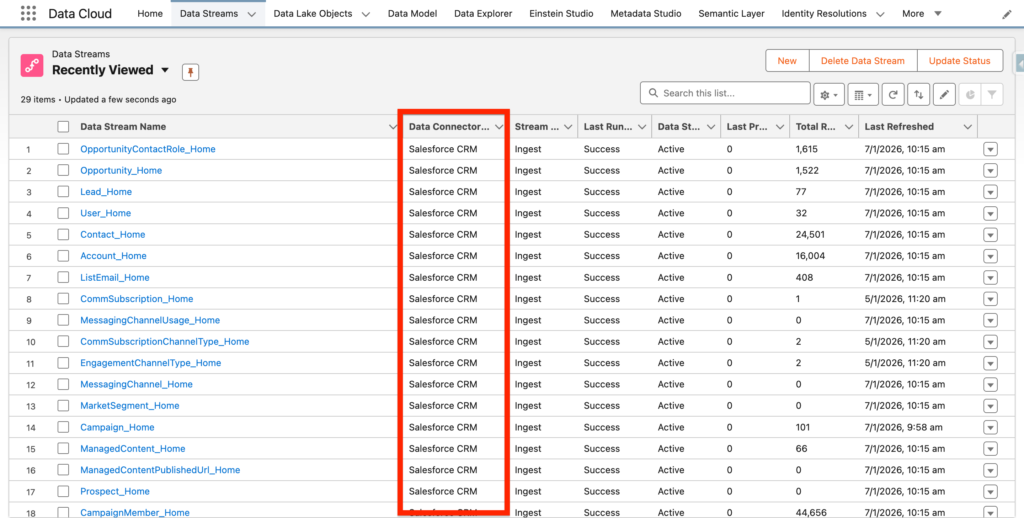
After deploying the Data Stream created from Salesforce CRM bundle you will be able to see all the Data streams created in the list view, and can notice that the column Data Connector is equal to ‘Salesforce CRM’.
Import custom fields #
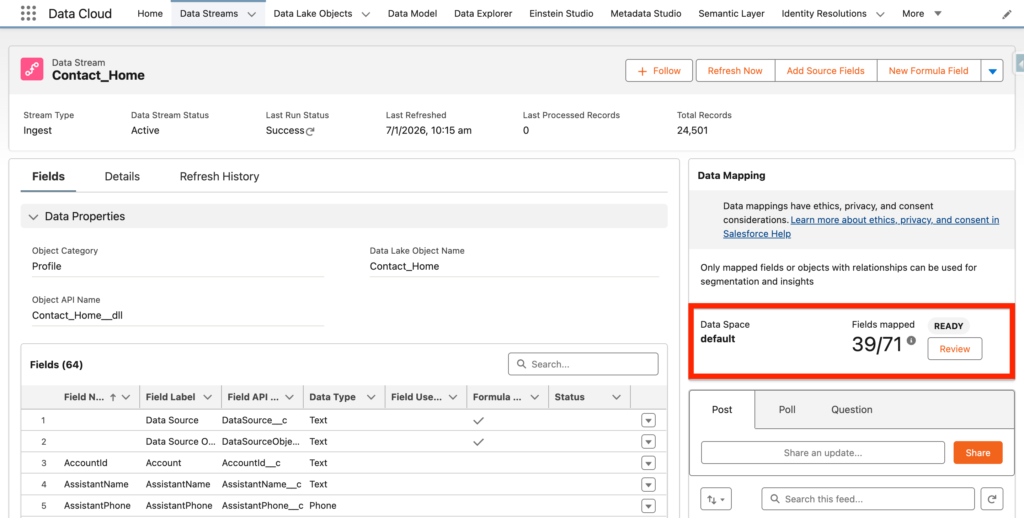
In a lot of different scenarios, you will need to import Custom fields into Data Cloud. As you can see on this screenshot only the 39 fields out of 71 from the Contact Object are mapped to Data Cloud Data model objects.
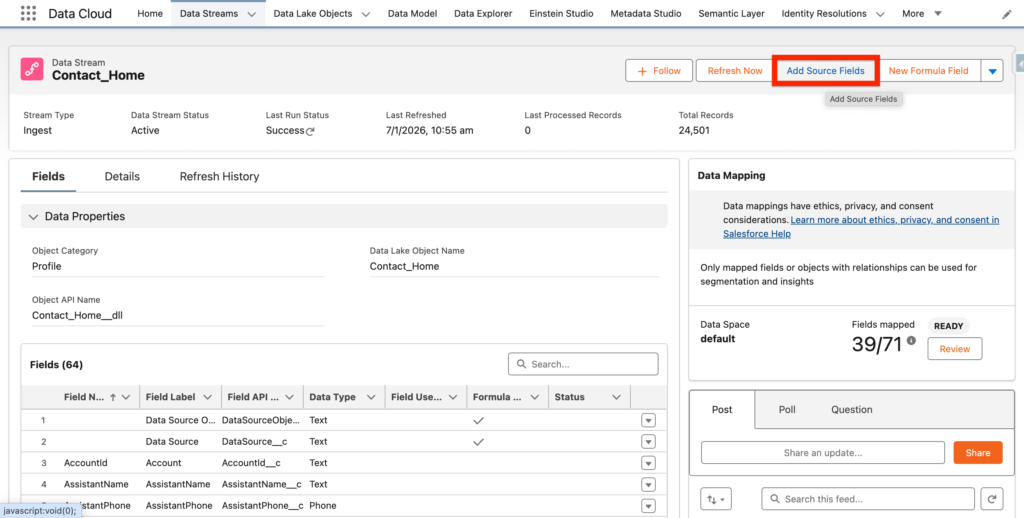
Firstly you will need to navigate to your Data Stream and click ‘Add Source Fields’ to import new fields from the Contact Object into the Contact Data Stream.
By clicking on ‘Review’ we will be able to manually connect the unmapped fields from the Contact object to the Data Cloud Data Model Objects. The best practice would be to connect the fields from the object directly to existing fields located into the Data Models Object – But we also have the possibility to create custom fields directly on the Data Model object.
Key actions:
- What are the fields from the Contact Object that needs to be available for Creating Segments in Marketing Cloud Next? (Those fields need to be mapped to Data Cloud)
- Understand the Customer 360 Data Model Object and use it wisely/smartly to map your fields