Salesforce Data Graph: A graphical representation of data showing the relationships between Data Model Objects.
What is a Data Graph in Marketing Cloud Next? #
A Data Graph is an aggregated view of your Data Model Objects. In Data Cloud, you have enabled and configured Data Model Objects – The Data Graph allows you to have an organised view of them, that can be accessed in a structured way in real time. A data graph in Salesforce is a tool that connects Data Model Objects to form a relational database. Data Graphs allow you to combine and transform data from multiple Data Cloud Data Model Objects (DMOs) into a single view.
Why using Data Graph is Marketing Cloud Next? #
The main usage of Data Graph in Marketing Cloud Next is to Personalise the Email Template Copywriting by using Merge Fields (i.e. FirstName) – This personalisation relies on the Data Graph.
How does a Data Graph works in Marketing Cloud Next? #
The Data Graph is always built from a single Data Model Object – In Marketing Cloud Next, The DMO that will be selected is ‘Unified Individual’ DMO as it will allow you to access key information about your customers. You will have the possibility to add related Data Model Objects that are interconnected to your ‘Unified Individual’ Data Model Object such as ‘Individual’, ‘Contact Point Email’, ‘Contact Point Address’ and more. This will allow you to personalise your email templates with merge fields such as ‘First Name’, ‘Email Address’, ‘City’ etc.
How much does it cost to use a Data Graph? #
Data Graphs are available in Data Cloud and will consume credits as it is computing Data. The easiest way to track how much credits are consumed due to the Data Graph is monitor the Salesforce Digital Wallet.
How to Build a Data Graph in Marketing Cloud Next? #
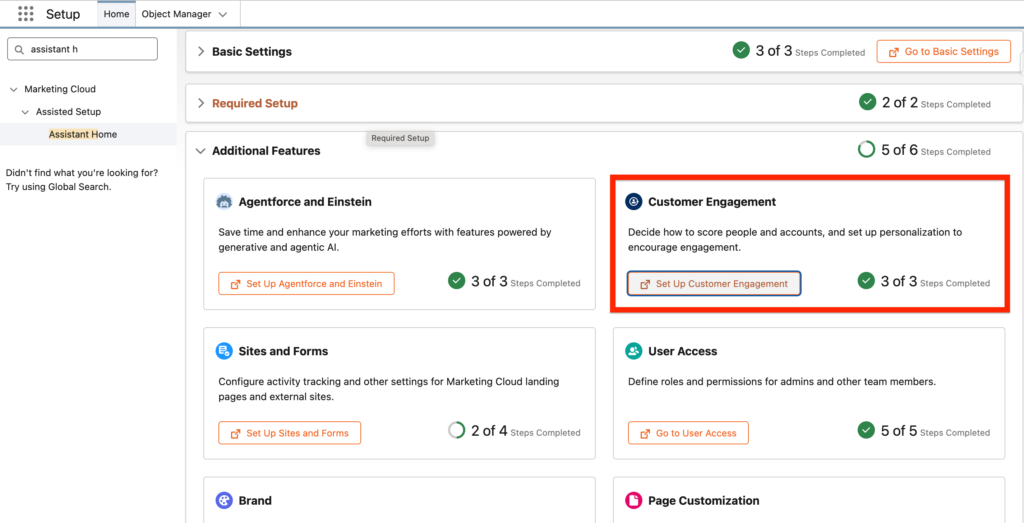
When enabling Marketing Cloud Next, you will be asked to select a Data Graph. Within Assistant Home, click on the ‘Customer Engagement’ Tab,
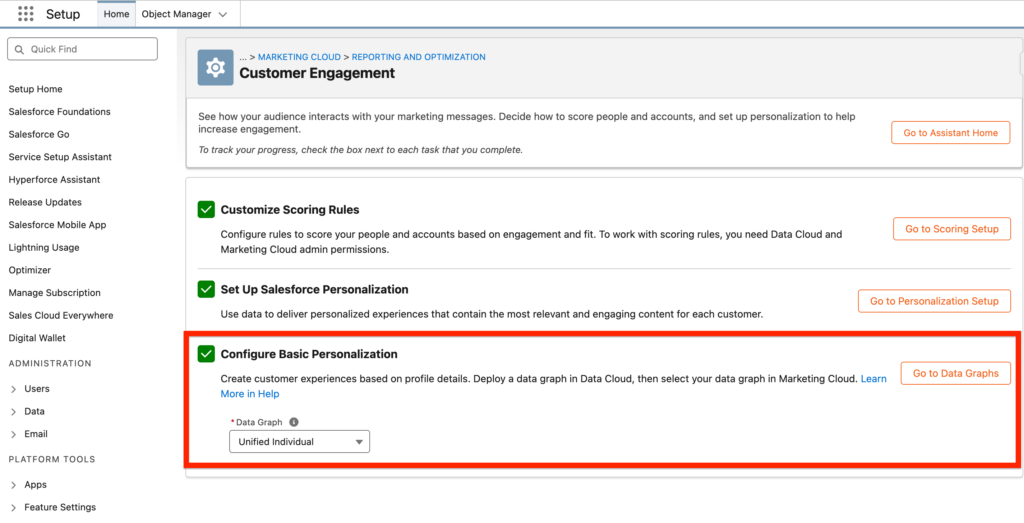
Within the Customer Engagement Tab, you will see the section ‘Configure Basic Personalization’, this is where you will be able to select the Data Graph that Marketing Cloud Next will rely on (i.e. Data Graph: Unified Individual in screenshot below) – Click on ‘Go to Data Graphs’ if you would like to configure your own Data Graph.
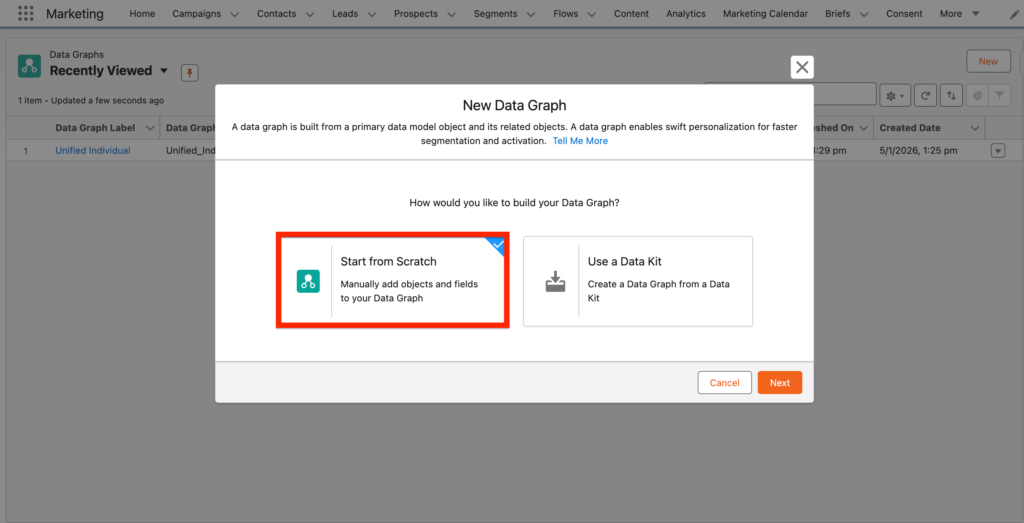
After landing on the Data Graphs page view, click new and ‘Create from Scratch’.
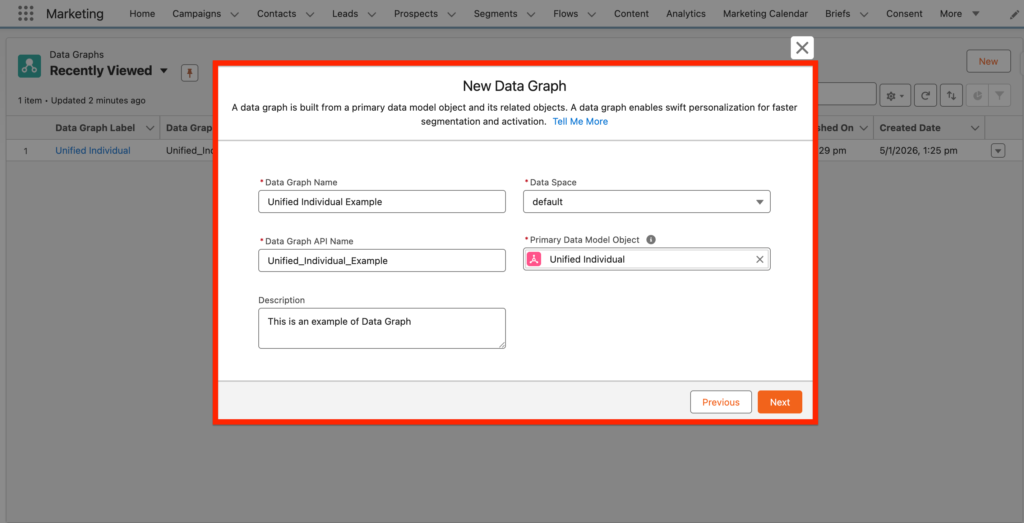
Within the new Data Graph pop-up window, give a name to the Data Graph (i.e. Unified Individual Example), select a Data Space (i.e. default) and select the Primary Data Model Object: Unified Individual.
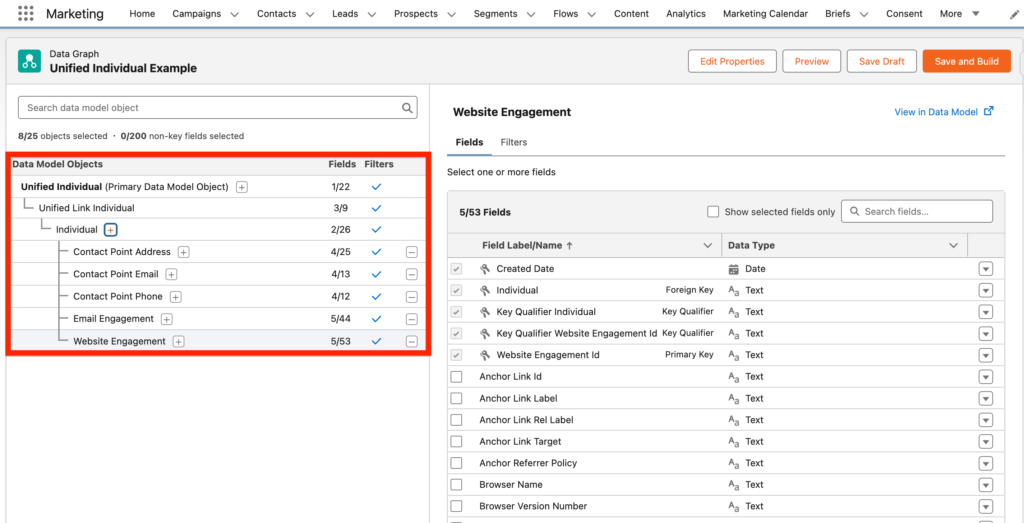
You will now be able to select the Data Model Objects that are part of the Data Graph. The most common selection will be Individual, Contact Point Email, Contact Point Phone, Contact Point Address, Email Engagement, Website Engagement DMOs (See screenshot below) – but of course it will totally depends of your implementation/use-cases. The only important info to remember is that to access the ‘Individual’ DMO you will need to select the ‘Unified Link Individual’ DMO that is acting as a link (Identity Resolution) between the 2 Data Model Objects.
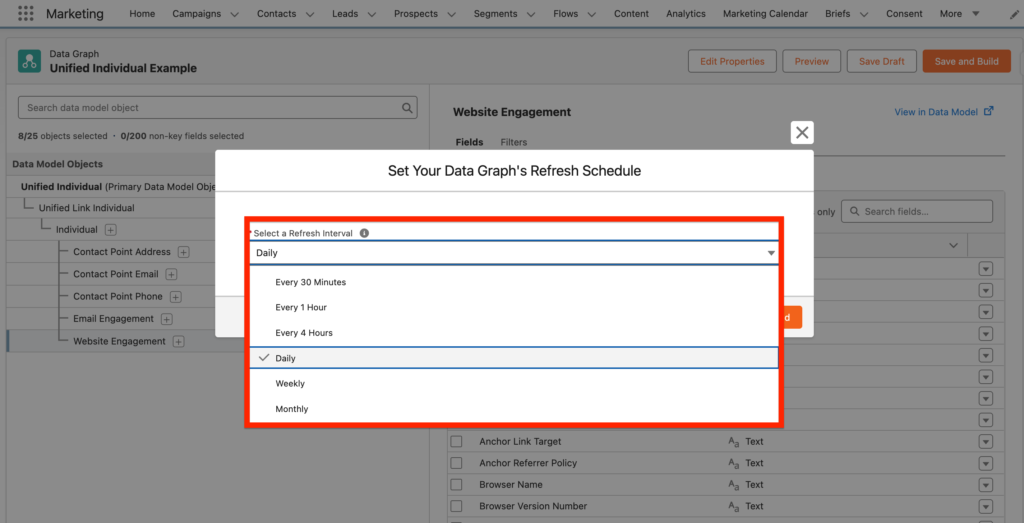
Once you are satisfied with the Data Model Objects and Field Attributes selected click Save and Build and you will have to set your Data Graph’s Refresh Schedule – Please note that the more often you refresh your Data Graph the more credits will be consumed.
How to use a Data Graph in Marketing Cloud Next? #
I will provide a simple example on how to use the Data Graph in Marketing Cloud Next. In this use case I will show you how Data Graph can be used to personalise an email template with Merge Field.
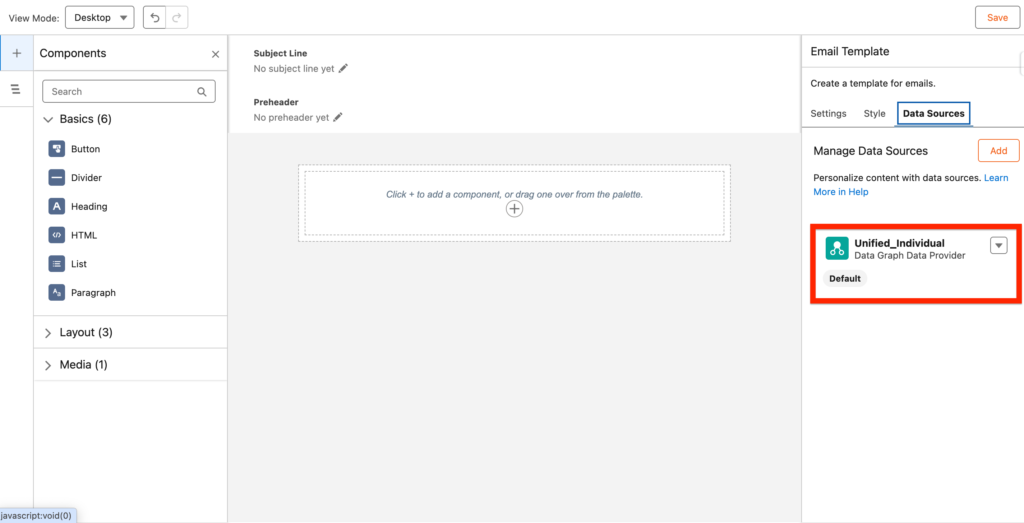
In this brand new email template, you will notice that the Data Source selected is the Data Graph ‘Unified individual’.
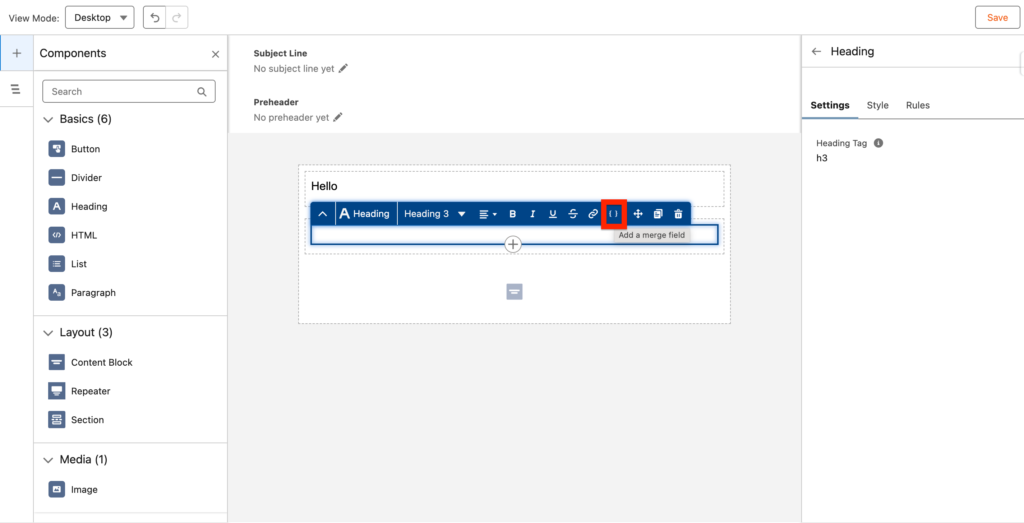
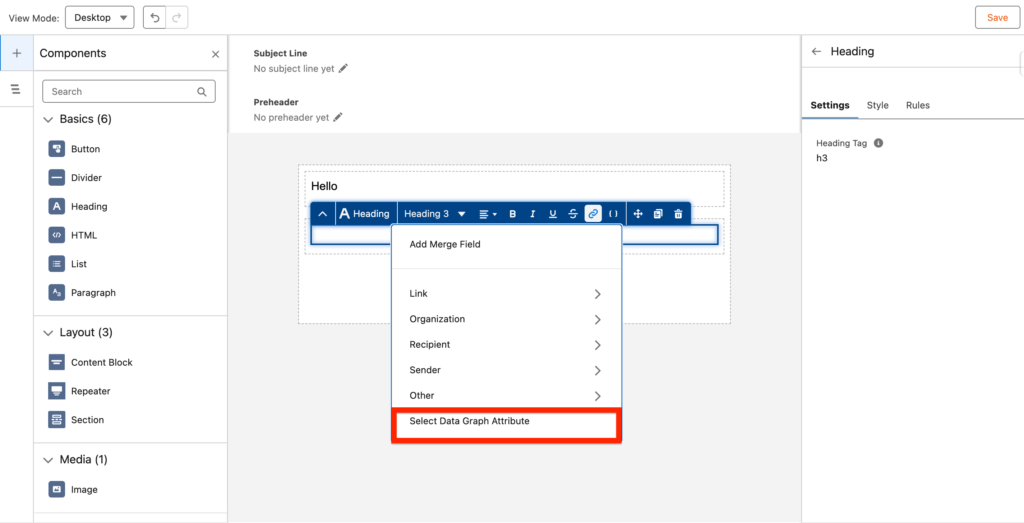
Within the Heading widget we are selecting the button ‘Add a merge field’.
Then we are clicking on ‘Select Data Graph Attribute’.
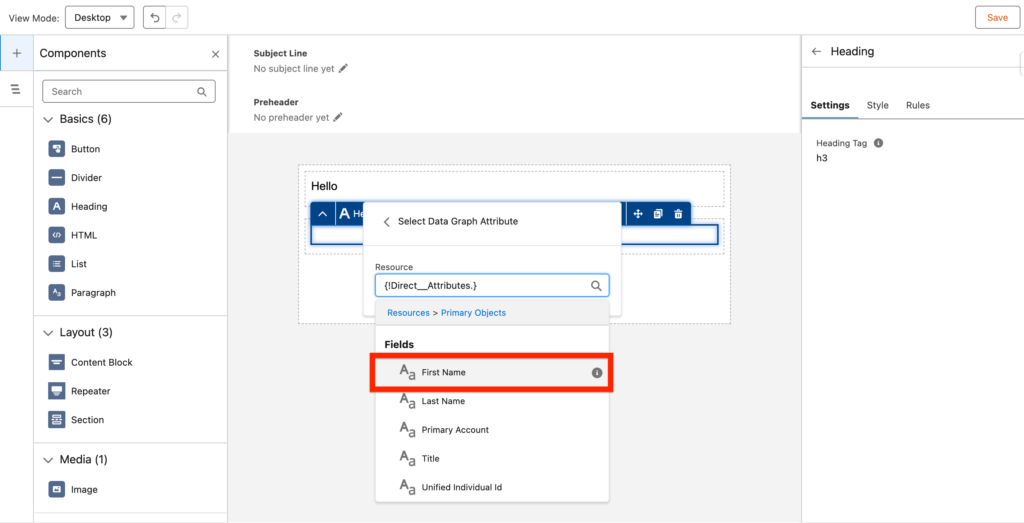
Then we are selecting the First Name Attribute field.
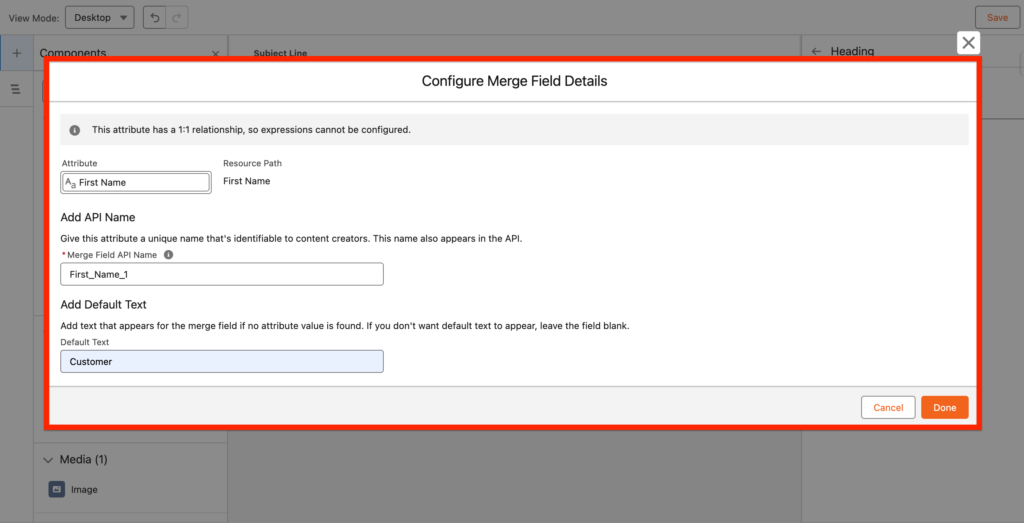
A pop-up window will appear in order for use to review and add a Default text (i.e. if the FirstName attribute isn’t found the word ‘Customer’ will be displayed instead).
Well done! You know how to use a Data Graph in Marketing Cloud Next!
Ressources: #
https://help.salesforce.com/s/articleView?id=data.c360_a_data_graphs.htm&type=5
https://help.salesforce.com/s/articleView?id=data.c360_a_data_graph_data_structures.htm&type=5
https://help.salesforce.com/s/articleView?id=data.c360_a_build_and_manage_data_graphs.htm&type=5