In Marketing Cloud Next, the notion of Data Kits is often coming along. You will often have to install Data Kits in order to enable the platform and expend it to further usages. In this article, we will learn what is a Data Kit and how and where to use it in Marketing Cloud Next.
What are Data Kits? #
Data Kits are initially part of the Data Cloud Platform but are often used in Marketing Cloud. If I had to explain what it is to someone that is not familiar with Salesforce, I would describe it as a LEGO box that contains a lot of bricks to build a Lego creation. Simple as that. In our case, Data kits contains the objects, fields, and data connections that make Marketing Cloud Next work.
Prerequisites #
When implementing with Marketing Cloud Next, the very first step is to enable Data 360 (Data Cloud), the next step is to install the Marketing Cloud Next Data Kit. Thankfully Salesforce made this process extremely straightforward and easy.
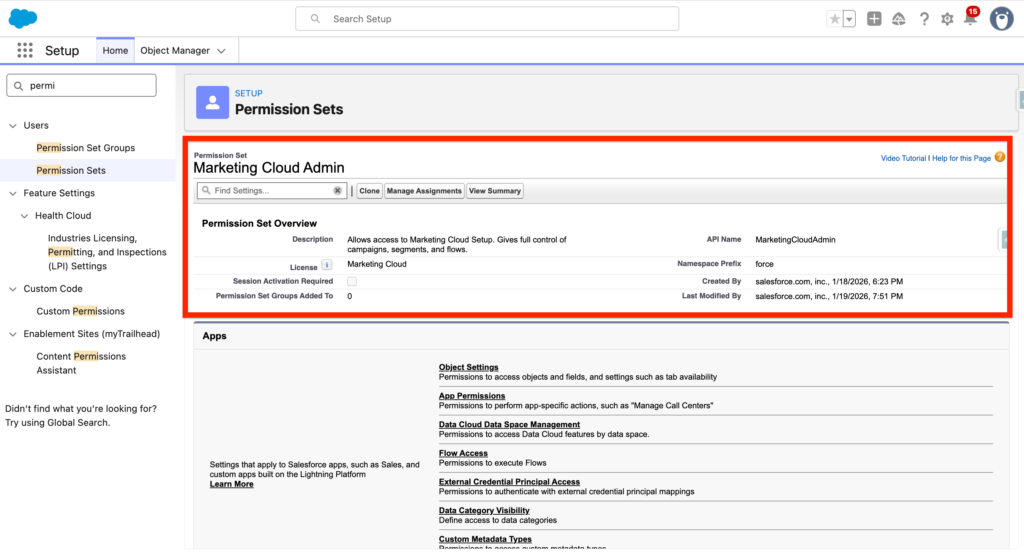
Firstly, ensure that you are the Marketing Cloud Admin permission set associated with your user.
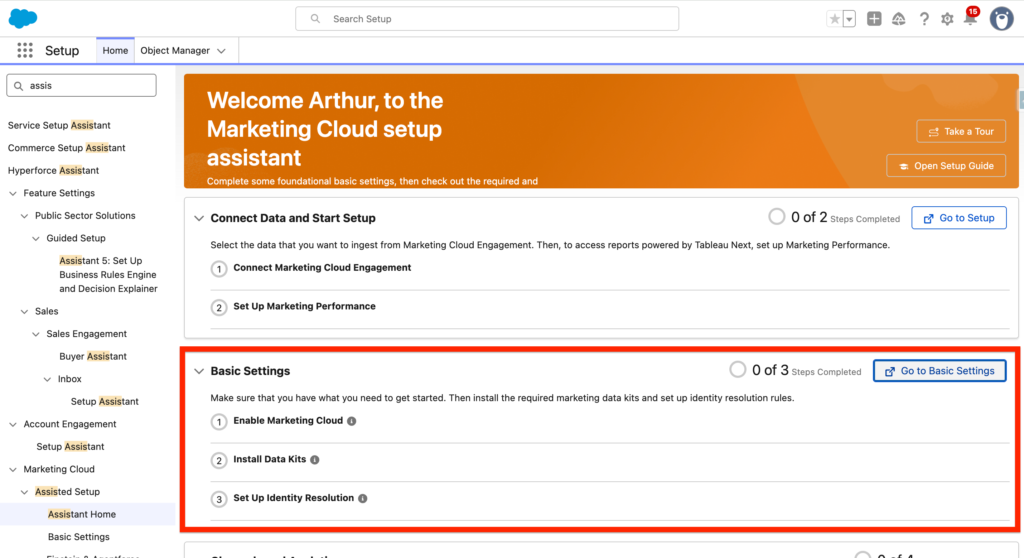
Then navigate to Home Assistant in Set-up and click ‘Go to Basic Settings’.
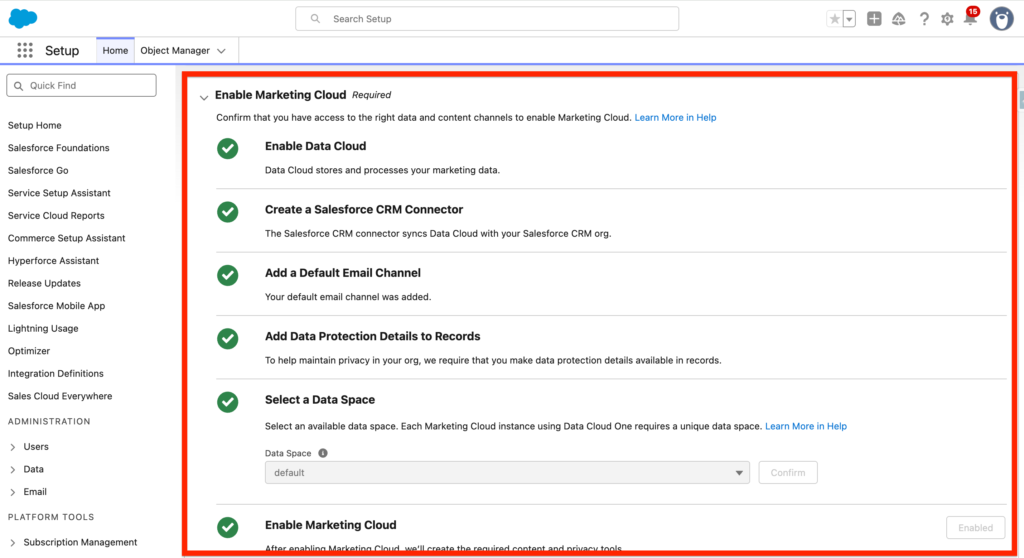
Within the Basic setting page, ensure that you complete the first step that includes the following steps:
- Enable Data Cloud
- Create a Salesforce CRM Connector
- Add a Default Email Channel
- Add Data Protection Details to Records
- Select a Data Space
- Enable Marketing Cloud
Installing the Marketing Cloud Next Data Kit #
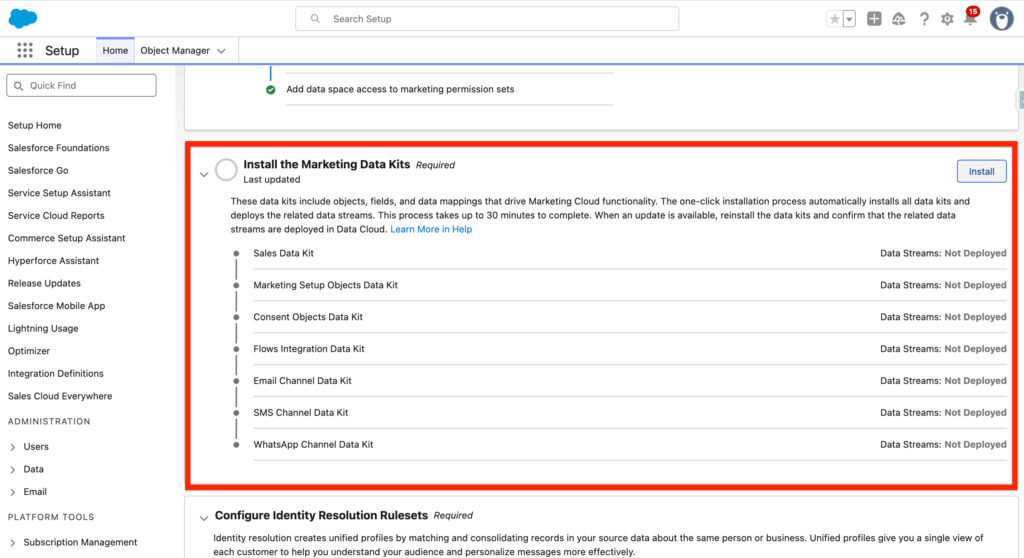
Now you can install the Marketing Cloud Next Data Kits (Up to 30 min to install):
- Sales Data Kit
- Marketing Setup Objects Data Kit
- Consent Objects Data Kit
- Flows Integration Data Kit
- Email Channel Data Kit
- SMS Channel Data Kit
- WhatsApp Channel Data Kit
Installing Data Kits for other Salesforce Products #
If you wish to ingest other Salesforce product into Data Cloud such as Account Engagement, Sales Cloud, Salesforce CDP CRM Loyalty, Service Cloud and more. You will need to navigate into Data Cloud Set-up, Salesforce CRM and you will have the possibility to install a Standard Data Bundles. These Data Bundles are essentially Data Kits that once installed will allow you to populate the objects, fields and connections in Data Cloud in order to ingest the Data from these platforms.
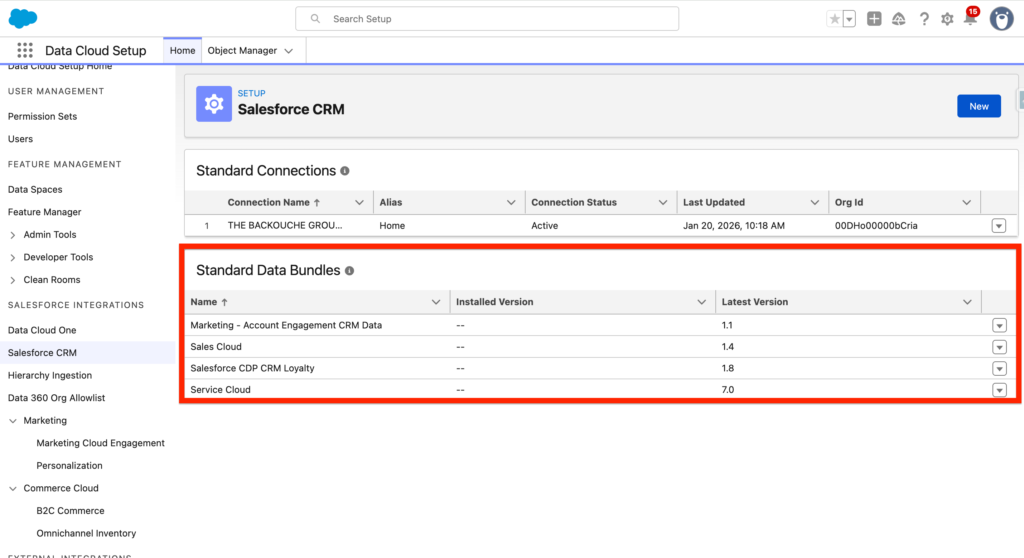
For example, I can click on the arrow next to service cloud and install the Standard Data Bundle related to it. A Standard data bundle is a Salesforce-defined data stream definition that includes mapping from a data source to the Data 360 DMO structure. Bundles can be customized and some connectors offer multiple data bundle options. When data is ingested from a data source, it’s stored in a data lake object (DLO). These DLOs represent your source data, whether that is from a Salesforce source or an external data source.
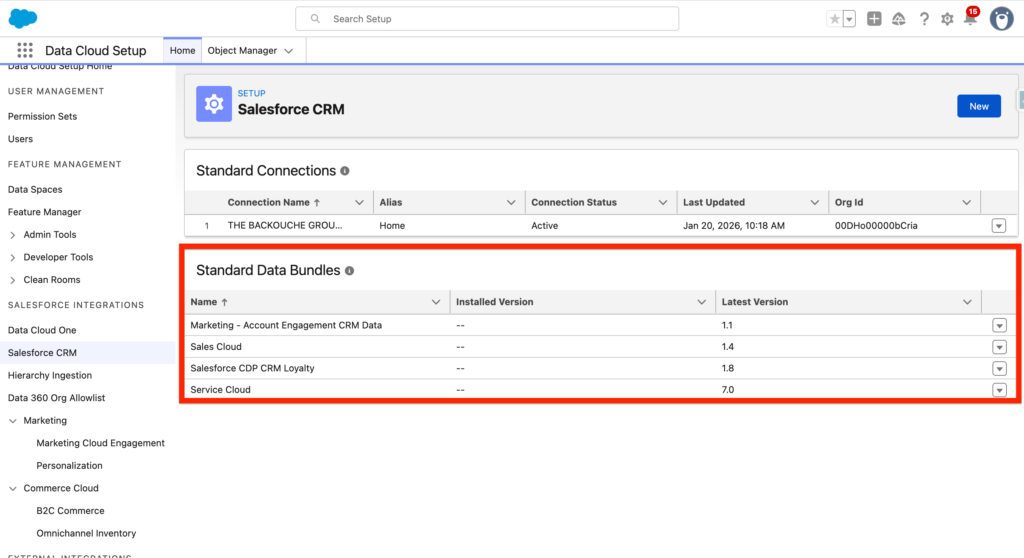
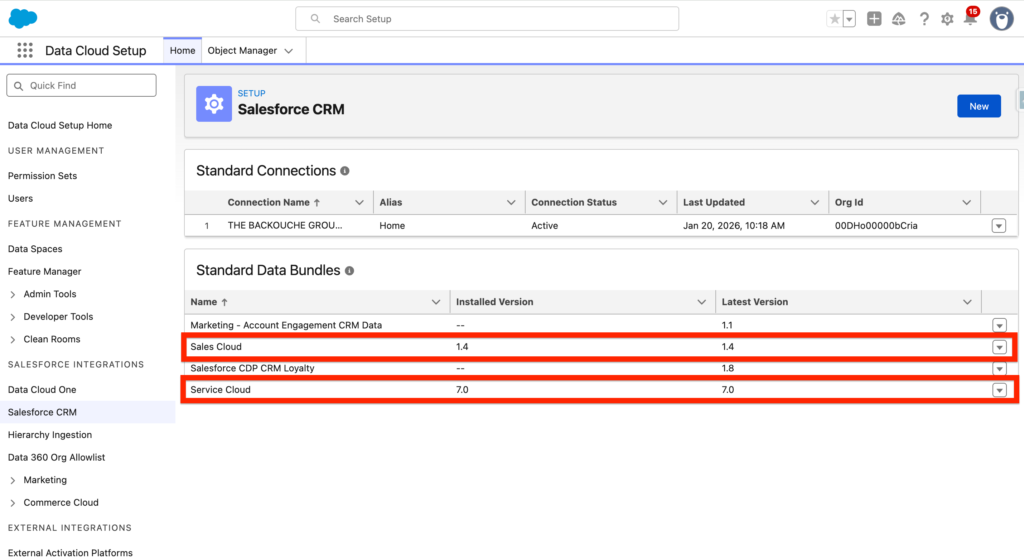
When installed you will be able to visualise the installed version number as well as the latest version available.
Ressources:
- https://help.salesforce.com/s/articleView?id=data.c360_a_data_package_kits.htm&type=5
- https://developer.salesforce.com/docs/data/data-cloud-dev/guide/packages-data-kits.html
- https://www.salesforceblogger.com/2025/02/27/packaging-data-cloud-with-data-kits/
- https://help.salesforce.com/s/articleView?id=mktg.mktg_admin_data_kits_install_main.htm&type=5
- https://help.salesforce.com/s/articleView?id=mktg.mktg_admin_data_kits_ref.htm&type=5
- https://help.salesforce.com/s/articleView?language=en_US&id=mktg.mktg_admin_data_kits_install_main.htm&type=5
- https://help.salesforce.com/s/articleView?id=data.c360_a_install_standard_data_bundles_powered_by_data_kits.htm&type=5
- https://developer.salesforce.com/docs/data/data-cloud-dmo-mapping/guide/c360a-starter-data-bundles.html