Setting up Marketing Cloud Next is not one switch. It is more than twenty steps spread across Setup, the Data Cloud app and Marketing Setup. Several of them run in the background for half an hour or more. Some fail silently. A few can only be done in a specific order, and one choice (the data space) is permanent.
I built mcnext-setup, a Claude Code agent that runs that whole setup for you in a sandbox or demo org. You answer a short list of questions once. The agent builds each step, proves it worked with the org’s own data, and hands you a PDF at the end.
This article shows how it works, step by step, with screenshots from a real setup on a demo org.
The four phases #
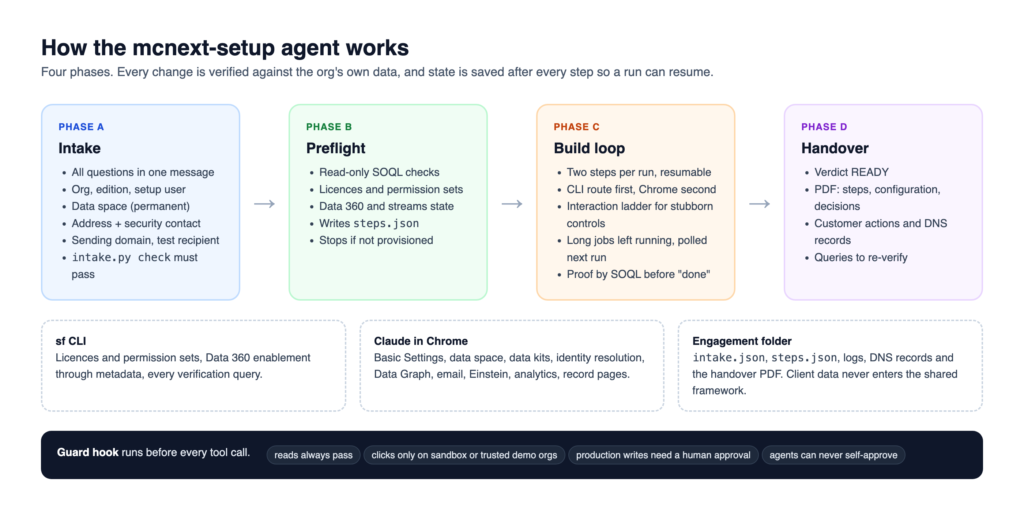
The agent works in four phases:
- Intake. It asks every question it needs, in one message, before touching the org.
- Preflight. It reads the org and records where each step stands.
- Build loop. It builds the missing steps, two at a time, and verifies each one.
- Handover. It writes a PDF with what was done, what was skipped and why, and what is left for you.
State is saved to a small file (steps.json) after every step. If a run stops for any reason, the next run picks up exactly where the last one ended.
Phase A: ask everything up front #
The first version of the agent asked questions as it went. That meant a run could stop halfway through, waiting for a phone number. The biggest lesson from the first live setup was simple: ask for everything before starting.
The intake covers:
- the org: My Domain, sandbox or demo org, edition, and the user who runs the setup
- the data space (usually
default; Salesforce makes this choice permanent) - the company address for the email footer
- a security contact (name, email, phone)
- an optional sending domain, and whether to activate it
- an optional test recipient
- options: analytics apps, Einstein features, record page components
The security contact is a good example of why this matters. Salesforce will not save the company address in Company Information without it. Nothing in the documentation warns you. The agent found out the hard way, so now it asks on day one.
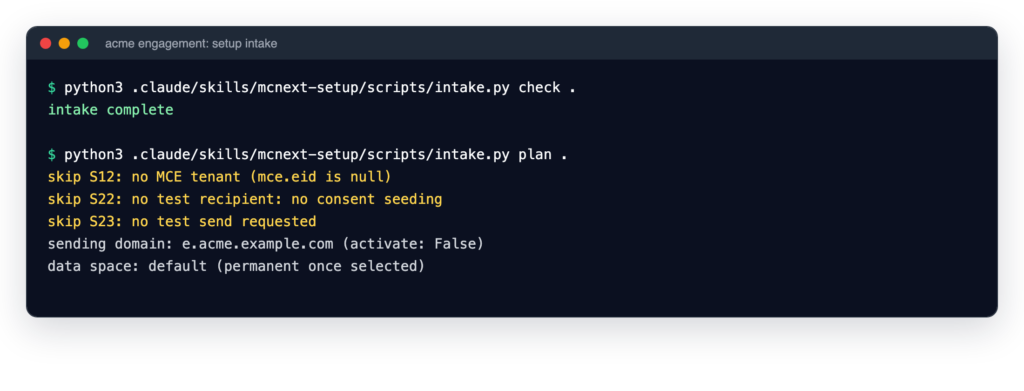
A small script checks the answers and refuses to start while anything is missing:
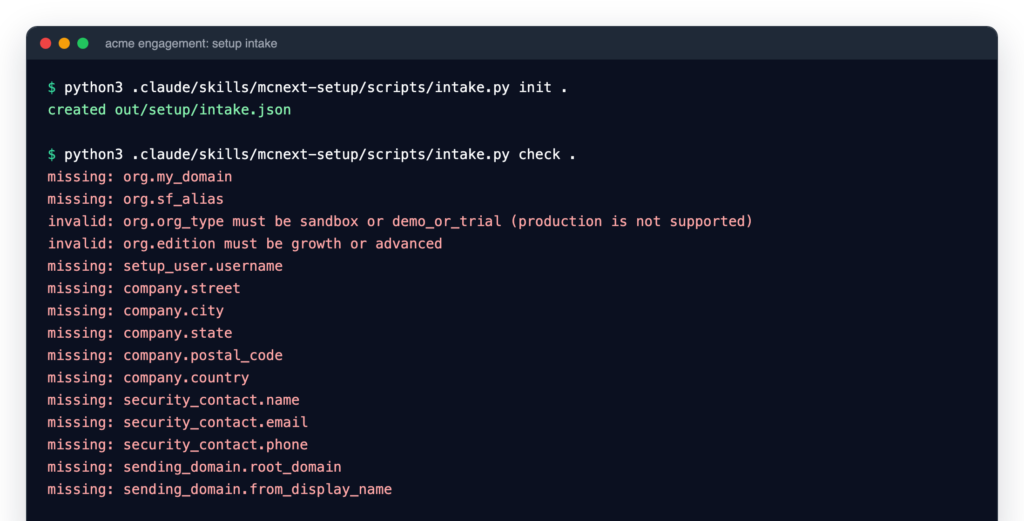
Once the answers are in, the same script confirms the intake and lists the steps your answers skip. No sending domain? No test recipient? Those steps are marked as skipped by decision, not left open.
Phase B: preflight #
Before changing anything, the agent reads the org with SOQL through the Salesforce CLI: licences, permission sets, whether Data 360 is on, which data streams exist. If the Marketing Cloud or Data Cloud licences are missing, it stops. That is a provisioning request for your Salesforce account team, not a setup task.
Phase C: the build loop #
This is where most of the work happens. Each run picks the next step whose dependencies are done, builds it, verifies it, and saves the result. Two steps per run keeps each run short and easy to resume.
Command line first, browser second #
Some steps have a command-line route, and the agent always takes it when it exists:
- Licences and permission sets are assigned with
sf org assign permsetlicenseandsf org assign permset. - Data 360 is enabled through the Metadata API: retrieve the
CustomerDataPlatformsetting, setenableCustomerDataPlatformto true, dry run, deploy.
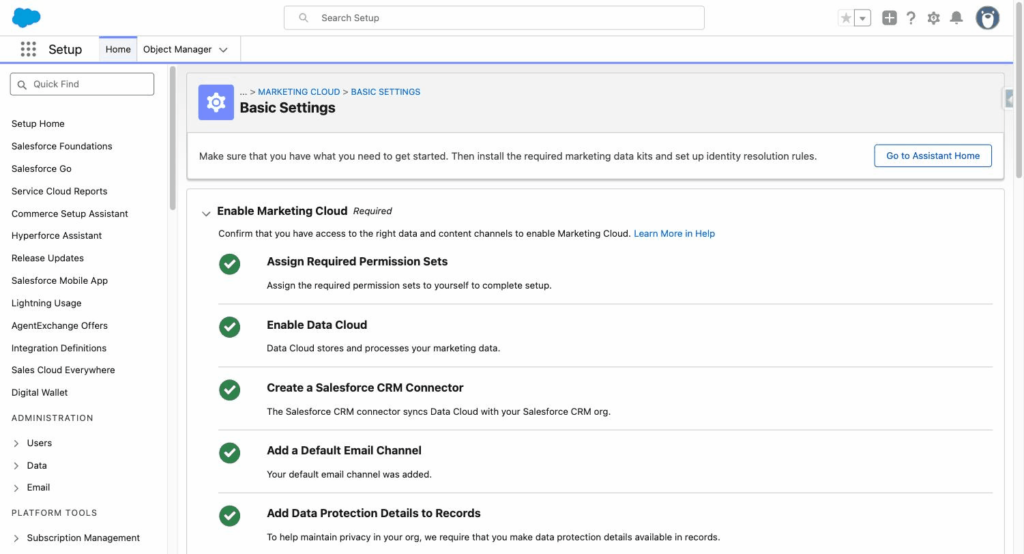
Everything else has no API: Basic Settings, the data space, data kits, identity resolution, the Data Graph, email settings, Einstein, analytics and record pages. For those, the agent drives Setup in Chrome with Claude in Chrome.
What the agent learned the hard way #
Every row of the agent’s route file came from a real problem. A few that would have cost a human hours:
- The data space picker was empty. The
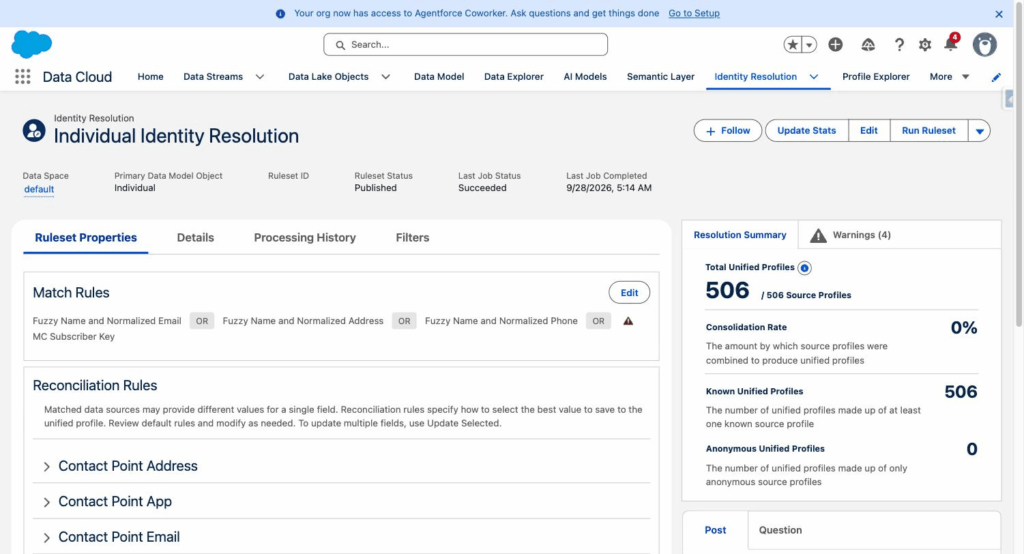
defaultdata space existed, yet the list showed nothing. There were two causes. Data 360 provisioning was still running in the background, and the data space had not been granted to the permission sets. The fix sits on each permission set’s “Data Cloud Data Space Management” page. - Identity resolution said “Success” with zero profiles. “Generate Ruleset” in Basic Settings only publishes the ruleset. You also have to open the ruleset record and click Run Ruleset. After that, the demo org had 506 unified profiles from 506 source records.
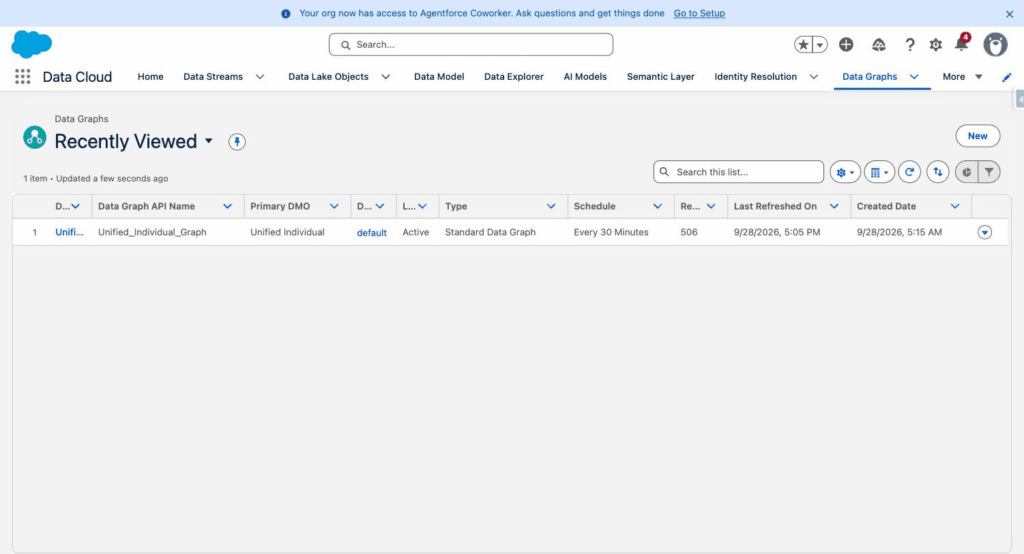
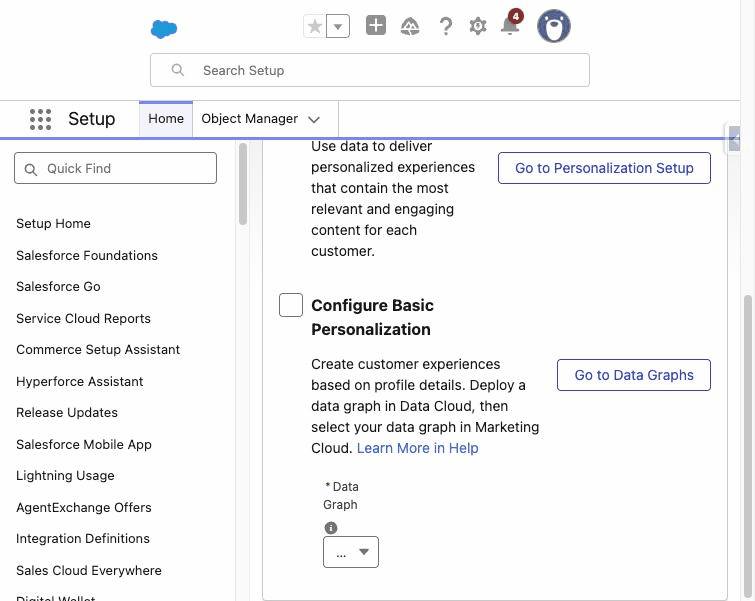
- The Data Graph editor ignored every click. Clicking a graph’s name opens a read-only view. You can only edit from the row menu, then Edit.
- Einstein features live on four separate pages, and their data objects attach to the plain Contact Point Email node in the graph, not the unified one.
- Some checklist boxes are just reminders. On Set Up Email, a few checkboxes track your own progress; Salesforce does not tick them for you.
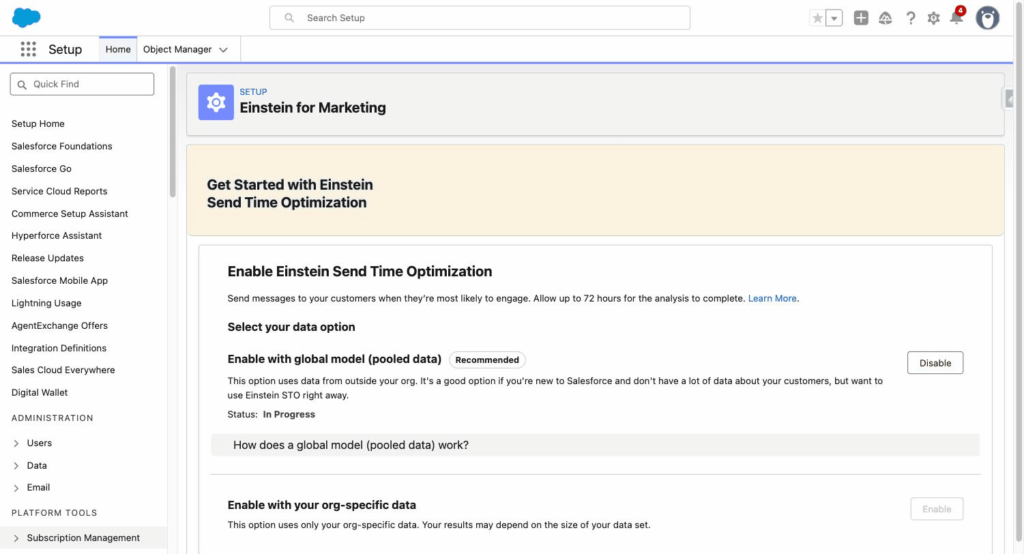
- A click that looks like it worked may not have. While taking the screenshots for this article, the agent re-read the Einstein pages and found Send Time Optimization still disabled, although an earlier run had recorded it as enabled. The first Enable click had not registered. The agent re-enabled it and now reads every Einstein status after a reload, and again before the handover.
Long jobs do not block the run #
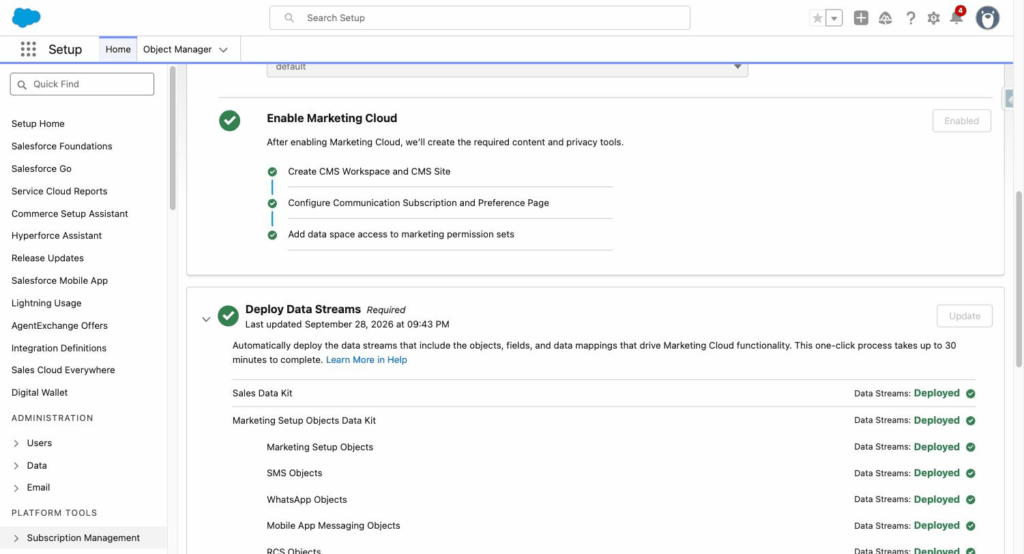
Data 360 provisioning, the data kits, identity resolution, graph builds and analytics installs can each take 15 to 75 minutes. The agent starts them, records the start time, and moves on to independent steps. The next run checks on them. On the demo org, the data kits took about an hour to deploy and the send-time model keeps training for up to 72 hours. None of that held the setup up.
When the browser does not cooperate #
Lightning pages do not always respond to automated clicks. The agent follows an escalation ladder for each stubborn control:
- click the right element (the option, not the text inside it)
- set the value directly
- use the keyboard
- run a small script inside the page’s hidden components
- reload and try again
- find another route to the same result
- only then, hand the step back to you with exact instructions
Classic Setup pages are a special case: they sit inside an embedded frame that browser tools cannot see. The agent reaches into the frame directly. That is how it saved the company address and security contact.
Staying safe in a live org #
An agent that clicks around Setup needs guardrails that do not depend on it behaving. mcnext-setup runs under a guard hook that checks every tool call before it happens:
- reads always pass
- clicks and changes only pass on sandboxes, or on a demo org you have explicitly trusted for a limited time
- anything that touches production, or Marketing Cloud Engagement, needs a one-time approval that only you can grant from your own terminal
- the agent can never approve itself
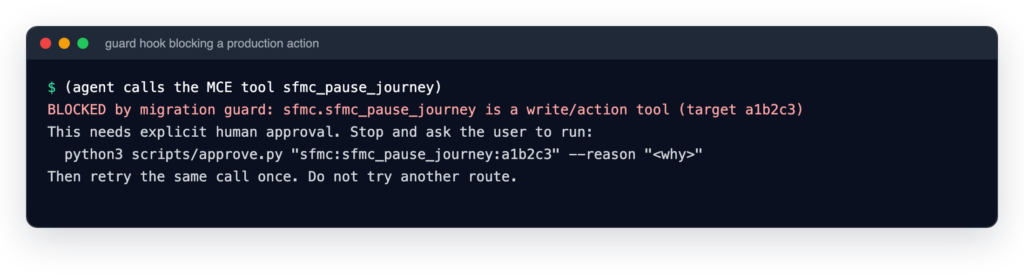
Demo orgs are a special case. They are not sandboxes, so by default the guard treats them as production. If you want one worked like a sandbox, you grant a 12-hour trust from your own terminal. It expires on its own.
One more rule came from a real incident: verify with the org’s own data. Midway through the demo setup, the agent was reading Data Cloud through a connector that was still pointed at a different org from earlier in the session. The numbers looked plausible and were wrong. The agent now proves every step with SOQL run against the target org, and trusts a connector only after checking it points at that org.
Phase D: the handover PDF #
When every step is done or skipped, the agent generates a handover PDF. It contains:
- the verdict and every step with a plain-language summary
- the configuration: data space, address, security contact, sending domain, Einstein features
- every skipped step and the reason
- what you still need to do, such as adding DNS records or activating a record page
- the DNS records for the sending domain, ready to paste at your registrar
- the SOQL queries to re-verify the setup yourself
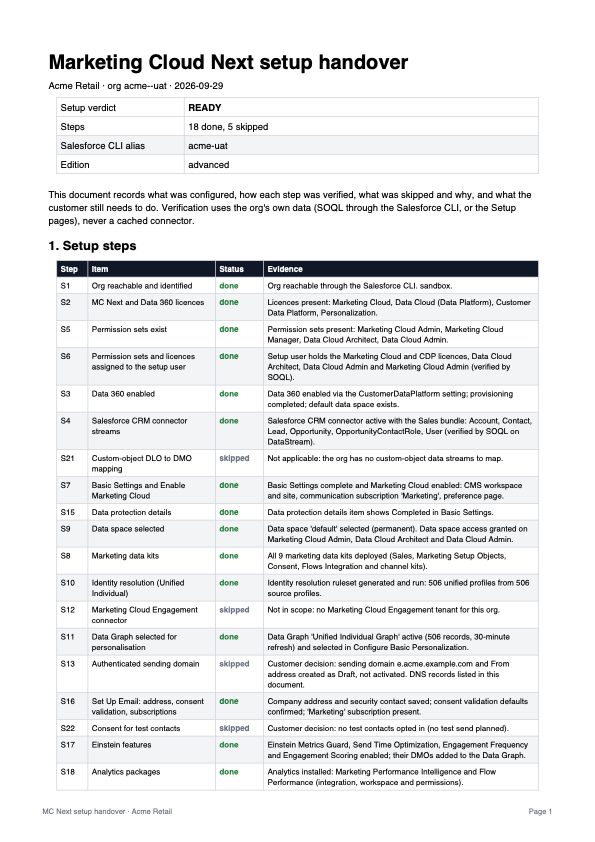
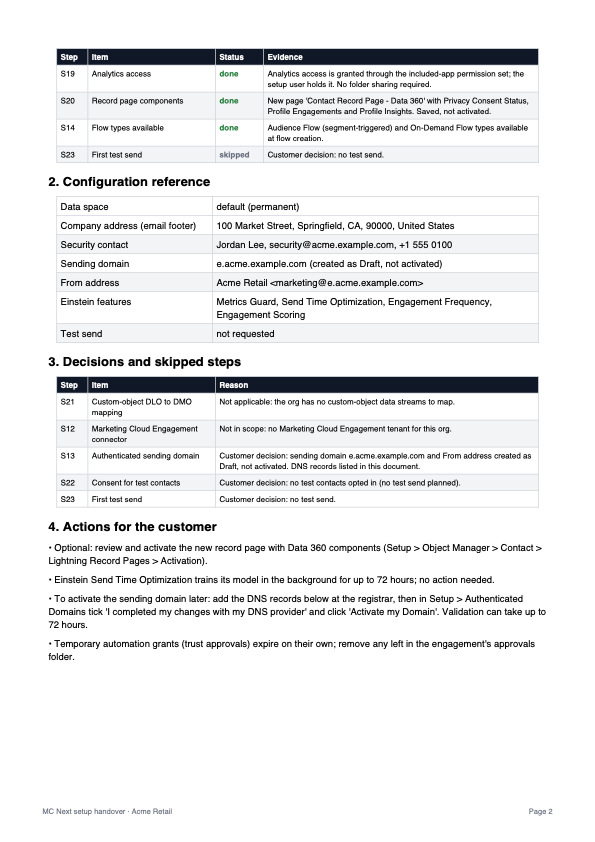
These examples use a fictional company. Your PDF contains your own details and stays in your project folder.
What still needs you #
The agent automates everything it safely can. A few things stay with you by design:
- answering the intake
- logging in: the Salesforce CLI, Chrome, and any login or MFA screen
- granting trust for a demo org, and approving anything in production
- adding DNS records at your registrar
- business decisions, such as activating a sending domain or a new record page
The result #
On the demo org, the agent took Marketing Cloud Next from licences to READY: 18 steps done and 5 skipped by decision (no Marketing Cloud Engagement tenant, no custom objects, no test send, sending domain left as a draft). It ended with 506 unified profiles, an active Data Graph used for personalisation, all nine data kits, four Einstein features and two analytics apps. It took 14 short runs, each resuming from the last, plus one re-check that caught and fixed the Send Time Optimization slip.
The biggest win was not speed. It was that every step came with proof, and every decision was written down.
Try it #
mcnext-setup is part of a larger agent team for migrating Marketing Cloud Engagement to Marketing Cloud Next, built on Claude Code. It needs Claude Code, the Salesforce CLI, a sandbox or demo org with Marketing Cloud Next and Data 360 licences, and the Claude in Chrome extension. The code is on GitHub: arthurbackouche/mcnext-setup-agent.
The setup knowledge draws on the Marketing Cloud Next documentation on this site and the “SFMC Tips” series by Nobuyuki Watanabe. Salesforce, Marketing Cloud and Data Cloud are trademarks of Salesforce, Inc.